
Signing in and security
This page explains how to get into Excelia CRM for the first time, how to sign in every day, what to do when you forget your password, and how two-factor sign-in and the other security features protect your account. It is for everyone who uses the CRM. The last section is for people who want to request Excelia CRM for a new company.
Your first sign-in: accept the invitation
You do not create your own account. Your company admin adds you, and you receive an e-mail titled "You're invited to … on Excelia CRM".
- Open the e-mail and click Set my password.
- The Set your password page greets you by name and shows the e-mail address of your account.
- Type your password in New password and again in Confirm password.
- Click Set password. The message You are ready appears.
- Click Sign in and sign in with your e-mail and the new password.
Invitation links expire
The invitation link works once and for 72 hours. If you see This link no longer works, ask your company admin to send the invitation again.
Password rules
Your company decides the minimum length (10 characters unless your admin changed it). A password must contain letters and numbers and must not be an easy-to-guess password. The rule is shown under the password field.
Signing in
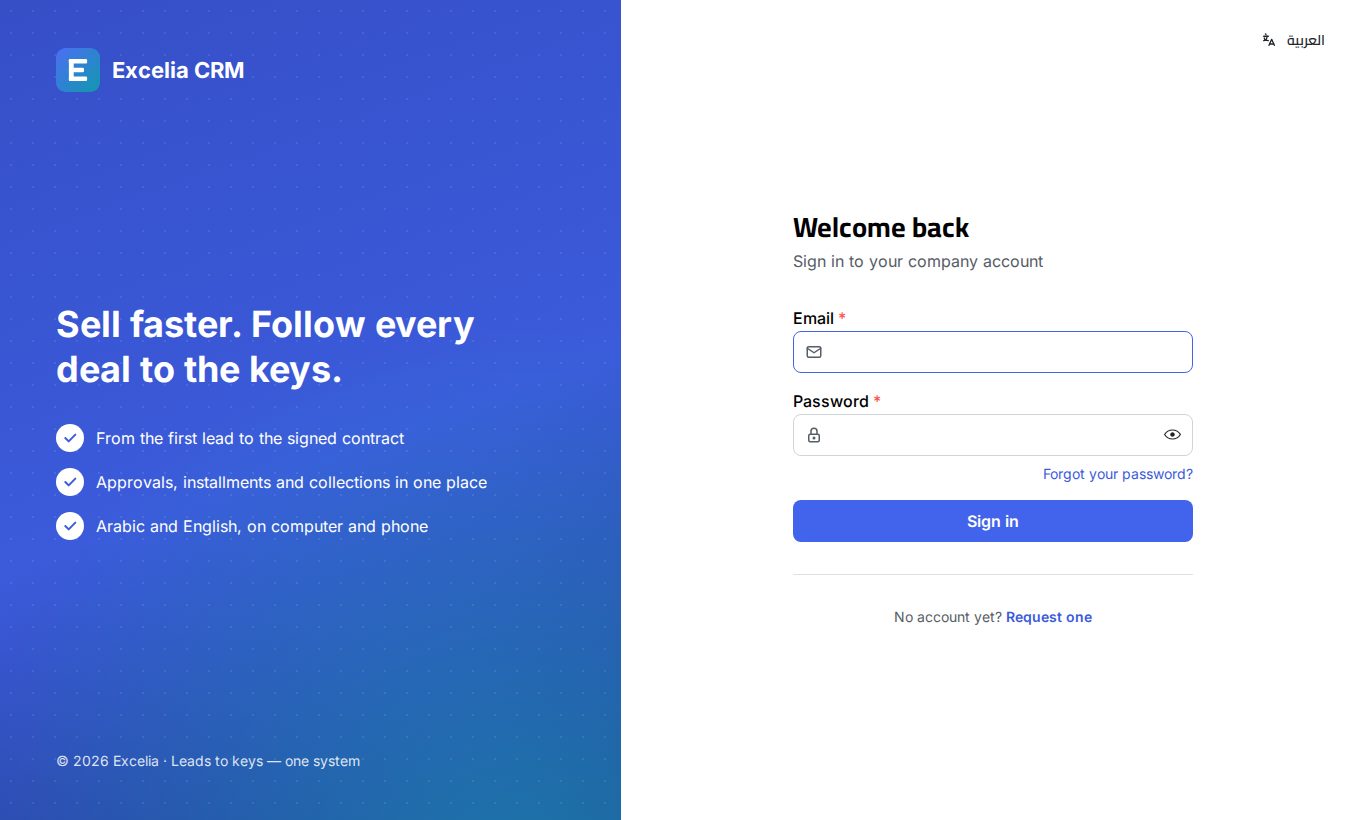
- Open the CRM (for example app.exceliacrm.com).
- Enter your Email and Password.
- Click Sign in.
If your account uses two-factor sign-in, a second step asks for a code (see below). After signing in you land on the dashboard.
To use the CRM in the other language, click العربية / English at the top of the sign-in page.
Locked after wrong passwords
After 5 wrong passwords, the account is locked for 15 minutes. Wait and try again, or ask your admin to send you a password reset.
If you see a message that your company account is suspended or the subscription has expired, nobody in your company can sign in until it is renewed. Your company admin should contact Excelia.
Forgot your password
- On the sign-in page click Forgot your password?
- Enter your e-mail address and click Send the link.
- Open the e-mail Reset your password and click Choose a new password.
- Type the new password twice and click Save new password.
- Sign in with the new password.
Tip
The link works once and for 60 minutes. If the e-mail doesn't arrive within a few minutes, check your spam folder. For your security the page shows the same message whether or not the address has an account.
After a reset, every browser and phone where you were signed in is signed out, and you receive an e-mail Your password was changed.
Two-factor sign-in
Two-factor sign-in adds a second step after your password: a 6-digit code from an authenticator app on your phone (Google Authenticator or Microsoft Authenticator). Even someone who learns your password cannot sign in without your phone.
- Anyone can turn it on from My profile.
- Your company can require it for some roles. In that case you set it up at your next sign-in and you cannot turn it off.
Setting it up
When your company requires it, you see Set up two-factor sign-in right after your password. (From your profile, click Turn on two-factor sign-in; the steps are the same.)
- Install Google Authenticator or Microsoft Authenticator on your phone.
- In the app tap + and scan the QR code on the screen. If you can't scan, type the key shown under the code into the app.
- Enter the 6-digit code the app shows.
- Optionally tick Trust this device for 30 days.
- Click Turn on two-factor sign-in.
- The page Save your recovery codes shows 10 codes. Click Copy all or Download and keep them somewhere safe, such as a password manager.
- Tick I have saved my recovery codes and click Continue.
Recovery codes are shown only once
Each recovery code lets you sign in once if you lose your phone. They are not shown again. You can make a new set from your profile at any time.
Signing in with a code
- Sign in with your e-mail and password as usual.
- On Two-factor sign-in, enter the 6-digit code from your authenticator app.
- Tick Trust this device for 30 days (don't ask for a code here) if this is your own computer or phone.
- Click Verify.
The code step lasts 10 minutes. If it expires, click Back to sign-in and start again.
Lost your phone?
- Click Use a recovery code, type one of your saved codes and click Verify. Each code works once. After signing in, a message tells you how many codes are left; make new ones from your profile.
- No recovery codes? Ask your company admin to reset two-factor sign-in for you (Reset 2FA on the user). You receive an e-mail when it is done. If your role requires it, you set it up again at your next sign-in.
Wrong codes count like wrong passwords: after 5, sign-in is locked for 15 minutes.
Security e-mails you may receive
These account e-mails are always sent and cannot be switched off:
- New sign-in to your account: your account was used from a browser or device it has never been used from before. If it was you, do nothing. If not, change your password right away, turn on two-factor sign-in, and sign out the other devices from My profile.
- Your password was changed: after a change or a reset. Other devices are signed out.
- Two-factor sign-in was reset: your admin turned it off for you.
Signed out automatically
When you don't use the CRM
For your security, your company signs you out after a period without using the CRM (60 minutes unless your admin changed it).
- One minute before, a Still there? window counts down. Click Stay signed in to continue, or Log out.
- Activity in any tab of the CRM counts, so working in another CRM tab keeps you signed in.
- If you were signed out, the sign-in page says so. Sign in again to continue.
When your session is ended elsewhere
If you sign out "everywhere else" from another device, change your password, or an admin signs you out, the sign-in page shows Your session was ended. Just sign in again.
When your password expires
Your company may ask for a new password every so many days. When that time comes you see Choose a new password and nothing else opens until you change it:
- Enter your Current password.
- Enter the New password and Confirm new password.
- Click Change password.
Signing out
Click your name at the top of the screen and choose Log out. Signing out also ends the session on the server.
Requesting Excelia CRM for a new company
If your company doesn't use Excelia CRM yet, you can ask for an account.
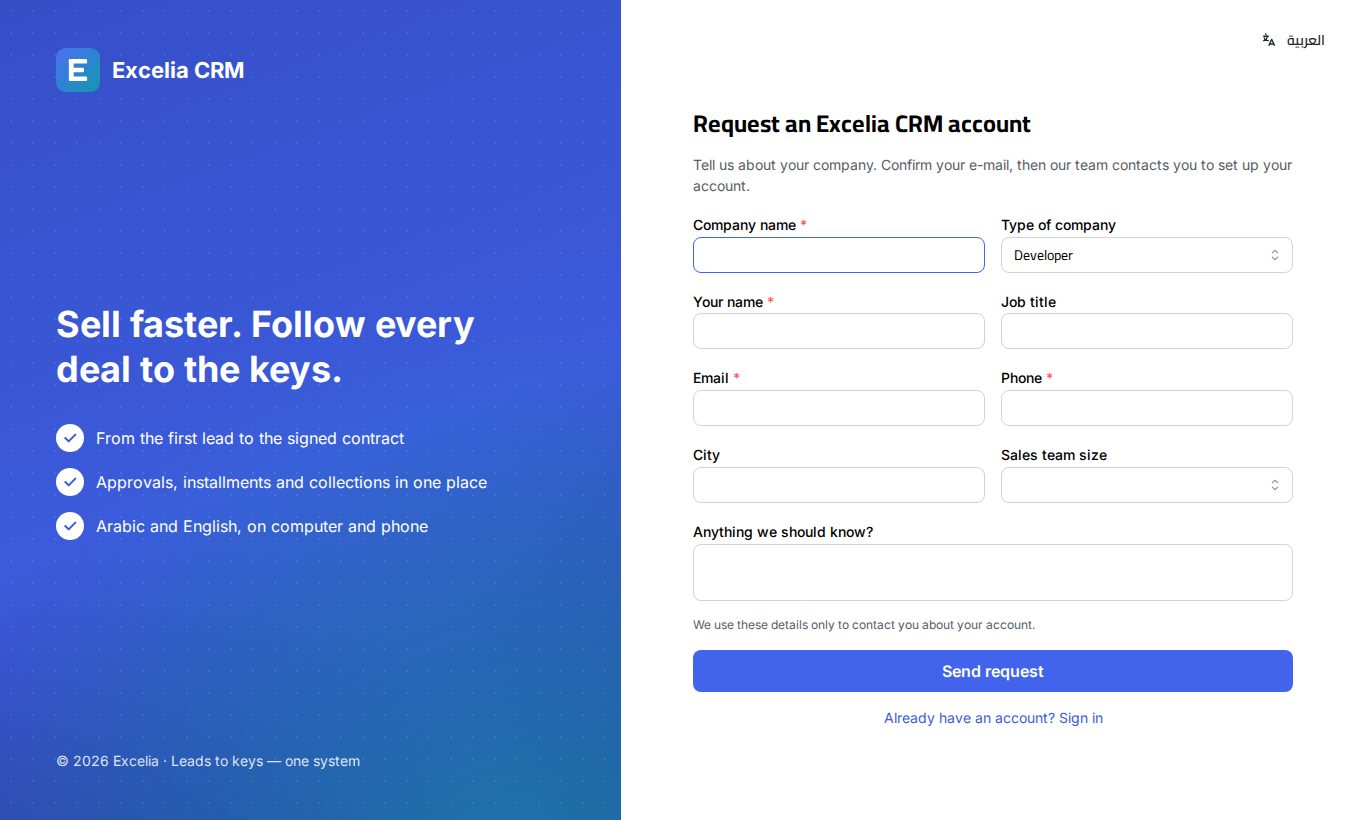
- On the sign-in page click Request one (next to No account yet?).
- Fill in Company name, Type of company (Developer, Brokerage, or Developer & brokerage), Your name, Job title, Email, Phone, City and Sales team size. Add anything else in Anything we should know?
- Click Send request.
- You see Check your e-mail. Open the e-mail and click the link to confirm your request. The link works for 72 hours.
- The page shows Request confirmed. The Excelia CRM team will contact you.
- Once your request is approved, the company is created and you receive an invitation e-mail as its admin. Follow Your first sign-in, then continue with Setting up your company.
If the confirmation link has expired, click Fill in the form again.
Good to know
- Your e-mail address is your user name. Only your company admin can change it.
- Use a password you don't use anywhere else, and don't share your account: every action in the CRM is recorded under your name.
- Two-factor sign-in on a trusted device is remembered for 30 days. Changing your password or turning off two-factor sign-in forgets all trusted devices.