
Brokerage
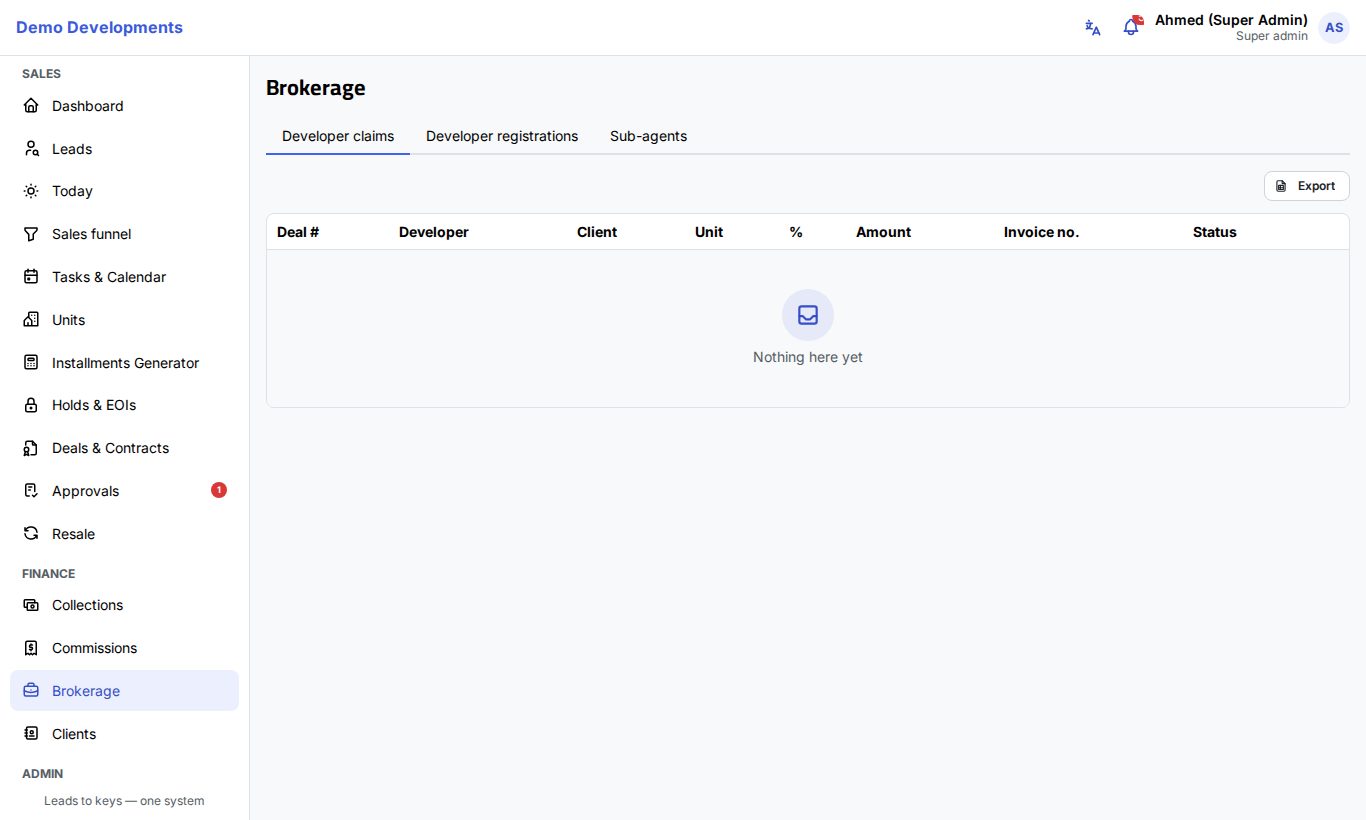
The Brokerage page is for companies that sell other developers' projects, and for companies that work with outside brokers. It has three tabs: Developer claims (the commission your company is owed by developers), Developer registrations (clients you registered with a developer to protect your commission) and Sub-agents (outside brokers who bring you clients).
Who sees what
- The page is in the Finance group of the menu for everyone with collections access (sales agents, team leaders, sales managers, Finance and company admins).
- Developer claims is shown to Finance, sales managers and company admins. Only Finance and company admins can edit claims.
- Developer registrations shows the registrations of the leads you can see.
- Sub-agents can be viewed by everyone on the page; company admins and sales managers add and edit them.
Developer claims
When you sell a unit in a project whose developer is not your own company, the developer owes you a commission. Excelia CRM keeps track of it as a claim.
How a claim is created
A claim is created automatically when the deal becomes Contracted (the contract signed by the company is uploaded), if the project's developer is not marked Our company (primary sales). The claim's % is the project's Broker commission %, or the developer's Default commission % when the project has none. The amount is the deal's net price × that %.
These values are set in Inventory: the developer's details on the Developers tab, and the project's Broker commission % in the project form. See Projects and units.
Following up a claim
| Status | Meaning |
|---|---|
| Pending | Created; not yet claimed from the developer. |
| Claimed | You asked the developer for the commission. |
| Invoiced | You sent the developer an invoice. |
| Collected | The developer paid. |
| Rejected | The developer refused, or the deal was cancelled or terminated. |
To update a claim (Finance and company admins):
- Open Brokerage → Developer claims.
- Click Edit on the claim's row.
- Choose the new Status, and fill in the Invoice no., the Collected amount (it starts at the claim amount; change it if the developer paid a different amount) and Notes.
- Click Save.
The dates are stamped for you the first time a claim becomes Claimed, Invoiced or Collected. When a deal is cancelled or terminated, its claim becomes Rejected, unless it was already collected.
Click Export to download all claims as an Excel file: deal, developer, client, unit, project, %, amount, status, invoice number, the claimed, invoiced and collected dates, the collected amount and notes.
The deal page shows the deal's claim on its Commissions tab.
Developer registrations
Many developers pay a broker only if the broker registered the client with them first. A registration records that you did, and until when it is valid.
Registering a client with a developer
- Open the lead's page.
- Click Actions → Register with developer.
- Choose the Developer, and add the Reference the developer gave you and any Notes.
- Click Save.
The registration starts as Pending and is valid for the developer's Registration validity (days) (set on the developer in Inventory → Developers). A client cannot be registered twice with the same developer while a registration is still Pending or Accepted. The lead's page shows its registrations on the Developer registrations tab.
Following registrations
The Developer registrations tab lists all registrations you can see: client, developer, registration date, expiry date, reference and status.
To change a status, click the status badge on the row and choose Pending, Accepted, Rejected or Expired. Registrations that pass their expiry date while Pending or Accepted become Expired automatically.
Sub-agents
Sub-agents are outside brokers or agents who bring clients to your company in return for a share of the commission.
Adding a sub-agent
Company admins and sales managers:
- Open Brokerage → Sub-agents and click Add.
- Fill in the Name, Company, Phone, Email, their share % and Active.
- Click Save.
Using sub-agents
- On a lead, choose the Sub-agent who brought it (the lead's source can be Sub-agent).
- When you create a deal, choose the Sub-agent in the deal form.
- When the deal is contracted, a commission line with the role Sub-agent is created for them. Its % is the scheme's Sub-agent %, or, if that is left blank, the sub-agent's own %. See Commissions.
Turn Active off for brokers you no longer work with instead of deleting them.
Good to know
- Claims are only created for projects of developers that are not your own company. Your own projects create commissions for your team only.
- If the deal's project has no Broker commission % and the developer's Default commission % is 0, the claim is created with a zero amount; set the right % in Inventory before contracts are signed.
- No claim exists before the contract is signed by the company, so reservations alone never appear under Developer claims.