
Marketing and lead sources
Excelia CRM keeps track of where every lead comes from, so marketing can see which channels and campaigns bring buyers and what each lead costs. Every lead has a source and a campaign name. You record your ad spend per month (or bring it in from Meta automatically), and the Marketing ROI report puts leads, sales and spend side by side: cost per lead, cost per sale and return on ad spend. This page is for the marketing team, sales managers and admins. It also covers the WhatsApp log, where managers check the messages sent to clients through ExceliaBOT.
Lead sources and campaigns
Each lead has a Source, one of: Meta lead ad, Click-to-WhatsApp, WhatsApp, Website, Referral, Walk-in, Phone call, Sub-agent, Event, Google, TikTok or Other. It can also have a Campaign name.
- Leads from your channels (Meta forms, your website, the API and the other integrations) get their source and campaign from the channel automatically. Leads from Meta lead ads carry the campaign name from Meta.
- Leads added by hand: choose the Source and type the Campaign in the new lead form.
On the Leads page you can filter by Source, and the table shows the campaign under each lead's source. The lead page shows both under the lead's name.
A lead that writes in twice is counted once
When someone already in the CRM sends their details again with the same phone number, no new lead is created. The existing lead gets a "Re-inquiry" entry, its agent is notified, and a lost lead is reopened as New. In the reports the lead stays under its first source and campaign.
Distribution rules can send leads of a source or campaign to particular agents. See Lead distribution.
Record ad spend
Admins, sales managers and marketing users can record spend.
- Go to Settings → Ad spend.
- Click Add.
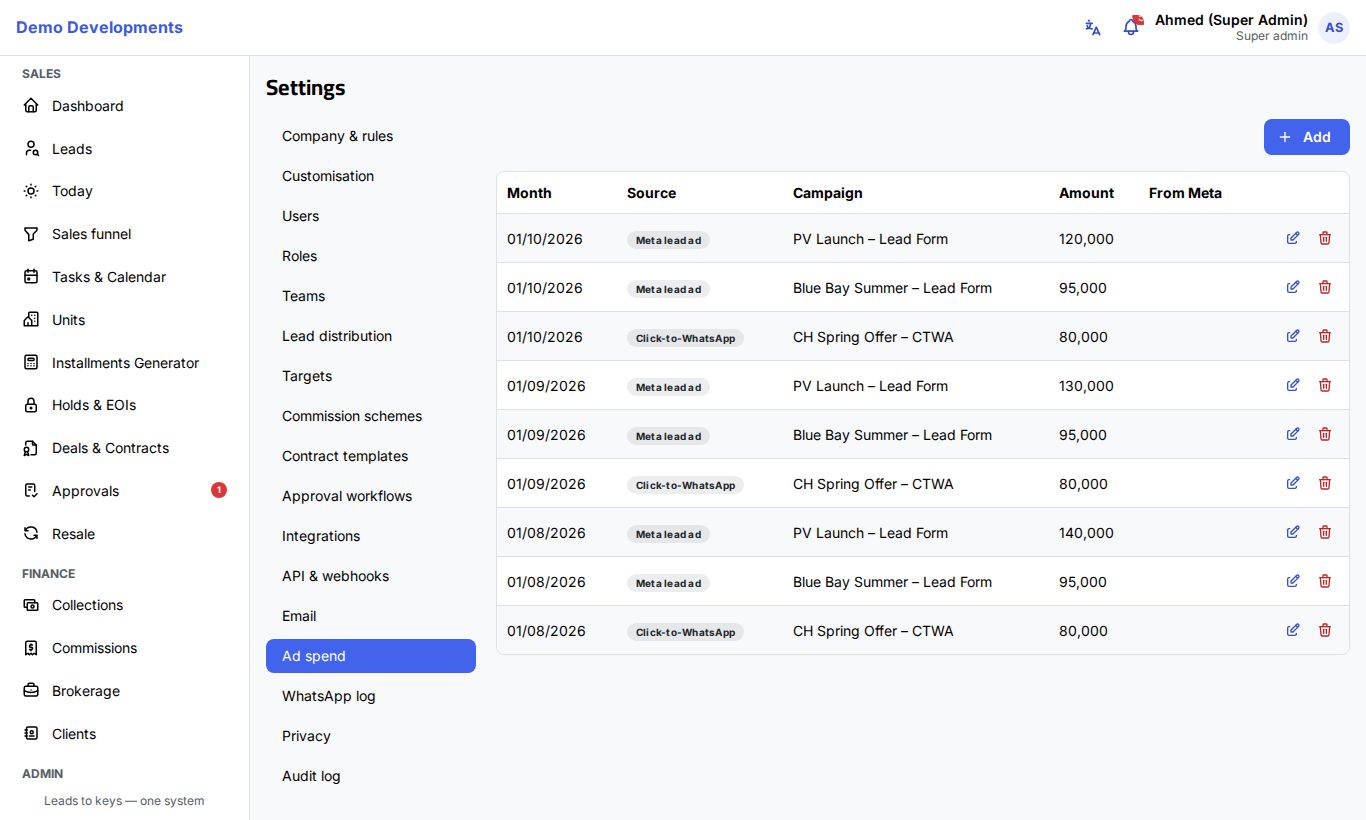
- Pick any day of the Month the money was spent in. The spend is kept for the whole month.
- Choose the Source (Meta lead ad is selected at first).
- Type the Campaign name.
- Enter the Amount.
- Add Notes if you like, and click Save.
Enter one row per source, campaign and month. The list shows the newest months first, and From Meta marks the rows that came from the Meta sync.
Use the exact campaign name
The report matches spend to leads by source and exact campaign name. "Spring Launch" and "spring launch 2026" are two different campaigns. Spend with no campaign name is matched only to leads of that source that have no campaign either.
Bring spend in from Meta
If your company admin has turned on the Meta Lead Ads integration with the ad account (adAccountId) and an ads token (adsAccessToken) in Settings → Integrations, spend comes in from Meta by itself:
- Every night (at 3:00, Cairo time) the spend of this month and last month is updated.
- Any time: go to Settings → Integrations and click Sync Meta spend on the Meta card. This brings in the spend from the start of the month two months ago until today. Last sync shows when it last ran.
Each Meta campaign becomes one row per month in Ad spend, with the source Meta lead ad and From Meta ticked. Syncing again updates the amounts; it does not add duplicates. Admins and marketing users can run the sync.
Don't edit rows that came from Meta
If you edit a From Meta row and save it, it becomes a manual row, and the next sync adds the Meta amount again as a new row, so that spend is counted twice. If this happens, delete the extra row.
The Marketing ROI report
Open Reports and choose the Marketing ROI tab. Admins, sales managers and marketing users can see it. Choose the period at the top of the page.
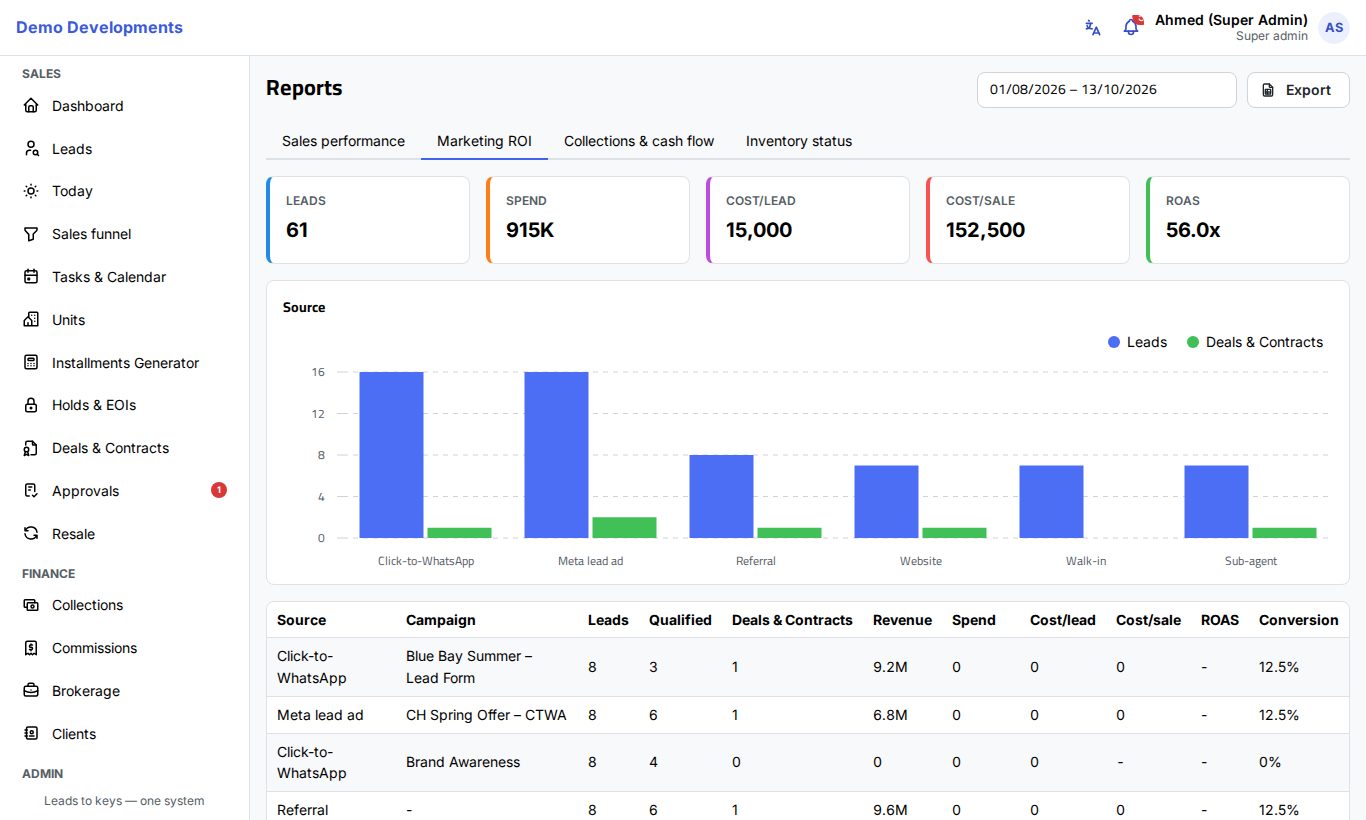
At the top, five cards give the totals for the period: Leads, Spend, Cost/lead, Cost/sale and ROAS. A chart compares leads and deals for each source. The table below has one row per source and campaign:
| Column | What it means |
|---|---|
| Leads | Leads created in the period |
| Qualified | Of those leads, the ones that reached Qualified or a later stage (not lost) |
| Deals & Contracts | Active deals made from those leads: reserved, in contract, contracted or handed over. Deals pending approval, cancelled or rejected don't count. |
| Revenue | The net price of those deals |
| Spend | Ad spend for the same source and campaign, in the months of the period |
| Cost/lead | Spend ÷ leads |
| Cost/sale | Spend ÷ deals |
| ROAS | Revenue ÷ spend, for example 12.5x |
| Conversion | Deals ÷ leads, as a percentage |
Campaigns that had spend but no leads in the period are still listed, with 0 leads, so no cost is hidden. Click Export to download the report as an Excel file.
Tip
Spend is kept per month, so a period that touches a month includes that whole month's spend. Choose whole months (for example 1 to 30 September) for an accurate cost per lead.
The WhatsApp log
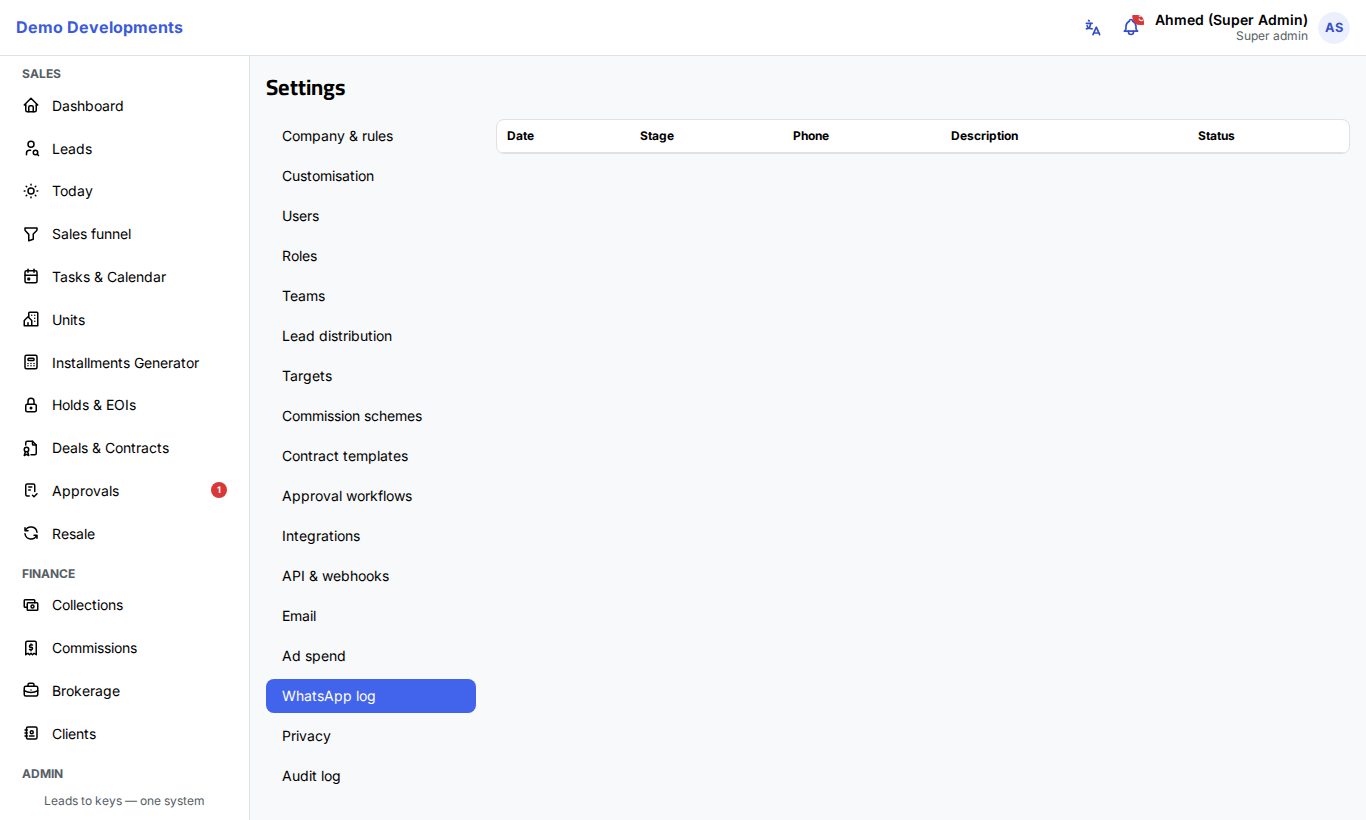
Settings → WhatsApp log lists the latest 200 WhatsApp messages the CRM asked ExceliaBOT to send to clients. Admins and sales managers can see it.
The CRM sends a message event:
- when a lead is created or moves to a new stage, if Send lead stage updates is on in the ExceliaBOT settings;
- before an installment is due, when it becomes overdue, when a payment is received, and when a cheque bounces. These payment messages depend on Send WhatsApp reminders in Settings → Company & rules.
ExceliaBOT then sends the WhatsApp template your company attached to that stage in ExceliaBOT. Setting up ExceliaBOT is covered in Integrations and API.
Each row shows:
- Date.
- Stage: the event, for example
new,site_visit,reserved,payment_reminder,payment_overdue,payment_receivedorcheque_bounced. - Phone: the number it was sent to.
- Description: the client's name, the reference and the value.
- Status: Queued (waiting to be sent), Sent, Failed or Not sent. "×3" means it took three tries. Below the status you see the reason when a message was not sent.
Common reasons for Not sent: ExceliaBOT is switched off or has no key; lead stage updates are switched off; the person asked not to be contacted; the record no longer exists; ExceliaBOT already had this stage for this lead; or no message is switched on for that stage in ExceliaBOT.
When ExceliaBOT cannot be reached, the CRM tries again after 1 minute, 5 minutes, 15 minutes, 1 hour, 3 hours and 6 hours, then marks the message Failed. A message also fails when ExceliaBOT does not recognise the company's key or finds no usable phone number.
Good to know
- Marketing users can see and add leads, import them from Excel, record ad spend, run the Meta sync and see the Marketing ROI report. They cannot see the WhatsApp log or the Approvals page.
- The dashboard also shows a chart of leads by source.