
Dashboard
The Dashboard is the first page you see after signing in. It greets you, gives you shortcuts to the things you do most, and sums up the period you choose in a row of figures and four charts: leads, reservations and contracts, money collected and overdue, stock and approvals. Everyone in the company has a dashboard; what it counts depends on what you are allowed to see.
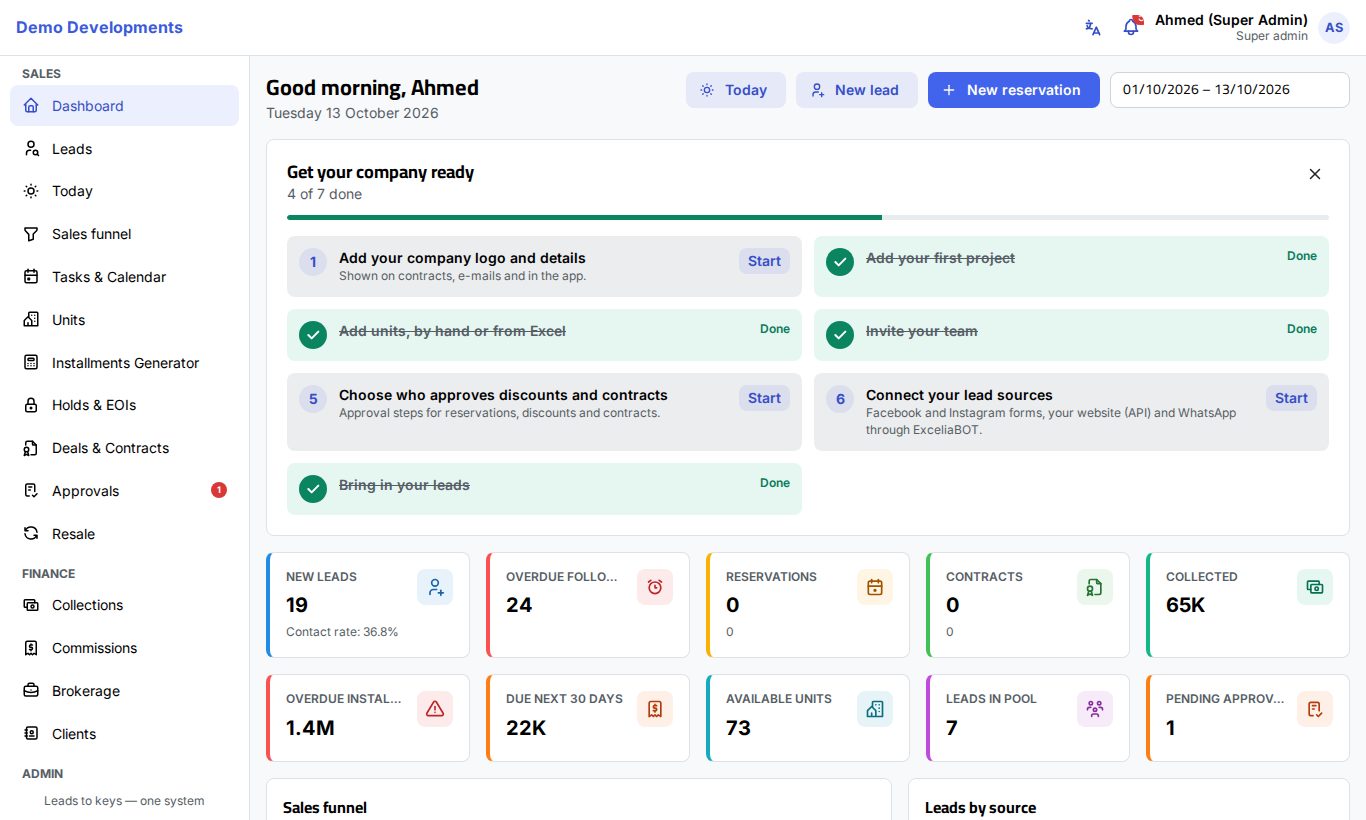
The top of the page
- Greeting: "Good morning", "Good afternoon" or "Good evening" with your first name, by the clock of your device, and today's date underneath.
- Shortcuts (shown only if you have the right):
- Today opens your Today page with the calls and follow-ups due.
- New lead opens the new lead form without leaving the dashboard.
- New reservation opens the form to reserve a unit for a client.
- Date range: the period the figures and charts cover. It starts on the 1st of the current month and ends today. Click it and pick two dates to change it.
The setup guide (company admins)
When a company is new, company admins see a Get your company ready card above the figures. It lists the first steps, shows how many are done (for example "3 of 7 done") and ticks each step off by itself as soon as the work is done:
- Add your company logo and details (done when a logo is uploaded)
- Add your first project
- Add units, by hand or from Excel
- Invite your team (done when there is more than one active user)
- Choose who approves discounts and contracts (done when an approval workflow has a step)
- Connect your lead sources (done when an integration is turned on or an API key exists)
- Bring in your leads
Click Start on a step to go straight to the right page. The card disappears when every step is done. To hide it earlier, click the × (Hide the guide); it stays hidden on that browser. The steps are explained in detail in Setting up your company.
The figures
Some figures follow the date range; others always show the situation right now.
| Figure | What it counts | Date range? | Click to open |
|---|---|---|---|
| New leads | Leads that arrived in the period. Underneath: Contact rate, the % of them already contacted. | Yes | Leads |
| Overdue follow-ups | Open leads whose next follow-up time has passed (not lost or contracted). | No, now | Leads with overdue follow-ups |
| Reservations | Deals reserved in the period that are still active (not cancelled), with their total value underneath. | Yes | - |
| Contracts | Deals signed by the company in the period (contracted or handed over), with their value underneath. | Yes | - |
| Collected | Payments received in the period, without reversed payments. | Yes | - |
| Overdue installments | The amount still unpaid on all overdue installments. | No, now | Collections |
| Due next 30 days | The amount still unpaid on installments falling due in the next 30 days. | No, now | - |
| Available units | Units with the status Available. | No, now | Units, filtered on Available |
| Leads in pool | Leads waiting in the pool with no agent. | No, now | Leads in the pool |
| Pending approvals | Approval requests still waiting for a decision. | No, now | Approvals |
What you see depends on your access
If your role lets you see only your own records (as for sales agents), the lead, reservation, contract and money figures count only your own leads and deals. Available units, Leads in pool and Pending approvals are always company-wide.
The charts
- Sales funnel: the leads that arrived in the period, by the stage they are in now (New, Contacted, Qualified… Contracted, Lost). Use it to see where this period's leads are stuck. For the full analysis, open the Sales funnel page.
- Leads by source: a ring chart of the period's leads by source (Meta lead ad, WhatsApp, Website, Referral…), with the count for each.
- Top agents: the five agents with the highest value of reservations made in the period, with the number of deals and their total value. This list covers the whole company.
- My tasks today: your own open tasks due today or earlier, earliest first (up to 10). Overdue ones show their time in red. Click the lead's name to open it. To work through all of them, use Tasks & Calendar.
Good to know
- Money figures are shown in a short form (for example 2.5M). The exact amounts are in Collections and Reports.
- "Collected" counts payments by the date they were received, not by the installment's due date.
- A reservation counts in the month it was made; the same deal counts under Contracts in the month the company signed it.
- Leads move between stages over time, so the Sales funnel chart for a past period can change as those leads progress.