
Commissions
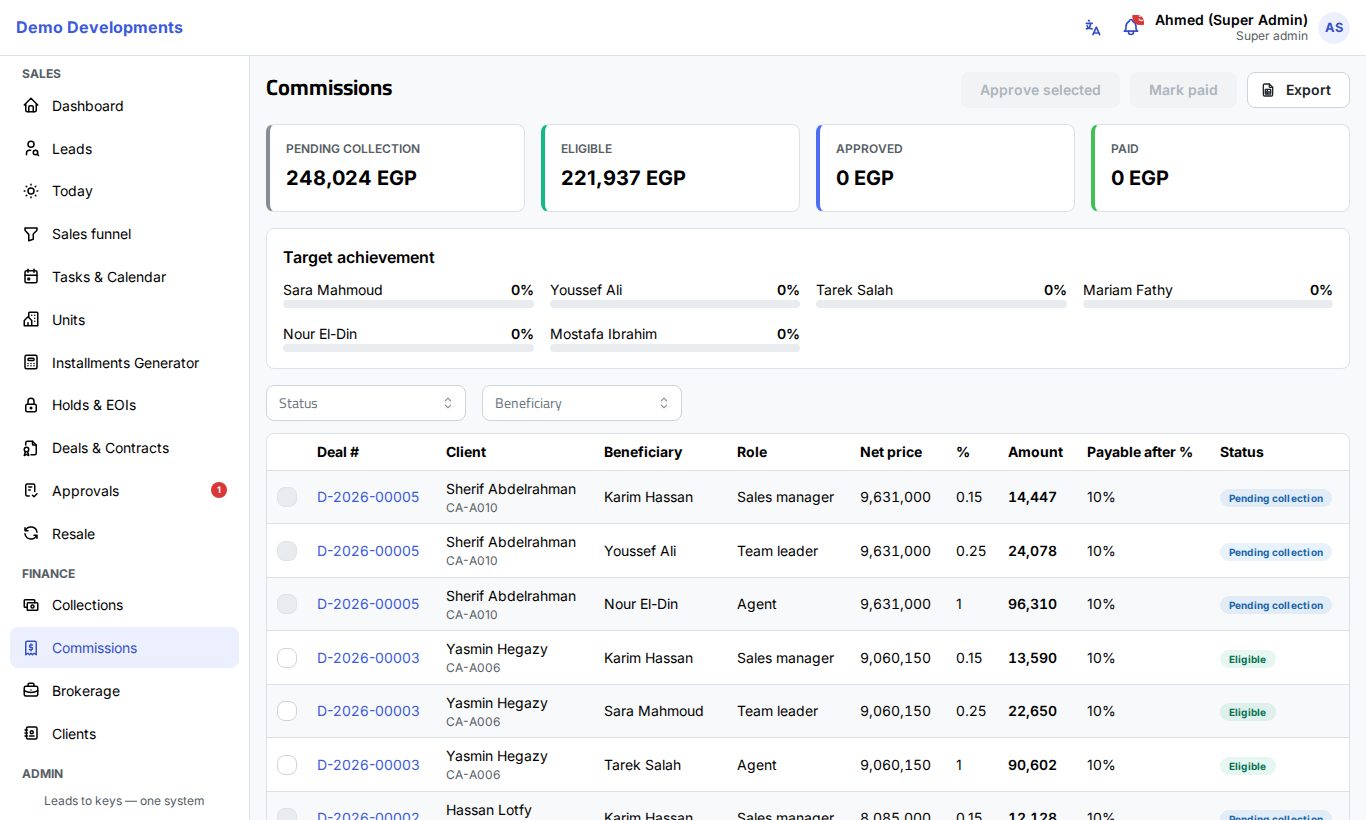
The Commissions page lists the commission lines of your sales team: who earns what on each contracted deal or resale, and where each line stands (waiting for collection, payable, approved, paid). Sales managers, Finance and company admins see everyone's commissions and approve and pay them. Sales agents and team leaders see their own lines, under the title My commissions.
How commissions are created
Commission lines are created automatically when a deal becomes Contracted, that is when the contract signed by the company is uploaded on the deal page. The system:
- Picks the commission scheme for the deal (see Commission schemes below). If no scheme is active, no commission lines are created.
- Creates one line for each person who earns on the deal:
- Agent: the deal's agent. The agent's % can depend on how much of their monthly target they reached (target tiers).
- Team leader: the leader of the agent's team, unless the agent is the team leader.
- Sales manager: the manager of the agent's team, unless they already appear above.
- Sub-agent: the outside broker on the deal, if there is one.
- Calculates each amount on the deal's Net price: amount = net price × %.
A line with 0% is not created. The agent's line carries a note such as "Target achievement 85%", showing the achievement used.
For a resale, the lines are created when the listing is marked sold, on the sale price, and are payable straight away. For deals on another developer's projects, a developer commission claim is created as well (see Brokerage). Each deal page also has a Commissions tab showing that deal's lines.
Commission statuses
| Status | Meaning |
|---|---|
| Pending collection | The deal is contracted, but not enough of the price has been collected yet. |
| Eligible | Enough has been collected: the commission can be approved. The person gets a notification and an e-mail. |
| Approved | A manager or Finance approved it for payment. |
| Paid | Finance marked it as paid. |
| Cancelled | The deal was cancelled or terminated before payment. Cancelled lines are not shown in the list. |
A line becomes Eligible when the money collected towards the unit price reaches the scheme's Payable after % of the net price (for example 10%). Fees and penalties do not count. If collections go down again (a cheque bounces or a payment is reversed), an Eligible line goes back to Pending collection.
If the unit of a contracted deal is swapped, its unpaid lines are calculated again for the new price.
Reading the page
- The four cards at the top add up the amounts that are Pending collection, Eligible, Approved and Paid in the list.
- The Target achievement card shows, for each active sales agent and team leader, the % of this month's target reached so far (green at 100% or more). Sales agents see only their own.
- Filter by Status. Managers, Finance and admins can also filter by Beneficiary.
- Each row shows the Deal # (or a Resale link), the client and unit, the Beneficiary, the Role, the Net price, the %, the Amount, the Payable after % and the Status (with the payment date once paid).
Approving and paying commissions
Sales managers, Finance and company admins can approve commissions. Finance and company admins can mark them paid.
- Set the Status filter to Eligible.
- Tick the lines to approve. Only Eligible and Approved lines can be ticked.
- Click Approve selected.
- When the money has been paid out, filter on Approved, tick the lines and click Mark paid.
One status at a time
Only Eligible lines can be approved and only Approved lines can be paid. If one of the ticked lines is in another status, the whole action is refused with a message, so filter by status first.
Mark paid records the payment date in the system. The transfer itself is made outside Excelia CRM.
My commissions (sales agents and team leaders)
When you cannot see everyone's commissions, the page is called My commissions and shows only your own lines. The Target achievement card shows how far you are this month. You get a notification (and an e-mail, if you have not turned it off in your profile) when one of your commissions becomes payable.
Export to Excel
Click Export to download the list with the current filters as an Excel file: deal, client, unit, role, beneficiary, base amount, %, amount, payable after %, status, the eligible, approved and paid dates, and notes.
Commission schemes
A commission scheme sets the percentages for each role. Company admins manage schemes in Settings → Commission schemes.
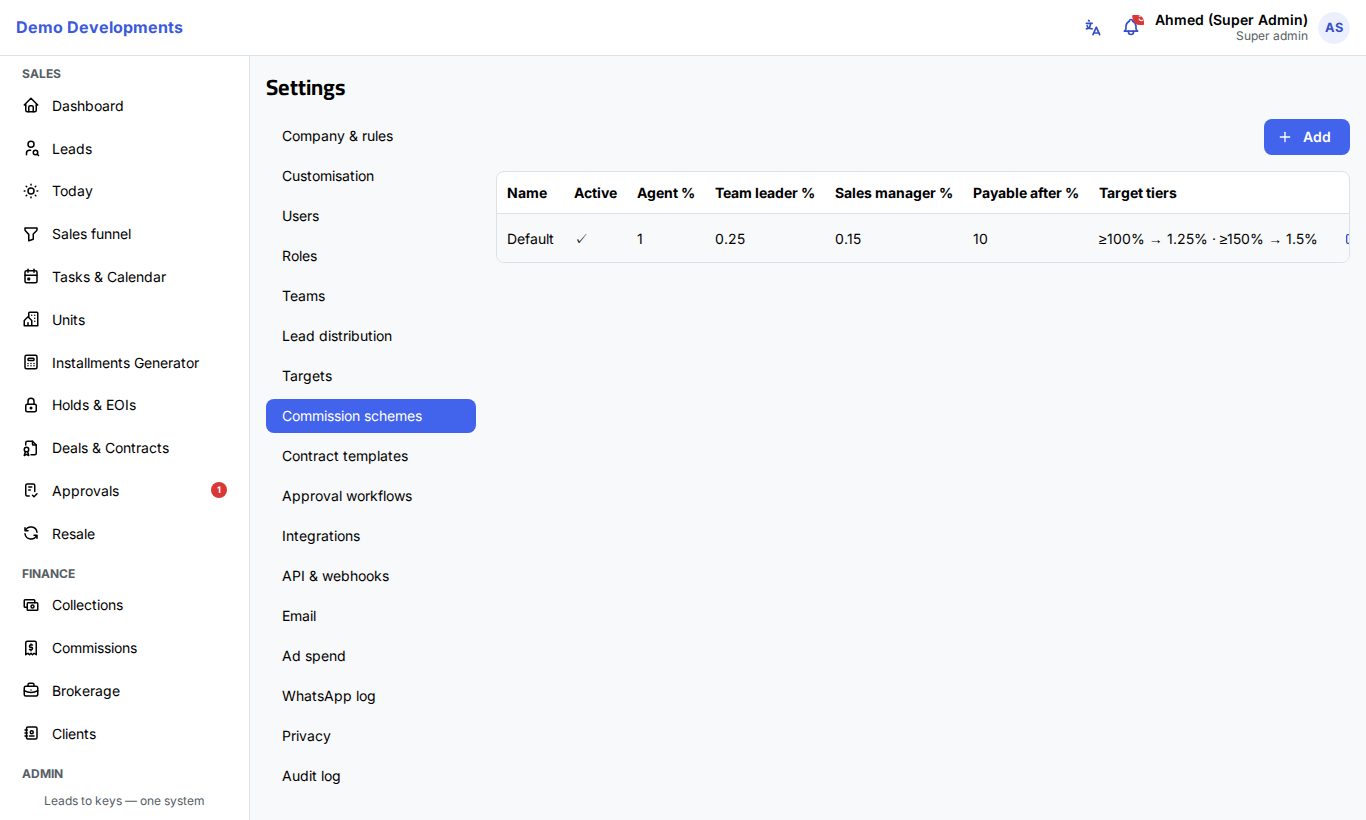
To add a scheme:
- Open Settings → Commission schemes and click Add.
- Fill in:
- Name.
- Project: leave empty for a default scheme that applies to all projects, or choose a project to give it its own rates.
- Active.
- Agent %, Team leader % and Sales manager %.
- Sub-agent % (blank = their share): leave empty to use each sub-agent's own % from the Sub-agents list.
- Payable after %: how much of the net price must be collected before commissions become payable.
- To reward agents who beat their target, add Target tiers: click Add and set a Min achievement % and the Agent % for that tier. Add as many tiers as you need.
- Click Save.
Which scheme is used? For each deal, the system uses the active scheme for the deal's project. If there is none, it uses the active scheme with no project. Keep one active scheme without a project as your default.
How tiers work. The agent gets the % of the highest tier they reached; below the lowest tier they get the scheme's Agent %. For example, with Agent % 1, a tier "100% → 1.25" and a tier "120% → 1.5", an agent at 110% of target gets 1.25%, and an agent at 80% gets 1%. Achievement is measured in the month the contract was signed by the company.
Changes apply to new commissions
A scheme's percentages are copied into the lines when a deal is contracted. Changing a scheme later does not change existing lines.
Targets
Target achievement comes from the monthly sales targets. Company admins and sales managers set them in Settings → Targets: Agent, Year, Month, Target (an amount) and Units.
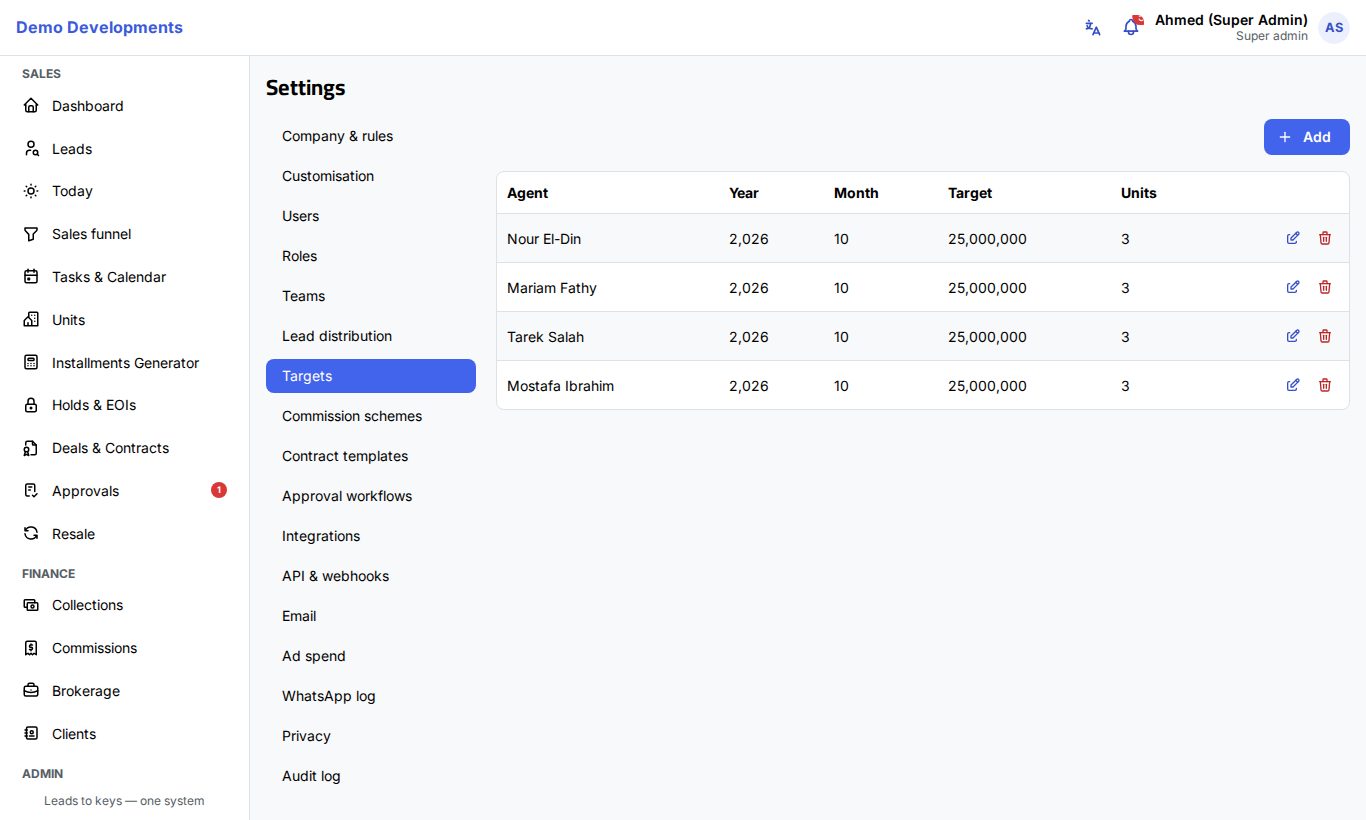
An agent's achievement is the net price of the deals they had contracted by the company in that month, divided by the month's Target amount. With no target for the month, achievement is 0% and the scheme's normal Agent % applies. See Teams and targets.
Good to know
- Commissions are only created once per deal; signing again does not create duplicates.
- A sub-agent's line has no user in the system, so only people who see everyone's commissions see it.
- Commission amounts are based on the net price after discounts, not the list price.