
E-mail
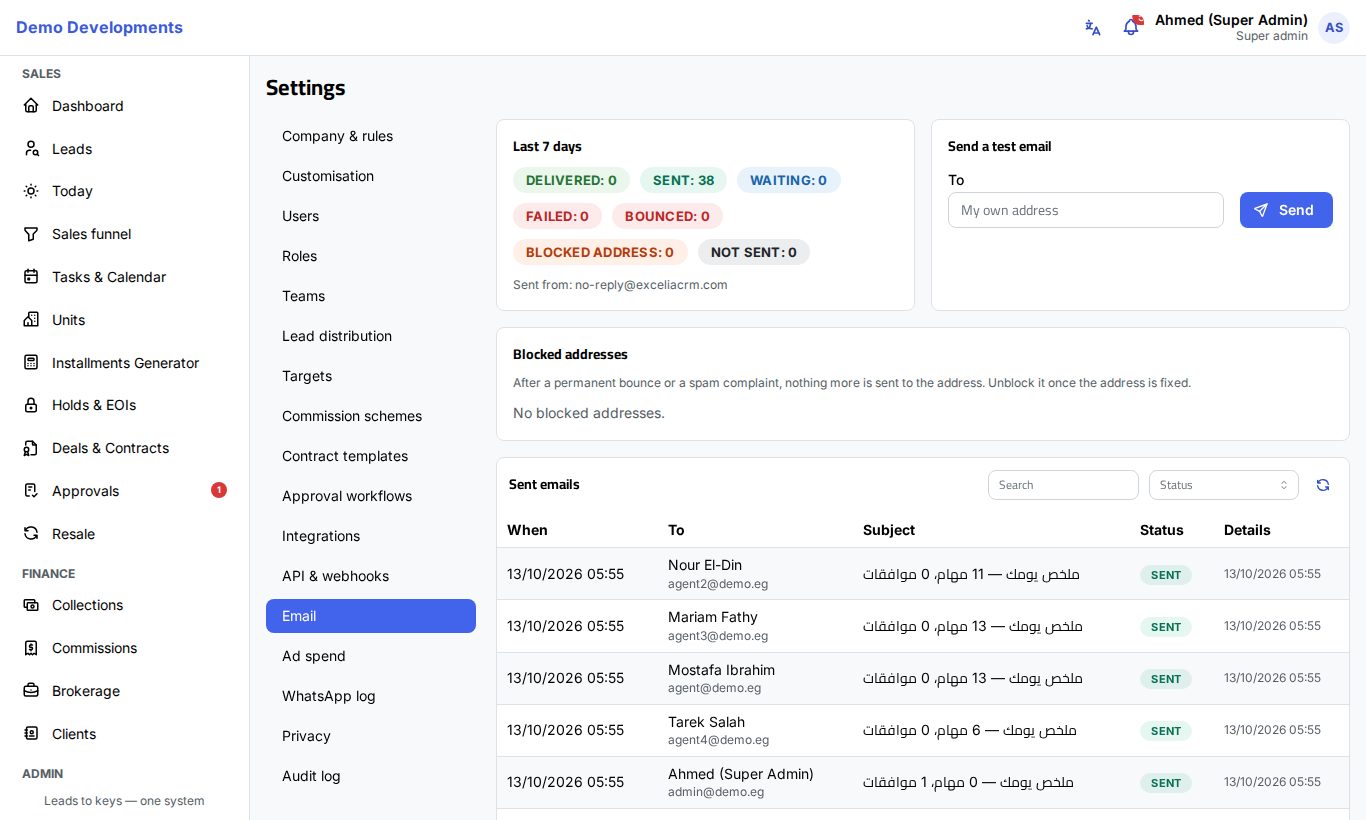
Excelia CRM sends e-mails to the people in your company: invitations and password links, alerts about approvals, sales and payments, and a short daily summary. Settings → Email lets company admins check that these e-mails go out, send a test, look up what was sent to whom, and unblock an address after a bounce. Each person chooses which e-mails they receive in their own profile.
Which e-mails people receive
| E-mails | What they are about | Can it be switched off? |
|---|---|---|
| Account and security | Invitations, password resets, password changed, two-factor sign-in reset, sign-in from a new device | No, always sent |
| Approvals | Requests waiting for the person's decision, and decisions on their own requests | Yes, in the profile |
| Sales and finance alerts | New leads assigned to them, EOI and contract signing, payments, bounced cheques, commissions | Yes, in the profile |
| Daily summary (07:00) | Their follow-ups for the day, overdue tasks and approvals waiting. Not sent on empty days | Yes, in the profile |
Notifications always appear inside the app as well; the profile only decides which ones also come by e-mail.
How the e-mails look
- They are sent in each person's language (the Language set for them on Settings → Users).
- The sender name is "Your company name via Excelia CRM". The sending address is the same for all companies and is shown on Settings → Email as Sent from.
- Your company logo appears at the top (see Company settings). Without a logo, the Excelia mark is shown.
People's own choices
Each person decides for themselves. To change your own choices:
- Click your name at the top of the screen and choose My profile.
- In Emails I receive, switch Approvals, Sales and finance alerts and Daily summary (07:00) on or off.
Admins cannot change these choices for other people. See Your profile.
Check that e-mails go out
The Last 7 days card counts the e-mails of the past week by status:
- Delivered: accepted by the person's mail server.
- Sent: sent, waiting for the delivery report.
- Waiting: in the queue, about to be sent.
- Failed: could not be sent.
- Bounced: the address does not accept mail.
- Blocked address: not sent because the address is blocked (see below).
- Not sent: not sent because e-mail sending is not set up (see below).
E-mails a person switched off in their profile are not created at all, so they do not appear here.
If you see the orange message Email sending is not set up on this server, e-mails are recorded as Not sent until sending is set up. In-app notifications still work as usual. Contact Excelia support.
Send a test e-mail
- In the Send a test email card, leave To empty to send it to your own address, or type another address.
- Click Send.
- The test arrives within a minute. Check the spam folder if you do not see it.
Find an e-mail that was sent
The Sent emails card lists the last 200 e-mails with When, To, Subject, Status and Details (the error, or when it was sent or delivered).
- Type part of an address in Search to find the e-mails sent to someone.
- Choose a Status to see, for example, only failed e-mails.
- Click the refresh button to update the list.
Blocked addresses
After a permanent bounce (for example a mailbox that does not exist) or a spam complaint, the CRM stops sending to that address, to protect your company's e-mail reputation. The Blocked addresses card shows the person, the address, the reason (Bounced or Spam complaint) and the date.
Once the address is fixed (for example the person's e-mail was corrected on Settings → Users, or their full mailbox was emptied), click Unblock.
Good to know
- Only company admins see Settings → Email.
- Copies of sent e-mails are deleted after the period set on Settings → Privacy (365 days unless you change it). See Privacy and data protection.
- E-mails that fail for a temporary reason are tried again automatically.
Tip
When someone says "I never got the invitation", search their address in Sent emails first. The status tells you whether it was delivered, bounced or blocked, and you can then Resend invitation from Settings → Users.