
The Today page
Today is your working day on one screen: the new leads you still have to call, the follow-ups that are due (overdue ones first) and your tasks for today. It is made for agents and team leaders who work from their phone, but it works the same on a computer. Open it from Today in the menu, from the Today button on the dashboard, or from the bar at the bottom of the screen on a phone.
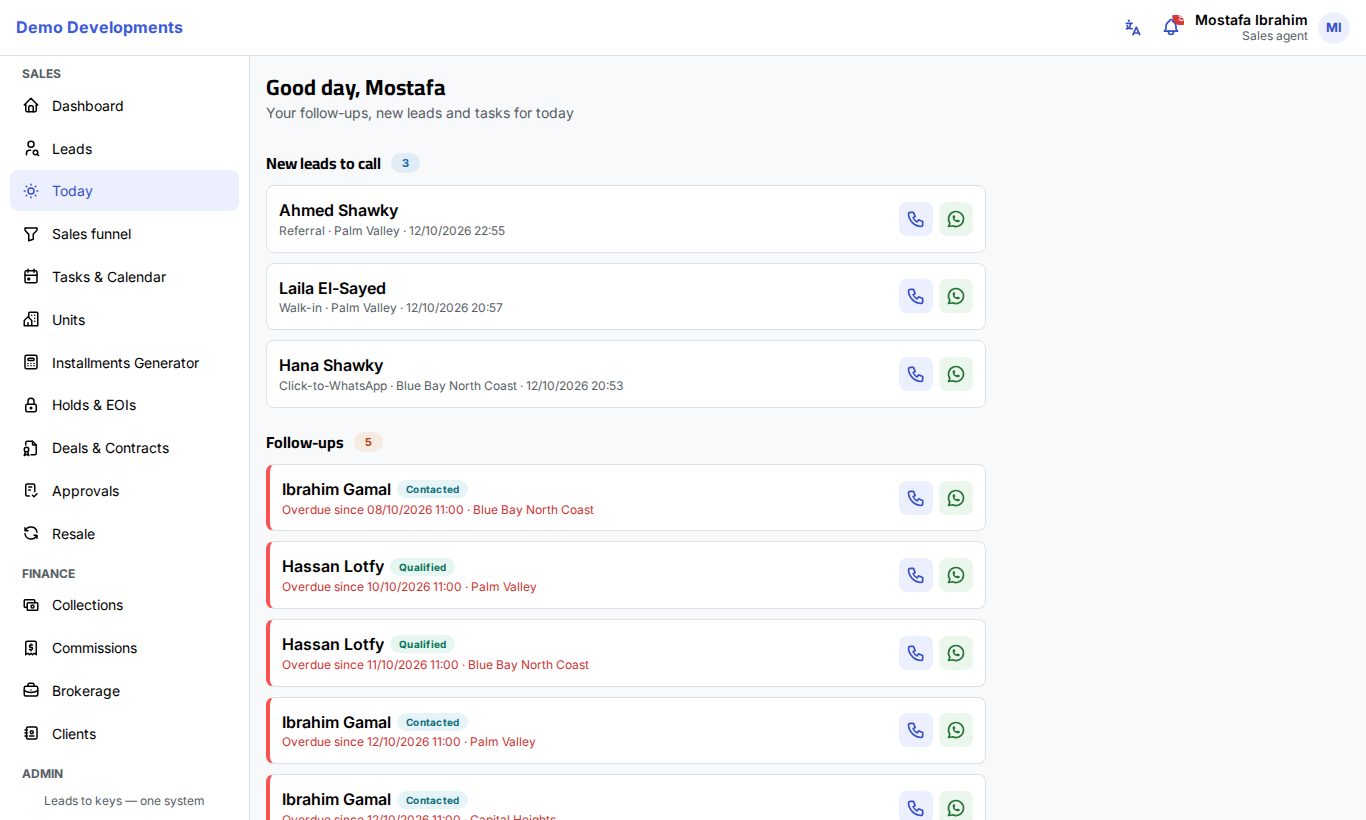
What you see
The page greets you by name ("Good day, …") and shows up to three sections. A section only appears when it has something in it, and the number next to its title tells you how many items it holds.
- New leads to call: leads assigned to you that are still at the New stage and that nobody has contacted yet, newest first. Each card shows the name, the source, the project of interest and when the lead arrived.
- Follow-ups: your open leads whose Next follow-up is today or already passed. The oldest come first, so overdue follow-ups are always at the top. An overdue card has a red edge and says Overdue since with the date; the others say Due. Each card also shows the lead's stage (and your company's own step, if it has one).
- Tasks: your tasks that are not done yet and are due today or earlier. Each task shows its type, its time and the lead it belongs to. Late tasks have their date in red.
If there is nothing to do, the page says Nothing due today. Well done!
Only your own work
The Today page shows the leads and tasks assigned to you. Leads that are lost or already contracted never appear in follow-ups. "Today" means your company's day, in the company's time zone.
Call or message a lead
Every card has quick buttons on the side:
- Tap the phone button to call the number straight away (on a phone it opens the dialer).
- Tap the green WhatsApp button to open a WhatsApp chat with the number.
- Tap anywhere else on the card to open the lead page, where you can log what happened and set the next follow-up.
The WhatsApp button is hidden for people marked Do not contact.
Tick a task done
- Find the task in the Tasks section.
- Tap Done next to it.
- A message confirms Task done and the task leaves the list (it also disappears from Tasks & Calendar as an open task).
On the phone
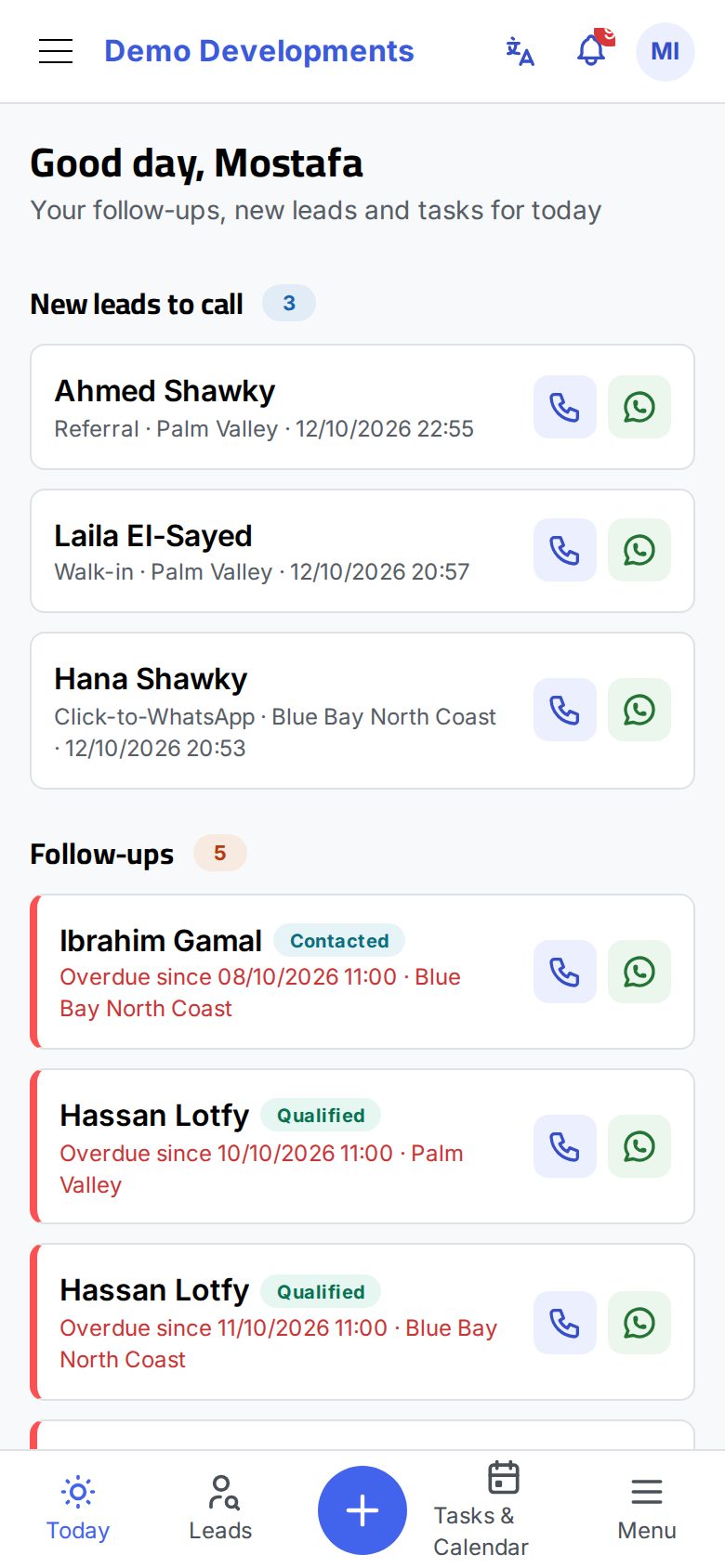
On a phone the cards fill the screen and the buttons are big enough to tap with a thumb. The bar at the bottom of the screen takes you to Today, Leads, Tasks & Calendar and the Menu, and the round + button in the middle opens the New lead form, so you can add a walk-in or referral in seconds.
Good to know
- The page refreshes itself every minute, so a lead assigned to you while the page is open shows up on its own. It also loads the latest when you open it again.
- A lead leaves New leads to call as soon as you log a call, WhatsApp, meeting, site visit or e-mail on it, or move it to another stage.
- A follow-up leaves the list when you set a new Next follow-up on the lead (for example when you log an activity), or when the lead is marked lost.
- When you log an activity with a due date and leave it open, it becomes a task and appears here on its day.
- Turn on notifications on your phone to get a reminder about 15 minutes before a follow-up or task is due; see Tasks & Calendar.
Tip
Start your day from the top: call the new leads first (your company may alert your manager, or pass the lead to someone else, if a new lead is not contacted in time), then work through the overdue follow-ups.