
Leads
The Leads page lists every potential buyer you can work on: people who filled in an ad form, wrote on WhatsApp, called, walked in or were referred. Agents use it to find and open their leads and take new ones from the pool; team leaders and managers also use it to filter by agent and to hand leads out in bulk. Open it from Leads in the menu.
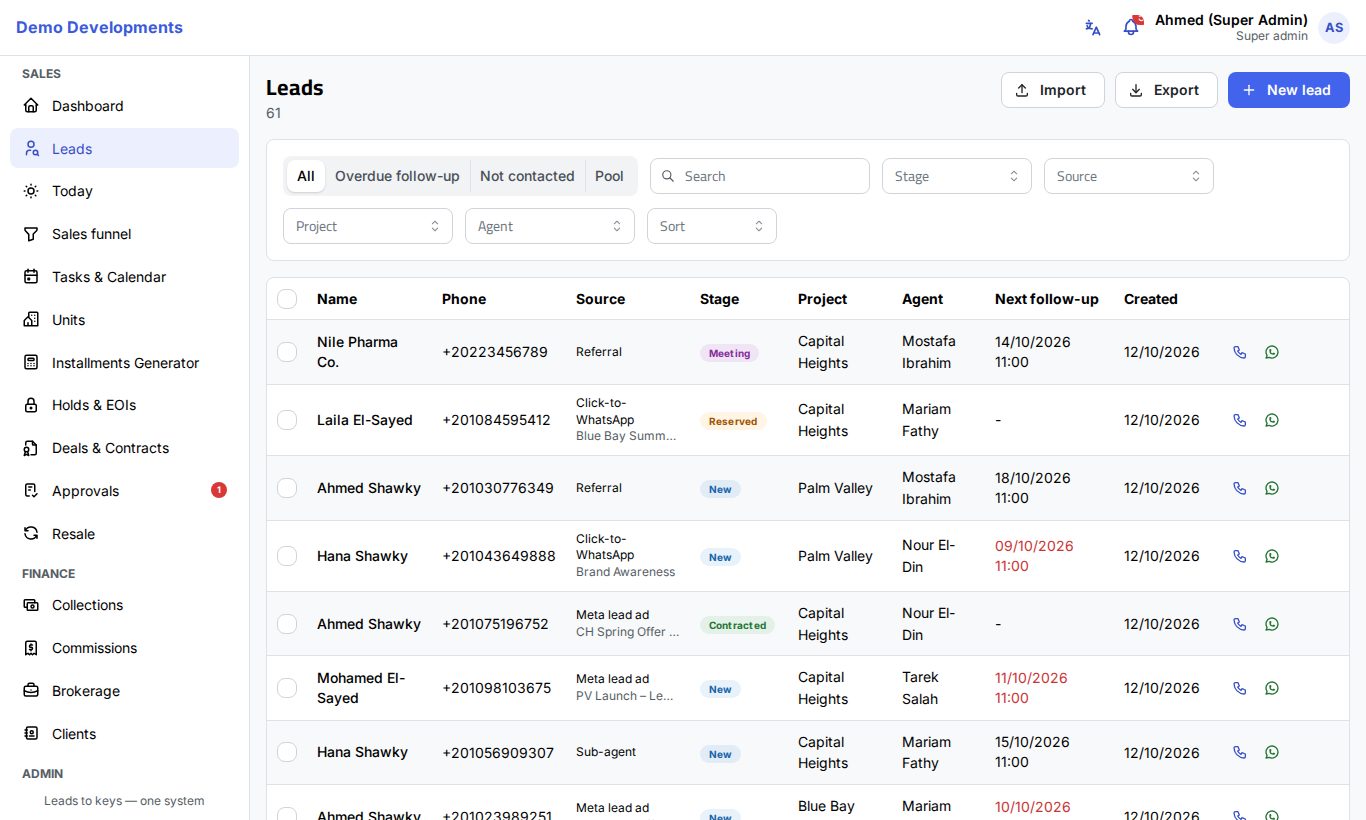
Who sees which leads
- Agents see the leads assigned to them, plus the leads waiting in the Pool.
- Team leaders see their team's leads, plus the pool.
- Sales managers and admins see all the company's leads.
(These are the usual rights; your company admin can adjust roles.)
Views
The buttons at the top of the filters switch between four views:
| View | Shows |
|---|---|
| All | Every lead you can see. |
| Overdue follow-up | Open leads whose next follow-up date has passed. |
| Not contacted | Leads still at New that nobody has called, messaged or met yet. |
| Pool | Leads that belong to nobody yet and are waiting to be taken. |
Search, filter and sort
- Type in Search to find a lead by name, phone, e-mail, or by the name or phone of one of its contact persons.
- Narrow the list with Stage, Source and Project. Managers and team leaders also have Agent.
- If your company added its own fields to leads and made some of them filters, a Filter list lets you pick one value (for example "Yes" on a yes/no field).
- Choose Sort to order by Next follow-up, Last activity or Name. Without a sort the newest leads come first.
The number next to the page title is how many leads match. The list shows 25 leads per page; use the page numbers at the bottom to move on.
In the table, a red Next follow-up means the follow-up is overdue, an orange ×2, ×3… under a name means the person has asked more than once, and Pool in the Agent column means nobody owns the lead yet. Your company's own list columns (if any) appear at the end. Click a row to open the lead page; the phone and WhatsApp buttons at the end of the row call or message the lead without opening it.
On the phone
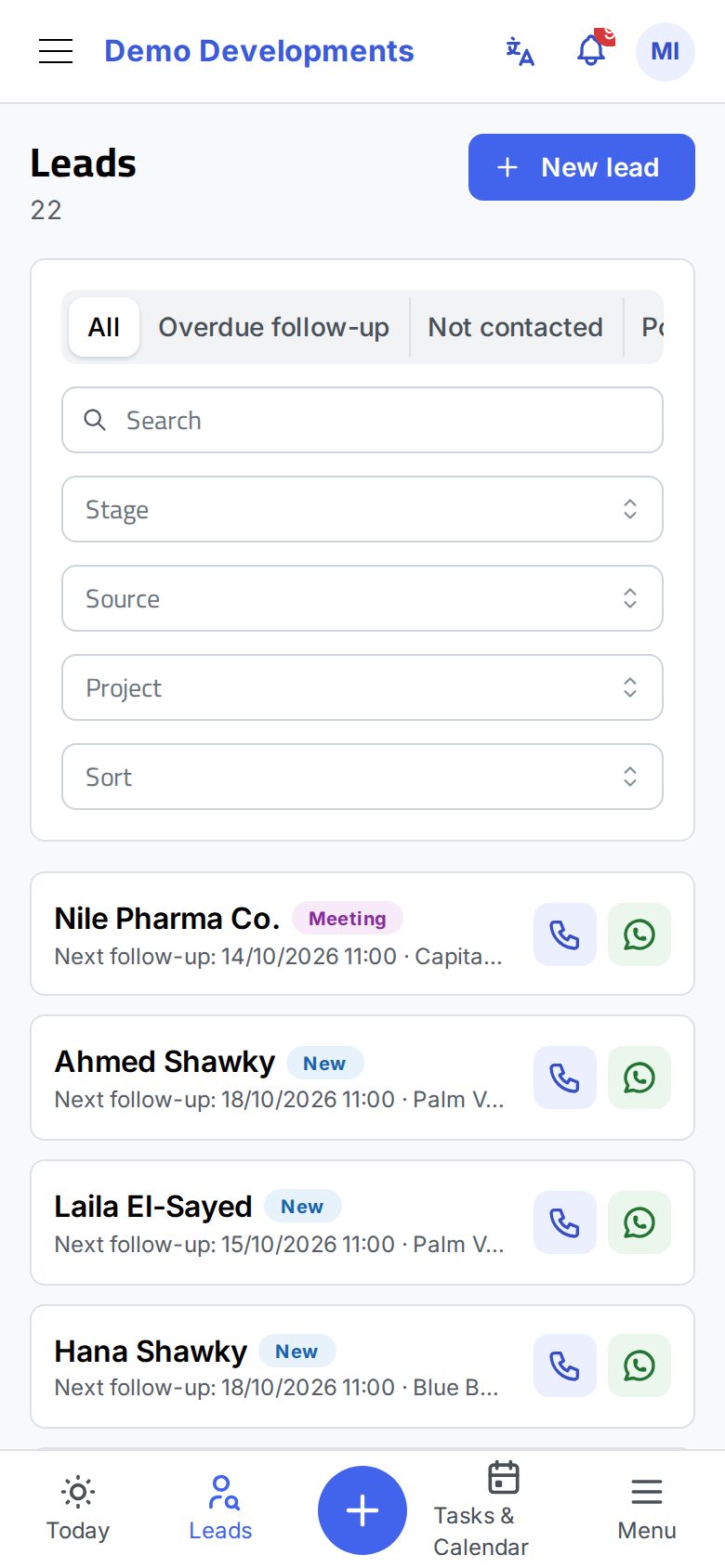
On a phone each lead is a card with its name, stage and next follow-up (in red when overdue), or its source when there is no follow-up. The buttons on the right call or WhatsApp the lead; a lead in the pool shows a Claim button instead. Tap the card to open the lead.
Add a lead
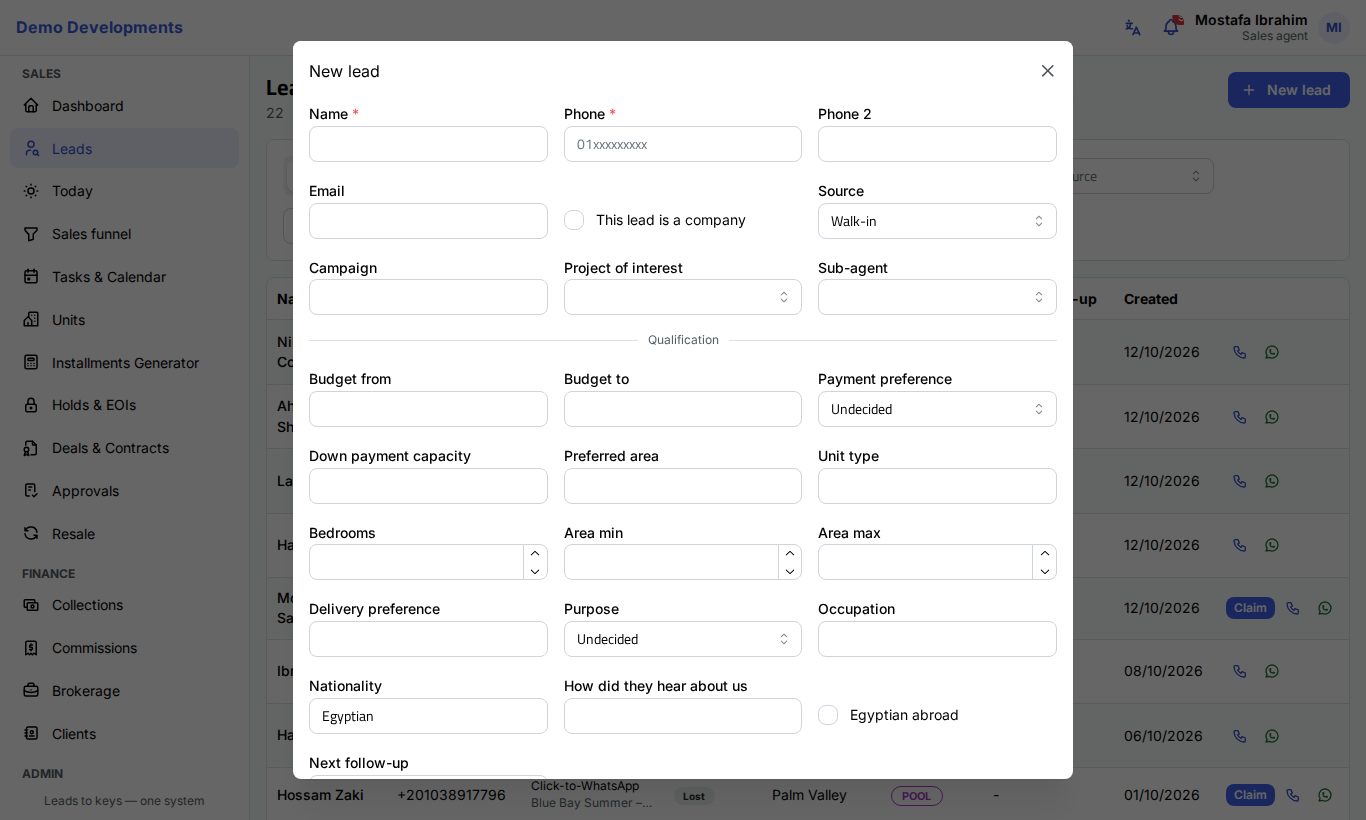
- Click New lead at the top of the page (on a phone, tap the round + in the bottom bar).
- Fill in Name (or tick This lead is a company and fill in the Company name) and Phone. These two are required.
- Add what you know: Phone 2, Email, Source, Campaign, Project of interest and Sub-agent (a broker who brought the client).
- Under Qualification, record the budget and needs: Budget from, Budget to, Payment preference, Down payment capacity, Preferred area, Unit type, Bedrooms, area min and max, Delivery preference, Purpose, Occupation, Nationality, How did they hear about us and Egyptian abroad.
- Set the Next follow-up date and time, fill in any fields your company added, and write Notes if needed.
- Click Save. The new lead's page opens.
Who gets the lead: when an agent adds a lead, it is theirs. Managers and team leaders see an extra Assign to field: pick an agent, or leave it on Auto to let the company's distribution rules choose. The agent who receives the lead gets a notification and an e-mail.
The duplicate check
When you leave the Phone field, the system checks whether the number already belongs to a lead (as its main phone, its second phone, or one of its contact persons). If it does, an orange box This phone already exists shows that lead's name, its agent (or Pool) and its stage.
- Click Open existing lead to go to it and continue there.
- Managers, team leaders and marketing can also click Create a separate lead anyway. Agents cannot, so a lead that belongs to a colleague is never bypassed.
Leads from ads are not duplicated
When a lead arrives on its own (ad form, website, WhatsApp) with a phone that already exists, no new lead is created. The existing lead gets a "Re-inquiry" entry in its timeline, its inquiry count goes up, its agent is notified, and a lead that was lost goes back to New.
The pool and claiming leads
The Pool holds leads that nobody owns yet. Leads land in the pool when:
- they arrive from an integration and your company does not distribute leads automatically;
- a manager assigns them to the pool;
- your company set leads with no activity for a number of days to return to the pool.
To take a lead from the pool:
- Choose the Pool view.
- Click Claim on the lead's row (or card on a phone).
- The lead is now yours and appears in your list and on your Today page.
If someone claimed it a moment before you, you get the message that the lead is no longer in the pool.
Assign leads in bulk (managers)
Managers and team leaders can hand out many leads at once:
- Tick the boxes at the start of the rows (the box in the header ticks the whole page).
- In the bar that appears, choose the agent in Assign to (Pool). Leave it empty to send the leads to the pool.
- Click Bulk assign.
Each lead gets an "Assignment" entry in its timeline and the new agent is notified. To reassign a single lead, use Actions → Assign on the lead page.
Export and import
Managers, team leaders and marketing see two more buttons at the top:
- Export downloads the leads you can see as an Excel file, including your company's own fields.
- Import opens the Import data page, where you can upload a list of leads from Excel, check a preview, and undo the import if needed.
Where leads come from
Besides leads added by hand and imported from Excel, leads arrive automatically from the channels your company connected: Meta (Facebook and Instagram) lead forms, your website or another system through the API, and WhatsApp conversations through ExceliaBOT. They appear in the list with their source and campaign, are given to an agent by the distribution rules (or wait in the pool), and the agent is notified. Setting up these channels is done by the company admin; see Integrations.
Good to know
- An agent on leave can switch off Available for new leads in their profile so that automatic distribution skips them.
- Your company may set a time limit for the first contact: if a new lead is not contacted in time, the agent and their team leader are alerted, and the lead can be given to another agent automatically.
- Phone numbers are stored in one standard format (Egypt by default), so searching for a full number finds the lead whether you type it starting with 0, with +20 or with spaces.