
Tasks & Calendar
Tasks & Calendar shows your planned work day by day: calls to make, meetings, site visits and any other task with a date. Agents see their own tasks; team leaders and managers can also look at the calendar of a person on their team. Open it from Tasks & Calendar in the menu, or from Tasks & Calendar in the bottom bar on a phone.
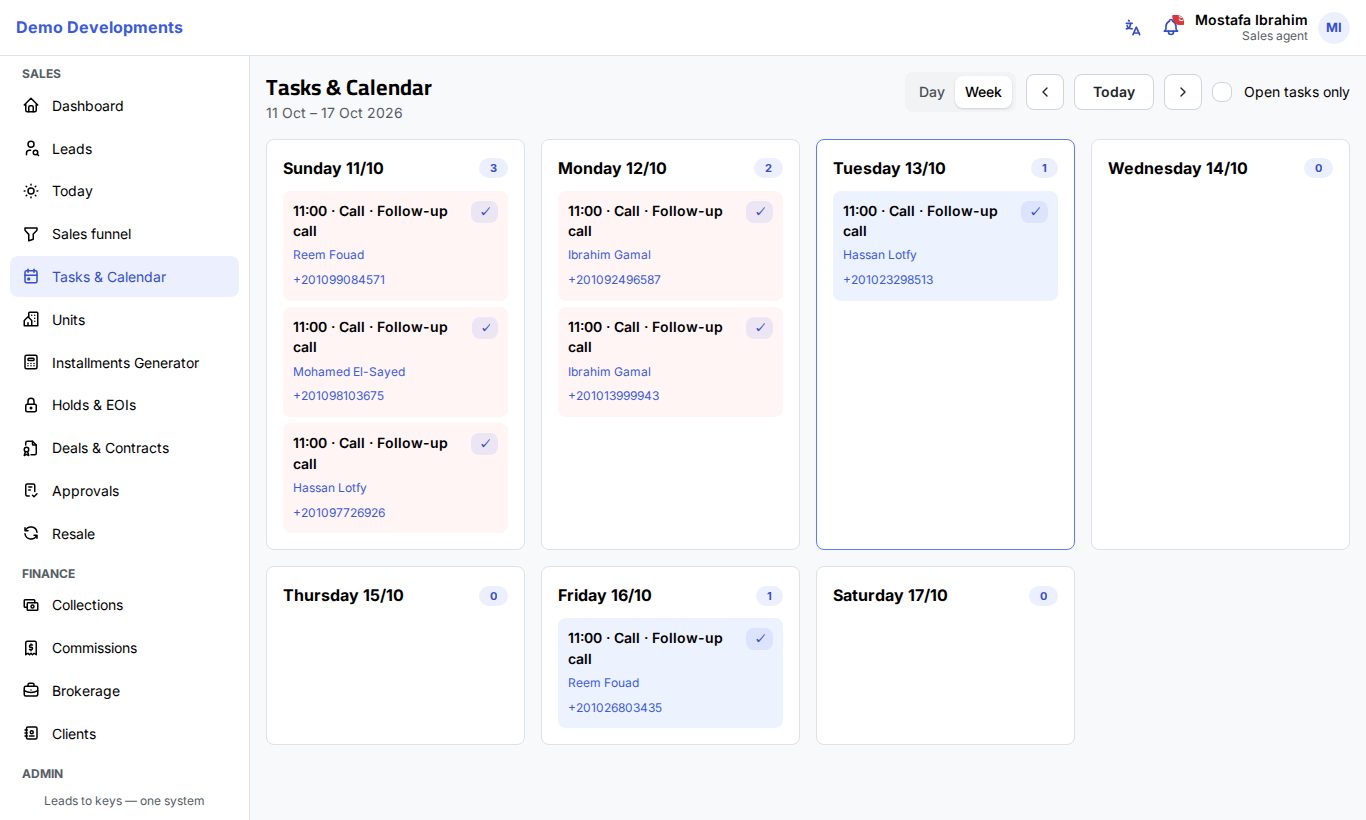
Move around the calendar
- Choose Week to see seven days side by side, or Day to see one day.
- Use the arrow buttons to go to the previous or next week (or day), and Today to come back to today.
- Tick Open tasks only to hide the tasks already done and keep only what is left to do.
The dates shown are written under the page title. Each day is a card with the number of tasks on it; today's card has a coloured border.
Read a task
Each task shows its time, its type (Call, Meeting, Site visit…) and its subject, and under it a link to the lead (with the phone number) or to the deal it belongs to. Click the link to open the lead or deal.
- A red background means the task is overdue.
- A grey, crossed-out task is done.
- Other open tasks have a light blue background.
See someone else's calendar (managers)
Team leaders and managers see an Agent list at the top:
- Choose a person to see only their tasks.
- Clear the list to see everyone's tasks together. Each task then shows the name of the person it belongs to.
Team leaders see only the tasks of their own team; sales managers and admins see everyone's.
Create a task
Tasks are created from the lead (or client) they are about, so they always stay linked to the person:
- Open the lead page.
- Click Actions → Log activity.
- Choose the Type (for example Call, Meeting or Task) and write a Subject.
- Pick the date and time in Schedule task (Due at). Leave Completed unticked.
- Click Save.
The task appears in the calendar on its day, on your Today page when it is due, and, if you did not set another date, becomes the lead's Next follow-up. See Log an activity for all the fields.
Mark a task done
- In the calendar, click the ✓ button on the task.
- Or tick it with Done on the Today page, or Mark done in the lead's timeline.
The task turns grey and crossed out. Agents can mark only their own tasks as done.
Reminders
Two kinds of reminders help you not to miss a task or a follow-up. Each person switches them on or off in My profile.
Daily summary e-mail (07:00). Every morning at 07:00 (company time) you receive an e-mail with your follow-ups for the day, your overdue tasks and the approvals waiting for you. Nothing is sent on a day with nothing to do. To stop or restart it, use the Daily summary (07:00) switch under Emails I receive in your profile.
Push notification 15 minutes before. If you turn on notifications on your phone or computer, you get an alert shortly before each task or lead follow-up is due (the system checks every 5 minutes, so it arrives 10 to 15 minutes before). Tapping it opens the lead, or the calendar for a task without a lead. To turn it on:
- Open My profile on the device where you want the alerts.
- In Notifications on this device, click Turn on and allow notifications when the browser asks.
- Make sure the Follow-ups due in 15 minutes switch is on. Use Send a test to check that it works.
iPhone
On an iPhone, first add the CRM to the home screen (Share → Add to Home Screen) and open it from there; then turn on notifications.
Good to know
- Only activities with a date appear in the calendar. Calls and notes logged without a date are in the lead's timeline only.
- Changing a lead's follow-up date does not create a task; follow-ups appear on the Today page and in the lead list's Overdue follow-up view.