
Collections
Collections is where the finance team follows the money: installments that are late or coming up, payments received, cheques and refunds. Sales agents, team leaders and sales managers also open it to see which of their clients owe money. The day-to-day actions (recording a payment, depositing or bouncing a cheque, waiving a penalty) are done on the deal page, and every row here links to it.
Who sees what
| What | Who (built-in roles) |
|---|---|
| The Overdue / Upcoming tab | Sales agents, team leaders, sales managers, Finance and company admins. Agents see only installments of their own deals, team leaders those of their team. |
| The Payments, Cheques and Cancellations & refunds tabs | Finance, sales managers and company admins |
| Recording payments and cheques, billing fees, reversing payments, Run reminders & penalties now | Finance and company admins |
| Waiving a late penalty or bounced cheque fee | Finance, sales managers and company admins |
Your company's own roles
If your company uses its own roles, what you see depends on the rights your admin gave that role. See Roles and access.
Installments to collect
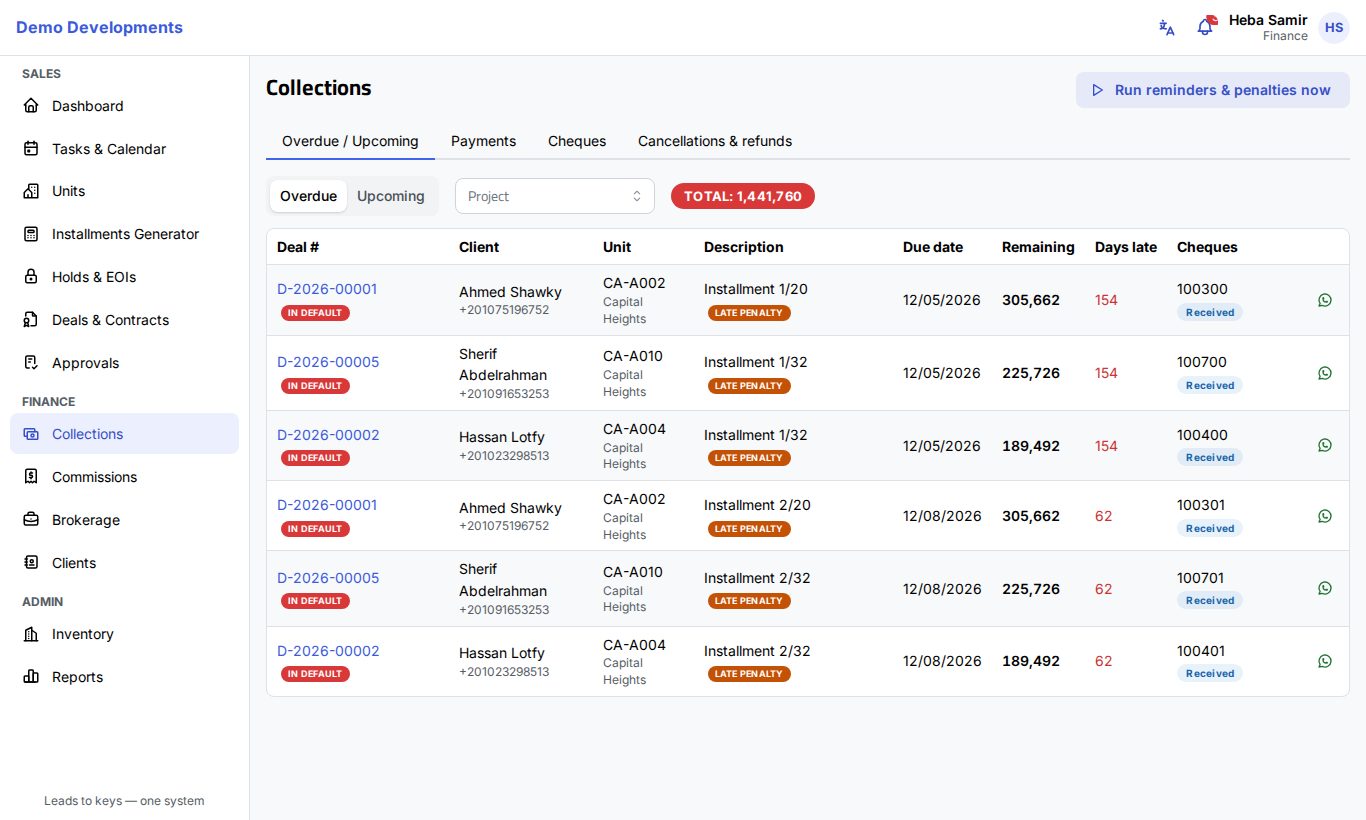
The first tab, Overdue / Upcoming, is the collections worklist.
- Open Collections from the Finance group in the menu.
- Choose Overdue to see installments past their due date, or Upcoming to see installments falling due soon. With Upcoming, a box appears for the number of days ahead (30 by default).
- To focus on one project, pick it in the Project filter.
- The badge next to the filters shows the Total still to collect for the rows on screen.
Each row shows:
- Deal #: click it to open the deal. A red In default badge means the client has missed several installments (see below).
- Client with their phone number, and Unit with its project.
- Description of the installment. An orange Late penalty badge means a late penalty has already been added for this installment.
- Due date, Remaining (what is still unpaid) and Days late (orange when late, red after 60 days).
- Cheques: the cheque linked to this installment, if any, with its status.
- The WhatsApp icon opens a WhatsApp chat with the client and a ready-made reminder (name, installment, amount and due date). Check it and press send in WhatsApp.
The list is sorted by due date, oldest first.
What the system does on its own
Every few minutes the system goes through your company's installments:
- Installments whose due date has passed become Overdue.
- If Send WhatsApp reminders is on and ExceliaBOT is connected, the client gets a WhatsApp reminder a set number of days before the due date, and one more reminder when the installment becomes overdue. Each reminder is sent only once.
- After the penalty grace period, a Late penalty is added once per overdue installment: a percentage of what is left on it plus a fixed amount, as a new line due that day.
- When a deal has the set number of overdue installments, it is marked In default. Finance, company admins, sales managers and the deal's agent are notified (also by e-mail). The mark is removed when nothing on the deal is overdue any more.
Finance and company admins can start this check at once with Run reminders & penalties now at the top of the page.
The rules are set by a company admin in Settings → Company & rules, in the Holds & EOIs · Collections card: Reminder days before due, Penalty grace (days), Late penalty %, Late penalty fixed amount, Default after missed installments, Bounced cheque fee, Send WhatsApp reminders and Time zone (which decides what "today" is). Setting the reminder days, the penalty amounts, the default count or the bounced cheque fee to 0 turns that rule off. See Company settings.
Recording a payment
Finance and company admins record payments on the deal page.
- Open the deal (for example by clicking its Deal # in Collections).
- Click Record payment at the top of the page. You can also click Record payment on a row of the Schedule tab to pay that installment.
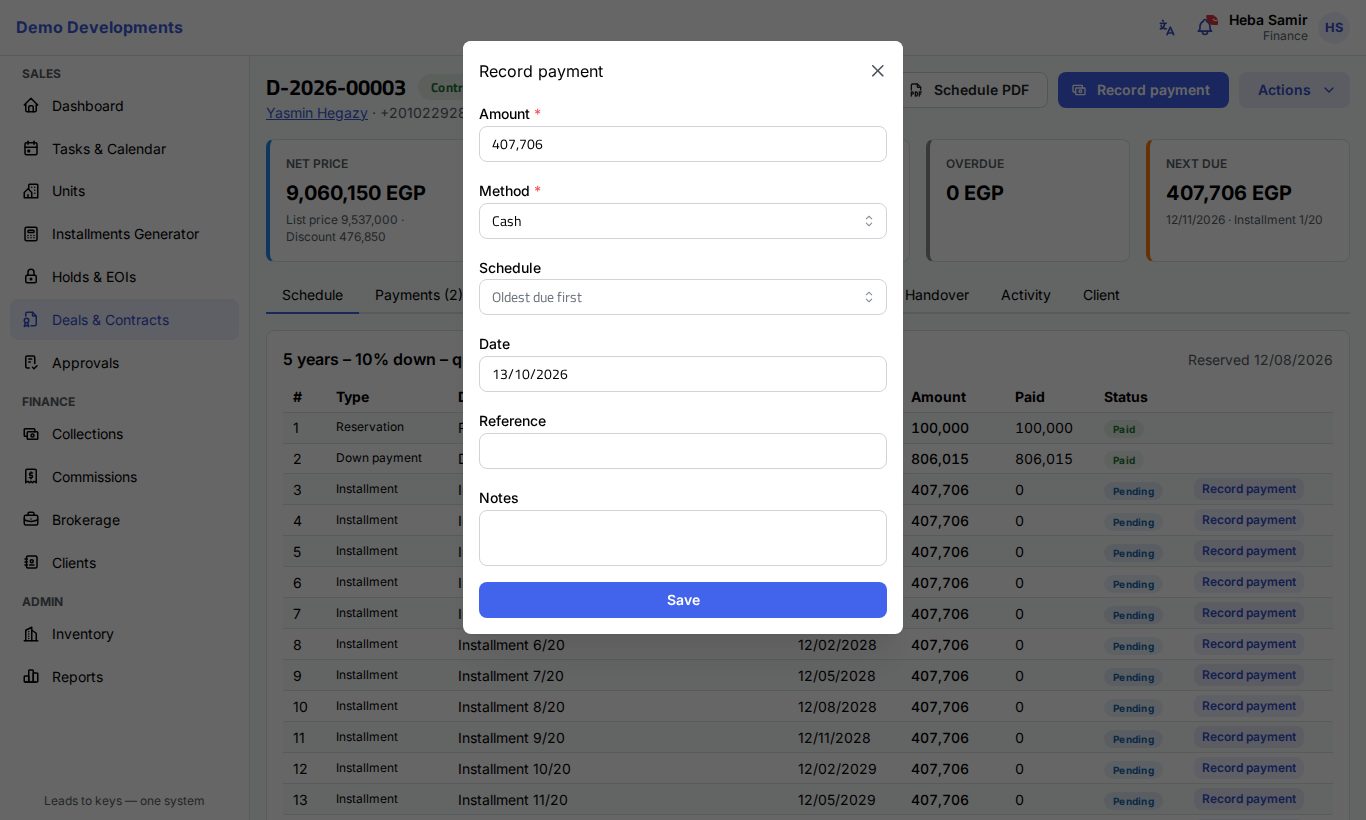
- Fill in the window:
- Amount: the system suggests what is left on the next installment. Change it if the client paid more or less.
- Method: Cash, Bank transfer, Cheque, InstaPay or Card.
- Paid by: only shown when the unit has several buyers; choose who paid.
- Schedule: the installment to pay first. Leave it empty to pay the Oldest due first.
- Date, Reference (transfer number, for example) and Notes.
- Click Save.
What happens next:
- The payment gets the next receipt number.
- The amount is spread over the installments: first the one you chose, then the oldest due. A payment bigger than one installment carries on to the next ones.
- The deal's agent is notified, and if ExceliaBOT is connected the client can get a WhatsApp confirmation.
- Commissions are checked again: they may become payable (see Commissions).
- If nothing is overdue any more, the In default mark is removed.
Limits
A payment cannot be more than the total still open on the deal, and payments cannot be recorded on a cancelled, terminated or rejected deal.
Receipts
Click the receipt icon next to a payment (on the deal's Payments tab or in Collections → Payments) to download the receipt as a PDF. It shows your company logo, the receipt number, the client (or the buyer who paid), the deal and unit, the amount, method and reference, which installments the payment covered, and who received it.
Reversing a payment
If a payment was recorded by mistake, Finance or a company admin can reverse it: on the deal's Payments tab click Reverse, then Confirm. Payments are never deleted. The payment stays in the list, faded and marked as reversed, and all the deal's remaining payments are spread over the installments again. Installments may become unpaid or overdue again, and commissions may go back to Pending collection.
Cheques
Cheques are handled on the deal's Cheques tab by Finance and company admins.
Registering cheques
- Add cheque: enter Cheque no., Bank, Amount, Due date and, if it pays a specific installment, For installment. Click Save.
- Cheques for all installments: for a book of post-dated cheques. Enter the Bank and the First cheque no. and click Save. The system creates one cheque for every open regular installment that has no cheque yet (not the down payment, delivery payment or fees), with the amount still due and the installment's due date. If the first number is a plain number, the next cheques count up from it.
Cheque statuses
| Status | Meaning |
|---|---|
| Received | The cheque is with you. |
| Deposited | It was deposited at the bank. |
| Collected | The bank paid it. A payment was recorded. |
| Bounced | The bank returned it unpaid. |
| Replaced | The client gave a new cheque instead. |
| Returned | Handed back to the client because the deal was cancelled or terminated. |
Following a cheque
- Deposit: moves a Received cheque to Deposited.
- Collect: marks a Received or Deposited cheque as Collected. A payment by Cheque is recorded for you, with a receipt and the cheque number and bank as its reference.
- Bounced: enter the reason and click Confirm. If the cheque was already collected, its payment is reversed. If your company set a Bounced cheque fee, a Bounced cheque fee line is added to the schedule, due the same day. The agent and Finance are notified (also by e-mail), and the client can get a WhatsApp message if ExceliaBOT is connected.
- Replace: for a Bounced or Received cheque. Enter the new cheque's details and click Save. The new cheque is Received and pays the same installment; the old one becomes Replaced.
- Edit: while a cheque is Received you can correct everything. Once it is Deposited, only the installment it pays can be changed. If the amount is different from what is left on the chosen installment, the window warns you. Every change is written in the deal's activity.
Cheques "To review" after a reschedule
When a deal's balance is rescheduled (Actions → Reschedule balance on the deal page, which may need a manager's approval), the old installments are replaced by new ones. Cheques that were Received or Deposited for the old installments are moved, in due-date order, to the new installments, one cheque per installment. Any cheques left over stay without an installment.
All moved cheques are marked To review, and Finance gets a notification. To check them:
- Open the deal and go to the Cheques tab. An orange note explains what happened.
- Click the orange Review button on each cheque.
- Check the amount, the due date and For installment, correct them if needed, and click Save. The To review mark disappears.
Waiving a penalty or a bounced cheque fee
Finance, sales managers and company admins can waive a Late penalty or a Bounced cheque fee that has not been paid at all. Regular installments cannot be waived.
- Open the deal and go to the Schedule tab.
- Click Waive on the penalty or fee row.
- Write the Reason for waiving (required) and click Confirm.
The waiver takes effect at once; it does not go through an approval. The line is cancelled, marked "(waived)", and the deal's activity shows who waived it, the amount and the reason. If the fee is partly paid, reverse the payment first.
Billing maintenance, club or garage fees
Finance and company admins can add fees to a deal's schedule:
- On the deal page click Actions → Bill fees.
- Choose the Charge (Maintenance, Club fee or Garage), an optional Description and the Amount.
- Set the First due date. For repeated fees (an annual club fee, for example) set Number of charges (1 to 60) and Every (months).
- Click Save. The lines appear in the schedule; any already past due are overdue at once.
Payments list
The Payments tab lists every payment received in a period.
- Pick the dates (from the 1st of this month to today by default).
- Optionally choose a Method.
- The badge shows the total and the number of payments. Reversed payments are shown faded with a Reversed label and are not counted.
- Click the receipt icon on a row to download its receipt.
- Click Export to download the list as an Excel file with the same filters: receipt number, date, deal, client, unit, project, amount, method, reference and whether it was reversed.
Cheques list
The Cheques tab lists cheques across all deals, with cheque number, bank, deal, client, due date, amount and status. It opens on Received cheques; choose another Status, or clear it to see all. To act on a cheque, open its deal.
Cancellations and refunds
The Cancellations & refunds tab lists deal cancellations, terminations, unit swaps and transfers, with the total paid, the deduction (% and amount), the refund and the approval status. A green tick means the refund has been paid out. Once a refund is approved, Finance clicks Mark refund paid on the deal page (Activity tab).
A client's account
There is no separate statement document. To answer a client who asks where they stand, open their deal: the cards at the top show Net price, Collected of price, Total paid, Overdue and Next due, and the Schedule tab shows each installment with what was paid. Schedule PDF prints the payment plan.
Good to know
- Only payments towards the unit price count for commissions; fees, penalties and bounced cheque fees do not.
- When a deal is cancelled or terminated, its unpaid installments are cancelled and cheques not yet collected become Returned.
- The system uses your company's time zone to decide when an installment is late.
- The Collected and Overdue installments figures on the Dashboard, and the Collections & cash flow report in Reports, use the same data.