
Approvals
Some actions in Excelia CRM need a manager's OK before they take effect: holding a unit, a reservation with an extra discount or a custom payment plan, rescheduling installments, swapping a unit, transferring ownership, changing the buyers, and cancelling a deal with a refund. Each of these becomes an approval request. The Approvals page is where sales managers, team leaders, finance and admins decide these requests, and where the person who asked can follow them step by step. Company admins decide who approves what in Settings → Approval workflows (see the end of this page).
What needs approval
| Request type | When it is raised | What a threshold can look at |
|---|---|---|
| Unit hold | Someone asks to hold a unit for a lead | Unit price |
| Deal terms / discount | A reservation uses a custom plan or an extra discount. A standard payment plan with no extra discount needs no approval. | Extra discount, Extra discount % |
| Reschedule | A deal's installments are rescheduled | Balance rescheduled |
| Cancellation & refund | A deal is cancelled with a refund | Refund amount, Deduction % |
| Unit swap | The client moves to another unit | New unit price |
| Ownership transfer | The deal is transferred to a new owner | Transfer fee |
| Change of buyers | The buyers on a deal change | Transfer fee, Share moving to someone new |
While a request waits, the record shows it: a held unit or a reservation shows Pending approval, and nothing changes on the deal until the last step is approved.
If your company has not set up its own workflow, each type has one step:
- Cancellation & refund: a Company admin or Finance decides.
- Reschedule: a Company admin, Sales manager or Finance decides.
- All other types: a Company admin or Sales manager decides.
The Super admin can decide any step.
Find your requests
At the top of the page, choose a list:
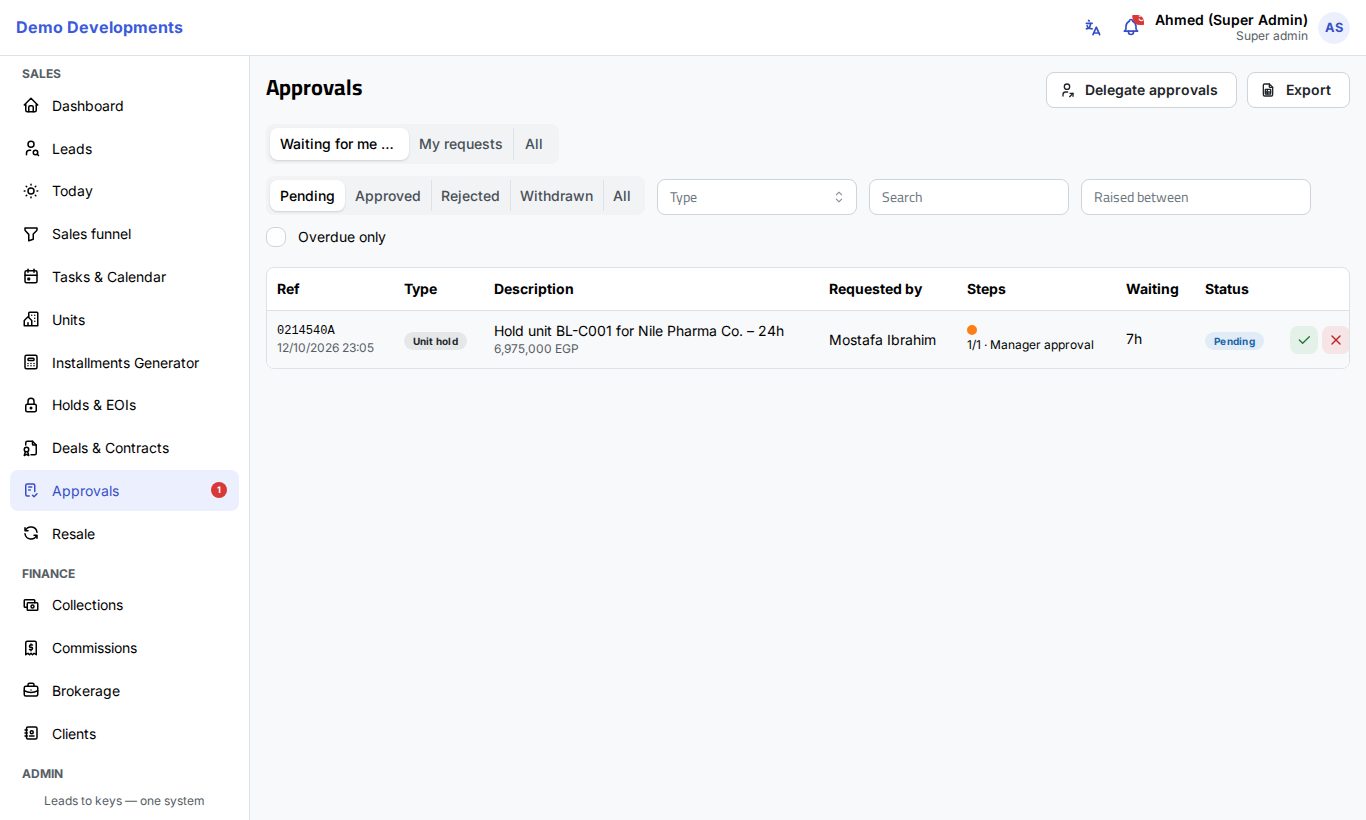
- Waiting for me: the requests you can decide now. The red number shows how many. The same number appears next to Approvals in the menu.
- My requests: the requests you raised, so you can see where they are.
- All: everything you are allowed to see. Admins, sales managers and finance see every request. Others see their own requests and the ones waiting for them.
Narrow the list with the filters: the status (Pending, Approved, Rejected, Withdrawn or All), the Type, Search (description or requester's name), Raised between (dates), and Overdue only.
Each row shows:
- Ref: a short reference and when the request was raised.
- Type and Description, with the amount and percentage below it when the request has them.
- Requested by.
- Steps: one dot per step. Green is approved, orange is waiting now, grey is not reached yet or skipped, red is rejected. Below the dots, for example "2/3 · Sales manager" tells you which step it is waiting at.
- Waiting: how long the current step has been waiting. It turns red once the step's time limit has passed. A red flag means the step was escalated to the Company admin.
- Status.
Open a request
Click any row to open its details on the side:
- The description, and the amounts the workflow looks at (for example Extra discount and Extra discount %).
- Who asked and when, and an Open link to the deal for deal requests.
- Waiting for: the names of the people who can decide the current step.
- A timeline of all the steps: who approved or rejected each one and when, their comment, "for (name)" when someone decided as a delegate, and when the current step started and is due.
Approve or reject a request
- Open Waiting for me.
- Click the green tick (Approve) or the red cross (Reject) on the row. You can also open the request and use the Approve and Reject buttons at the bottom.
- When approving, you can add a Comment. When rejecting, the Reason for rejecting is required. The person who asked will see it.
- Click Approve or Reject in the window.
What happens next:
- More steps to go: the next step starts, the people who decide it are notified, and the requester is told which step was approved.
- Last step approved: the action takes effect. The hold becomes active, the reservation becomes Reserved, the rescheduled plan, unit swap, ownership transfer or new buyers are applied, or the cancellation is carried out.
- Rejected at any step: the request stops there. A rejected reservation is undone: the unit is available again, its installments are cancelled, the lead goes back to Negotiation and an EOI used for it is freed. For the other types, nothing changes on the deal.
The requester is notified of the final decision either way.
You cannot approve your own request
The person who raised a request cannot decide it, even if their role is on the step. Only the Super admin can.
Withdraw a request
The person who raised a request (or a Company admin) can take it back while it is still pending:
- Find the request in My requests, or open it.
- Click Withdraw.
- Add a Reason if you like, and click Withdraw.
A pending hold is released, a reservation waiting for approval is undone, and a cancellation request is dropped.
Export the list
Click Export to download the list you are looking at (with its filters) as an Excel file. It includes each step's decision, who made it and when.
Delegate approvals while you are away
When you are on leave, you can let a colleague decide the approvals you would normally decide.
- On the Approvals page, click Delegate approvals.
- In To, choose the colleague. You can delegate to a sales manager, team leader, finance user or admin, not to a sales agent or marketing.
- Set the start in From and the end in To (date and time).
- Add Notes if you like (for example "Annual leave").
- Click Delegate approvals.
The list below the form shows your delegations. Active now marks the ones running at the moment. Click End to stop a delegation early.
- During the delegation, your colleague can decide every step you could decide. Their decisions show "for (your name)" in the timeline.
- You keep receiving the notifications too, and you can still decide yourself.
- A delegation can last at most 120 days and cannot be to yourself.
- A delegate cannot use your delegation to approve requests you raised yourself.
- Company admins see an extra From field to set up a delegation for someone else, and they can see and end everyone's delegations.
Set up approval workflows
In Settings → Approval workflows, each request type has its own chain of steps. Admins, sales managers and finance can see the workflows. Only company admins can change them.
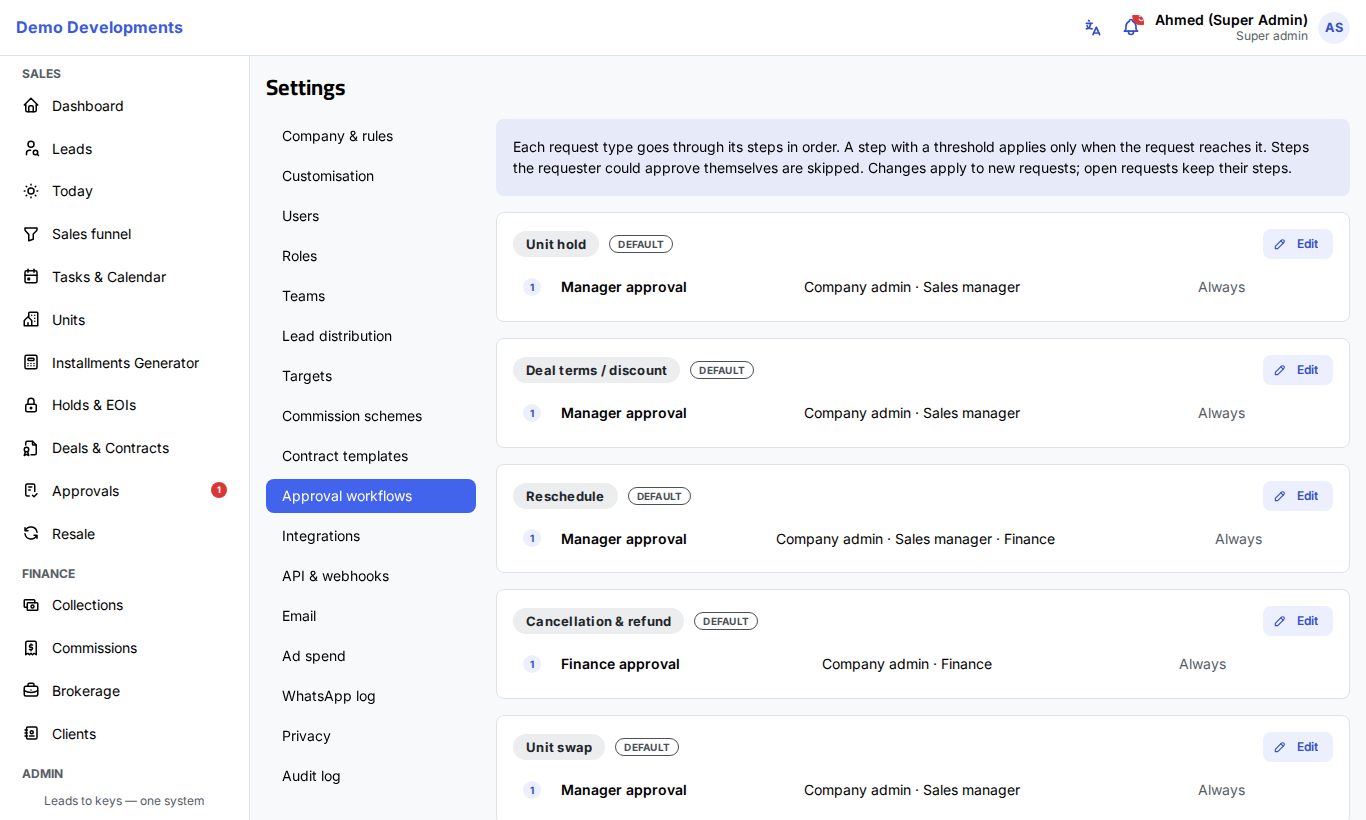
Each card lists the steps in order: the step name, Who approves, the condition (Always, or for example "Extra discount % ≥ 5%") and the time limit. A card marked Default is still using the built-in single step.
To change a workflow:
- Go to Settings → Approval workflows.
- Click Edit on the request type's card.
- For each step, fill in:
- Name: what people will see, for example "Team leader review".
- Who approves: one or more of Company admin, Sales manager, Team leader and Finance. Anyone with one of these roles can decide the step.
- Only if … ≥: an optional threshold. The step only applies when the request's amount reaches it. Types that also have a percentage (deal terms, cancellation, change of buyers) show a second threshold for it.
- Time limit: in hours, from 0 to 720. 0 means no limit.
- Active: switch it off to skip the step without deleting it.
- Use the arrows to change the order, the bin to delete a step, and Add step to add one (up to 6 steps).
- Click Save.
How the steps are applied
- Steps run from top to bottom. Each step must be approved before the next one starts.
- A step with a threshold is only included when the request reaches it. If a step has both an amount and a percentage threshold, the request must reach both.
- A step is skipped when the person asking could approve it themselves: when their role is on the step, or when their role is at or above every role on it (Team leader, then Sales manager, then Company admin). Finance is outside this ladder. So a sales manager's own discount does not wait for a team leader.
- If no step applies to a request (it is below every threshold, or every step is skipped), there is no approval: the action happens at once.
- If you save a workflow with no steps, the default single step applies again.
- Changes apply to new requests. Requests already open keep their steps.
- Steps are given to roles, not to named people. A team leader step can be decided by any team leader. To let a particular person decide for someone, use delegation.
Time limits and escalation
When a step passes its time limit, the people who can decide it get a reminder, and the request shows in red under Waiting (and in Overdue only). If the step is still waiting after twice its time limit, it is escalated: the company admins are notified by e-mail and can decide that step themselves, even if their role is not on it. The row gets a red flag. The system checks this every few minutes.
Example: discounts by size
| Step | Who approves | Only if | Time limit |
|---|---|---|---|
| 1. Team leader review | Team leader | Always | 24 h |
| 2. Sales manager | Sales manager | Extra discount % ≥ 3% | 24 h |
| 3. Management | Company admin | Extra discount % ≥ 7% | 48 h |
- An agent gives a 2% extra discount: only the team leader decides.
- An agent gives 5%: the team leader, then the sales manager.
- An agent gives 8%: all three steps, in order.
- A sales manager gives 5%: steps 1 and 2 are skipped, so the reservation goes through at once.
Good to know
- People are notified of approvals in the app, on their phone and by e-mail. Each person can switch off approval e-mails in their profile.
- A hold request waiting for approval is closed automatically if the unit is taken in the meantime, and the agent who asked is told.
- If the new unit of a unit swap is no longer available when the last step is approved, an error is shown and the request stays pending.
- Sales agents, team leaders, sales managers, finance and admins can open the Approvals page. Marketing users cannot.
Tip
Keep time limits realistic (for example 24 hours) so a request never sits forgotten: overdue steps remind the approvers and, if still waiting, reach the company admins.