
Integrations and API
Leads can reach Excelia CRM on their own from Facebook and Instagram lead forms (Meta Lead Ads), from WhatsApp through ExceliaBOT, from the forms on your website, and from tools such as Make, Zapier and n8n. Every lead that comes in this way goes through the usual duplicate check and lead distribution. This page explains Settings → Integrations and Settings → API & webhooks. Company admins set them up; marketing staff can see the integrations page without its keys and tokens.
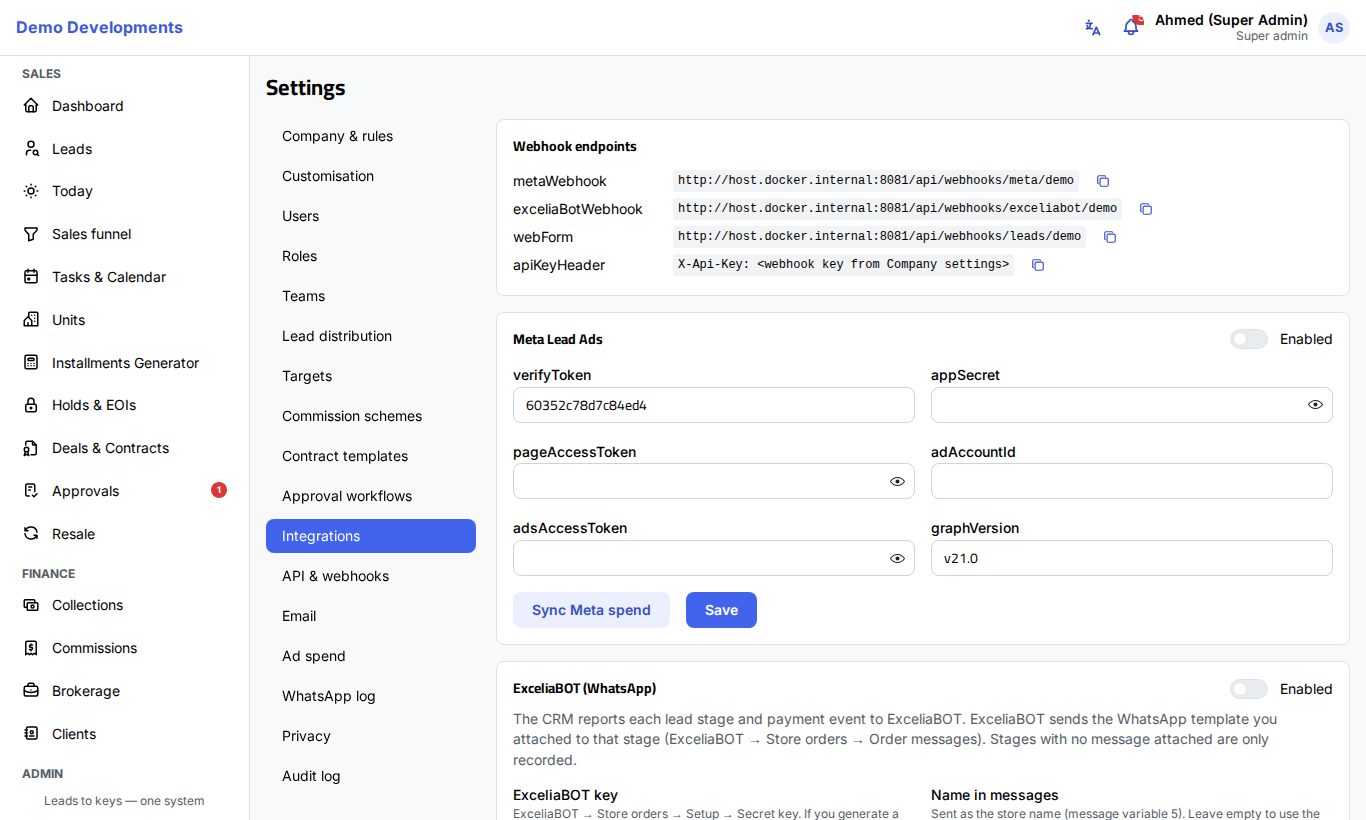
Webhook endpoints
The Webhook endpoints card at the top of Settings → Integrations lists your company's own addresses, each with a copy button:
- metaWebhook: the address to give Meta for lead forms.
- exceliaBotWebhook: the address ExceliaBOT uses to send WhatsApp leads.
- webForm: the address your website forms send leads to.
The website form and ExceliaBOT addresses also need your company's Webhook key, sent in the X-Api-Key header. You find and copy it on Settings → Company & rules (see Company settings).
Facebook and Instagram lead forms (Meta Lead Ads)
When someone fills in a lead form on one of your Facebook or Instagram ads, Meta tells the CRM, which fetches the answers and adds the lead with its campaign, ad set and ad.
You need a Meta app connected to your Facebook Page (usually set up by whoever runs your ads). Then:
- Open Settings → Integrations and find the Meta Lead Ads card.
- Fill in the fields:
- verifyToken: a word the CRM already filled in for you. Enter the same word in your Meta app's webhook settings, with the metaWebhook address from the top of the page.
- appSecret: your Meta app's secret, so the CRM can check that messages really come from Meta.
- pageAccessToken: a long-lived Page access token that is allowed to read leads.
- adAccountId and adsAccessToken (optional): your ad account number (without
act_) and a token that can read ads, to bring in your ad spend. - graphVersion: the Meta API version; leave it as it is unless told otherwise.
- Switch on Enabled.
- Click Save.
With the ad account filled in, click Sync Meta spend to bring in the spend per campaign for this month and the two months before. It appears under Settings → Ad spend and in the marketing report (see Marketing and lead sources).
If something goes wrong, the card shows the last error in red. The time of the last successful sync is shown under the fields.
WhatsApp through ExceliaBOT
ExceliaBOT is the WhatsApp assistant that works with Excelia CRM. It works in two directions:
- WhatsApp leads in: people who message you on WhatsApp, including from Click-to-WhatsApp ads, become leads in the CRM.
- Messages out: the CRM tells ExceliaBOT about every new lead, every stage change and every payment event. ExceliaBOT sends the WhatsApp template you attached to that stage in ExceliaBOT (ExceliaBOT → Store orders → Order messages). Stages with no template attached are only recorded.
To connect it:
- In ExceliaBOT, open Store orders → Setup and copy the Secret key.
- In the CRM, open Settings → Integrations and find the ExceliaBOT (WhatsApp) card.
- Paste the key into ExceliaBOT key.
- Optional: fill in Name in messages, the name sent as the store name in messages (message variable 5). Leave it empty to use your company name.
- Leave Send lead stage updates on if you want messages for new leads and stage changes. Payment events are controlled by Send WhatsApp reminders on Settings → Company & rules.
- Switch on Enabled and click Save.
- Click Set up stages in ExceliaBOT once. All the stages the CRM reports then appear in ExceliaBOT so you can attach a template to each. Nothing is sent to anyone.
The card lists the Stages the CRM reports: one for each lead stage, plus Payment due soon, Payment overdue, Payment received and Cheque bounced.
Send a test
- Under Send a test, type a phone number.
- Click Send test.
This sends one event with the stage crm_test. To actually receive a message, attach a template to crm_test in ExceliaBOT; otherwise it is only recorded in ExceliaBOT's History tab.
The coloured counters on the card (Sent, Queued, Not sent, Failed) cover the last 7 days. Managers can see each message on Settings → WhatsApp log.
People who asked not to be contacted
Nothing is sent through ExceliaBOT to a person marked Do not contact. See Privacy and data protection.
Your website forms
Your web developer can send each form straight to the webForm address shown on Settings → Integrations, with your company's Webhook key in the X-Api-Key header. The form sends the person's name and phone, and can add the e-mail, project, campaign, notes and UTM source and campaign. When the UTM source mentions Google, TikTok, Facebook or Instagram, the lead's source is set to match; otherwise it is recorded as coming from your website.
API keys and webhooks
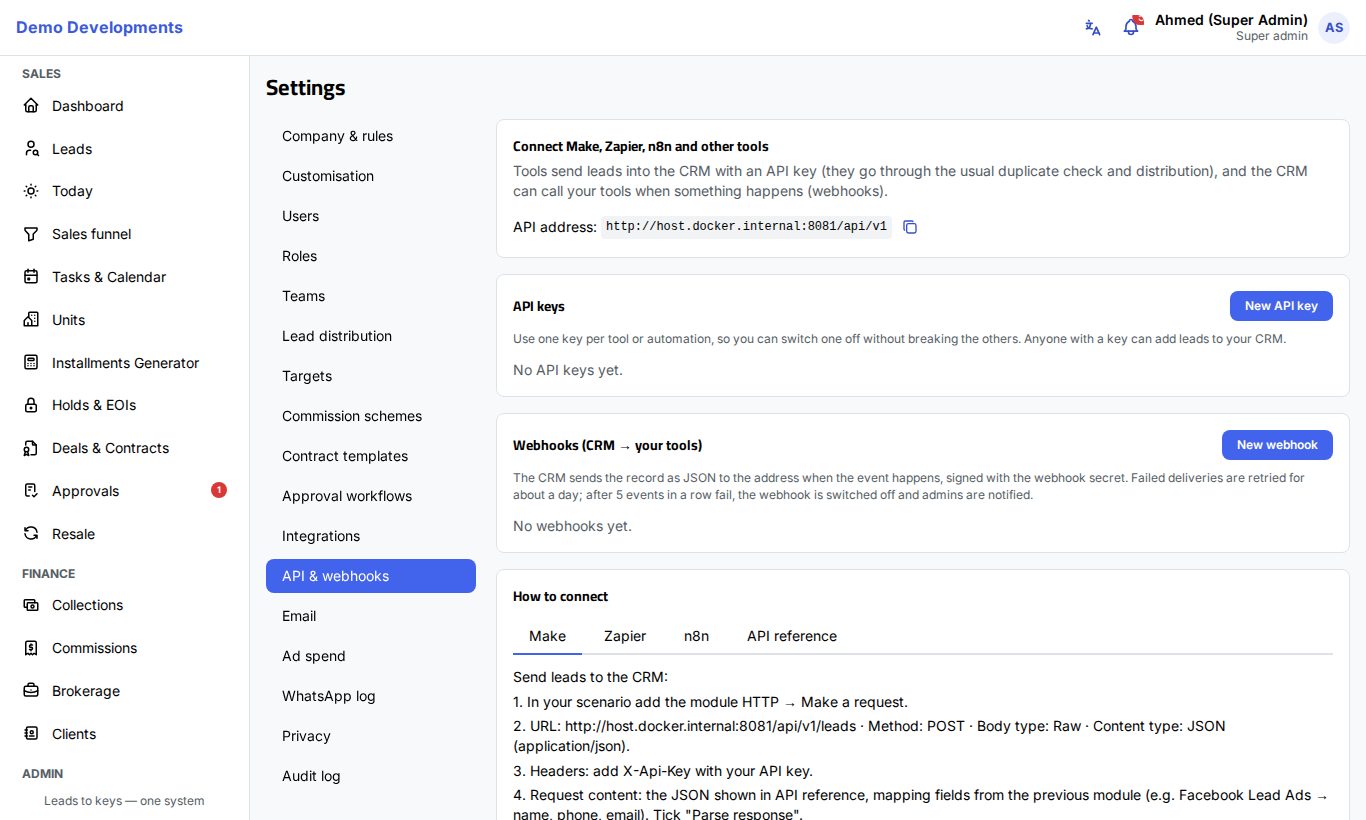
Settings → API & webhooks connects Make, Zapier, n8n and other tools. It works in two directions:
- Tools send leads into the CRM with an API key.
- The CRM calls your tools when something happens, with webhooks.
The top card shows the API address to use in your tools, with a copy button.
Create an API key
Use one key per tool or automation, so you can switch one off without breaking the others.
- In the API keys card, click New API key.
- Give it a Name that says where it is used, for example "Zapier – Facebook forms".
- Click Create key.
- Copy the key and keep it safe (in the tool and in your password manager). It is shown only once. Click I've copied it.
The list shows each key's start, when it was Last used and how many Leads sent it brought in.
Keep keys secret
Anyone with a key can add leads to your CRM. If a key may have leaked, revoke it and make a new one.
To stop a key, click Revoke, then Revoke again to confirm. Tools that use it stop working at once, and webhooks that a tool created with it are switched off. This cannot be undone.
Add a webhook
A webhook sends a record to an address of your choice when something happens:
| Event | When |
|---|---|
lead.created | A new lead was added (any source) |
lead.stage_changed | A lead moved to another stage |
deal.reserved | A unit was reserved for a client |
deal.contracted | A contract was signed by both parties |
- In your tool, create a "custom webhook", "catch hook" or "webhook" step and copy its address.
- In the Webhooks (CRM → your tools) card, click New webhook.
- Fill in a Name, paste the Address (URL) (it must start with
https://) and choose the Events. - Leave Active on and click Save.
- Copy the Webhook signing secret that appears. It is shown only once; your tool can use it to check that calls really come from your CRM.
- Click Test next to the webhook. The CRM sends a sample (your latest lead or deal when there is one) and shows whether it arrived.
Next to each webhook you can also open the Log of what was sent, with Send again for failed deliveries, edit it, make a new signing secret (Make a new signing secret) or delete it.
Step-by-step guides for Make, Zapier and n8n
The How to connect card at the bottom of the page has short guides for Make, Zapier and n8n, with your own API address already filled in, and an API reference tab with an example lead and the answers the CRM gives. On the n8n tab, Download n8n template gives you a ready-made workflow to import.
Good to know
- Duplicates: a lead whose phone already exists is not added twice. It is merged into the existing lead and its agent is notified.
- Your own ID: tools can send their own
externalId. Sending the same one again never creates a second lead. - Choosing an agent: a tool can send an agent's e-mail to give the lead to that agent; otherwise the lead goes through your distribution rules.
- Failed webhook deliveries are retried for about a day. After 5 events in a row fail, the webhook is switched off and admins are notified. Fix the address, switch it back on and use Send again from the log.
- At most 20 active API keys and 30 webhooks per company.
- Only company admins can change integrations, keys and webhooks.