
Importing from Excel
When your company moves to Excelia CRM, you do not need to type in what you already have. The Import data page brings in your leads, clients, units and existing contracts (with their installments, payments and cheques) from Excel. The CRM checks the whole file first and shows every problem before anything is saved, then imports everything in one go, compares its totals with your file, and lets you undo the import for 7 days.
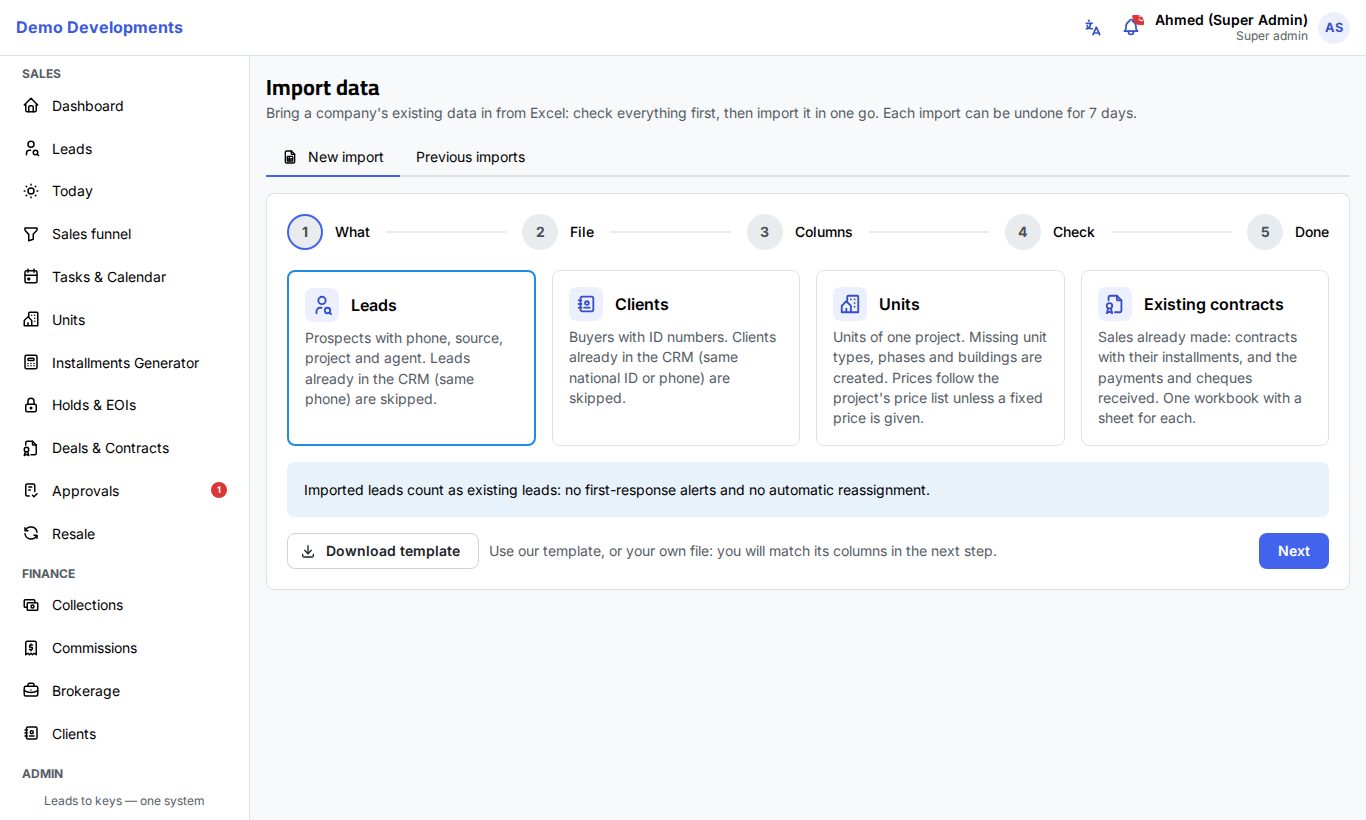
To open it, choose Import data in the menu (under Admin).
What you can import
| Type | What it holds | Who can import it |
|---|---|---|
| Leads | Prospects with phone, source, project and agent. Leads already in the CRM (same phone) are skipped. | Company admins, sales managers, team leaders and marketing |
| Clients | Buyers with their ID numbers. Clients already in the CRM (same national ID or phone) are skipped. | Company admins |
| Units | The units of one project. Missing unit types, phases and buildings are created. Prices follow the project's price list unless a fixed price is given. | Company admins and sales managers |
| Existing contracts | Sales already made: contracts with their installments, and the payments and cheques received. One workbook with a sheet for each. | Company admins |
You only see the types you are allowed to import.
Import a file step by step
The page has two tabs: New import and Previous imports. A new import has five steps: What, File, Columns, Check and Done.
1. What
- Click the card of what you want to import.
- For Units, choose the Project the units belong to.
- Optional: click Download template to get an Excel file with the right column names in your language and an example row. You can also use your own file: you will match its columns in step 3.
- Click Next.
2. File
- Click Choose Excel file.
- Choose your workbook. It must be an Excel
.xlsxfile, with at most 20,000 rows per sheet. Older.xlsand.csvfiles are not read: open them in Excel and save them as.xlsxfirst.
3. Columns
For each part of the import the CRM shows the Sheet it will read and a table with each CRM field, the Column in your file and the value in the First row.
- Check the sheet. For existing contracts, choose the sheet with the Contracts, the one with the Installments, and if you have them the ones with the Payments and Cheques (choose Not in this file when you have none).
- Check each match. The CRM matches the columns it recognises; choose the right column for any field that is empty or wrong. Fields marked * are required.
- Your own fields from Customisation are listed too and can be filled from your columns.
- Click Check the file.
Your choices are remembered for the next import.
4. Check
The CRM reads every row and shows the number of errors and warnings, the totals it found in your file, and the list of problems with the Sheet, Row, field and Problem.
- Errors stop the import, for example an empty required field, a date it cannot read or a unit that does not exist. Fix them in your file and click Upload a corrected file, or click Change columns if a column was matched wrongly. Nothing has been saved yet.
- Warnings do not stop the import. Each one says what will happen to that row, for example "already in the CRM: skipped" or "New unit type will be created".
When there are no errors:
- Click Import … records.
- Read the confirmation and click Import … records again.
Everything is saved in one go: either the whole file is imported, or nothing is.
5. Done
The CRM shows a reconciliation report: for each total (rows, records created, skipped, and for contracts the total net price, installments, payments and cheques) it shows the figure In the file and In the CRM, with ✓ when they match and ✗ when they differ.
- Every total in the CRM matches the file means the import is complete.
- If a line shows ✗, check it, and undo the import if something is wrong.
Click Open to see what you imported, or Import another file.
Undo an import
- Open the Previous imports tab. It lists each import with its date, type, file, how many records were added and skipped, who imported it and its status.
- Click Undo next to the import (the date under Undo until shows how long you have).
- Click Undo again to confirm.
Everything the import added is removed and units go back to their previous status. This cannot be reversed.
An import can be undone for 7 days, and only while nobody has worked on what it added. For example, it can no longer be undone once someone edited an imported lead or logged a call on it, put a hold on an imported unit, or recorded a payment on an imported contract.
Rules for each type
Imported leads
Imported leads count as existing leads: no first-response alerts and no automatic reassignment. Leads cannot be imported at stages that come from holds and deals (such as Reserved or Contracted): import those as existing contracts. An agent e-mail that does not match an active user leaves the lead unassigned.
Existing contracts
Existing contracts are imported as history: no approval requests, notifications, e-mails, webhooks or commissions. Installments already due get no reminders or late penalties. The units become Reserved, Contracted or Handed over to match. Import the units first; each file can hold up to 5,000 contracts.
Good to know
- Dates can be written as 31/12/2026 or 2026-12-31. Arabic digits are read too.
- Choices (such as the source or a stage) can be written by name; when a value is not known, the warning or error says which values are allowed.
- Rows repeated inside the file are reported with the row they repeat.
- When you import existing contracts, buyers already in the CRM (same national ID, or same phone) are linked to the contract; other buyers are added as new clients. So you can import the clients first, but you do not have to.
Tip
Try a small file first (ten rows), check the result, then undo it from Previous imports and import the full file.