
The deal page
Every reservation has its own page that follows it to the keys: the payment schedule, payments and cheques, the contract and documents, commissions, the handover, and every change made on the way. Agents use it to follow their clients' deals and documents, Finance to record money, and managers to approve and handle changes. Open it from the deals list, from a unit, or from a client's page. If someone else changes the deal while you have it open, the page refreshes and tells you who.
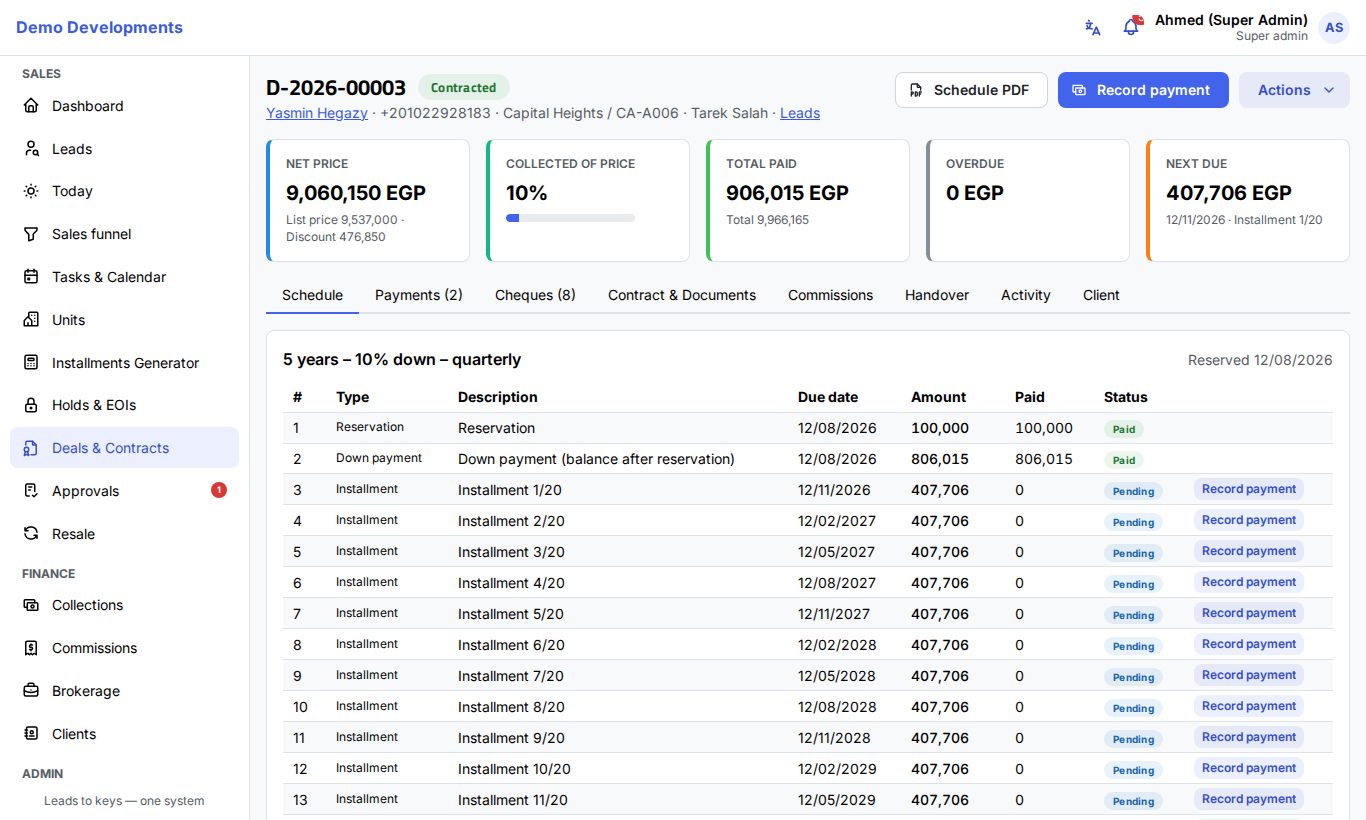
The top of the page
- The deal number, its status and a red In default badge if the client stopped paying.
- Under it: the buyers (each name opens the client page, with shares when there are several), the phone, the project and unit, the agent, and a link to the lead.
- Schedule PDF downloads the payment schedule.
- Record payment (Finance and admins).
- Actions opens the changes you may make: Swap unit, Transfer ownership, Reschedule balance, Schedule handover, Bill fees, Cancel deal and Terminate (default). You only see the ones your role allows, and none once the deal is closed.
Five cards sum up the money: Net price (with the list price and discount), Collected of price (a percentage with a bar), Total paid (out of the total due), Overdue, and Next due (amount, date and description). Your company's own deal fields appear under them.
A deal still waiting for its terms to be approved shows an orange note.
Schedule
The Schedule tab shows the plan name, the reservation date and every payment: number, Type, Description, Due date, Amount, Paid and Status. Cancelled rows are faded.
- Finance can click Record payment on any open row to pay that installment.
- Late penalties and bounced cheque fees that are not paid yet show Waive for Finance, sales managers and admins. Type the Reason for waiving and click Confirm.
Payments
Record a payment (Finance)
- Click Record payment at the top (or on a schedule row).
- Check the Amount (it cannot be more than what is still owed) and choose the Method.
- When there are several buyers, choose who paid in Paid by.
- In Schedule, choose the installment it pays, or leave it empty to pay the oldest due installments first.
- Check the Date, add a Reference and Notes, and click Save.
The Payments tab lists every payment with its Receipt number, date, amount, method and reference. Click the receipt icon to download the receipt PDF. Finance can Reverse a payment entered by mistake; it stays in the list, faded and marked.
Cheques (Finance)
The Cheques tab keeps the client's post-dated cheques:
- Add cheque: Cheque no., Bank, Amount, Due date and For installment.
- Cheques for all installments: type the Bank and the First cheque no. to add one cheque for every open installment that has no cheque yet, numbered in order with the installment's amount and due date.
- On each cheque: Deposit, Collect (records the payment), Bounced (with a reason), Replace and Edit.
After a reschedule, cheques moved to the new installments show To review; open each with Review, check the amount and date, and save it. See Collections for the day-to-day follow-up.
Bill fees (Finance)
To charge maintenance, club fee or garage separately:
- Choose Actions › Bill fees.
- Choose the Charge (Maintenance, Club fee or Garage), add a Description and the Amount.
- Set the First due date, the Number of charges (1 to 60) and Every (months) when it repeats.
- Click Save. The charges are added to the schedule.
Contract and documents
The Contract & Documents tab takes the deal from reservation to a signed contract. These steps are for sales managers, admins and Finance (by default).
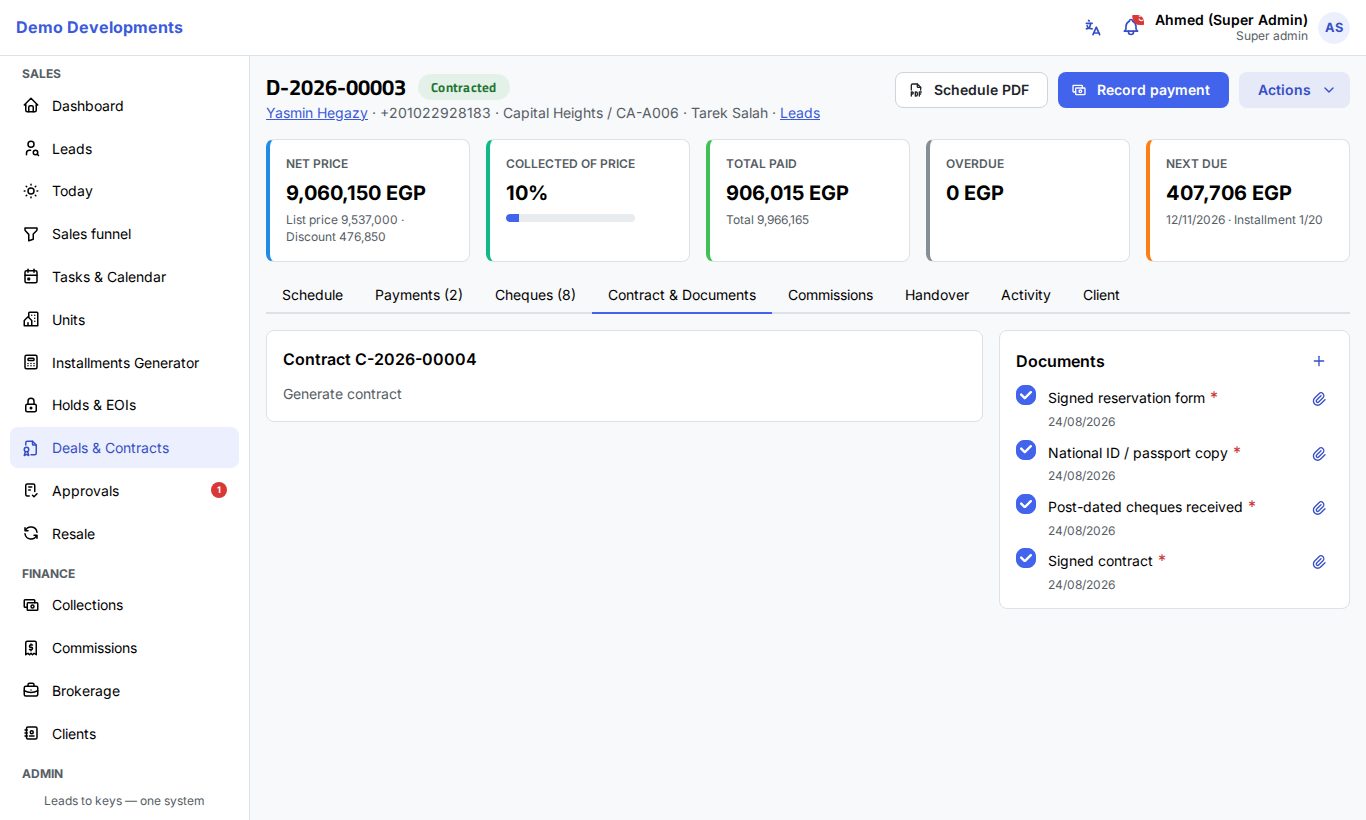
- Generate contract: choose one of your company's contract templates. The contract number is given, the text is filled with the deal's details, and the deal becomes Contract draft. You can generate it again while it is a draft. Templates are managed by your admin; see Contract templates.
- While the deal is a Contract draft, you can edit the contract text right on the page and click Save. Contract PDF downloads it for printing.
- When the client has signed, click Signed by client. The deal becomes Signed by client.
- When the company has signed too, click Sign by company (contracted). Choose the scanned Signed contract (PDF) (up to 25 MB), check Signed on, and click Upload and complete.
The deal becomes Contracted, the unit Contracted, commissions are created and the agent is told. Signed contract then downloads the uploaded copy.
Documents first
The company signature is refused while required documents are missing. The upload window lists what is Still missing.
The documents checklist
Next to the contract, Documents lists what the deal needs. New deals start with: ID copy (one per buyer), signed reservation form, signed contract and post-dated cheques received. Required ones have a red star.
- Tick a document when you receive it; the date is saved.
- Click the paperclip to Attach file (a PDF or a photo); the document is marked received. Click the file icon to open it.
- Click + to Add document: type its Name, tick Required if it must be in before signing, and click Save.
Agents, managers and Finance can work on the documents.
Commissions
The Commissions tab lists the commission lines once the deal is contracted: Role, Beneficiary, %, Amount and Status. For a developer's project sold as a broker, a Developer claim box shows the commission due from the developer. See Commissions.
Changes to a deal
All changes are in the Actions menu. Each is recorded in the deal's activity, and some need approval (see what needs approval). When a request is sent for approval, you see "Sent to a manager for approval"; it takes effect when approved on the Approvals page.
Swap unit
- Choose Actions › Swap unit.
- Choose the Project and the New unit (it must be available), add a Reason, and click Confirm.
The deal keeps its payment plan, so choose a unit in the same project. The schedule is rebuilt for the new unit's price, payments already made are moved onto it, and the old unit becomes available.
Transfer ownership
- Choose Actions › Transfer ownership.
- Fill in the new owner's Name, Phone, National ID (14 digits), Passport no., Nationality and Address.
- Type the Transfer fee, or leave it empty to use the project's resale transfer fee %.
- Add a Reason and click Confirm.
The new owner replaces the buyers, and the fee is added to the schedule as a transfer fee due today.
Change buyers
- Open the Client tab (called Buyers on the contract when there are several) and click Change buyers.
- Add or remove co-buyers, change the shares or the primary buyer.
- After the contract is signed, a Reason is required and a Transfer fee is charged on the share that moves to someone new (worked out automatically if you leave it empty). This needs a sales manager's approval.
- Click Save.
Before signing, the change is applied at once and a new ID copy is asked for from each new buyer.
Reschedule balance
Sales managers, admins and Finance (by default) can spread the unpaid balance into a new plan:
- Choose Actions › Reschedule balance.
- Fill in Years (1 to 10), Frequency, an Upfront amount if the client pays something now, the Start date and a Reason.
- Click Submit.
Unpaid price installments are replaced by the new ones (partly paid ones are closed at what was paid), fees are not touched, and the In default mark is cleared. Uncashed cheques move to the new installments and are marked To review for Finance.
Cancel or terminate
- Choose Actions › Cancel deal, or Terminate (default) for a client who stopped paying (managers, admins and Finance).
- Type the Reason. People who may terminate can also set Deduction % (override).
- Click Submit.
The refund is worked out for you: nothing is deducted when a reservation is cancelled within the project's refund window (before a contract draft); otherwise the project's cancellation deduction % is kept. The request goes to Finance for approval (Cancellation & refund). When approved, the deal becomes Cancelled or Terminated, the unit becomes available, unpaid installments are cancelled, uncashed cheques are returned and unpaid commissions are cancelled.
The request appears on the Activity tab with the total paid, the deduction and the Refund (split by share when there are several buyers). Once the money is paid back, Finance clicks Mark refund paid.
Handover
Once a deal is Contracted, sales managers, admins and Finance can hand the unit over.
- Choose Actions › Schedule handover (or click it on the Handover tab).
- Pick the Date and time, add Notes, and click Save. The appointment is added to the calendar.
- On the Handover tab, tick the Checklist items as they are done. It starts with six standard items: outstanding balance cleared, maintenance deposit paid, keys delivered, meters read, finishing inspected and handover certificate signed.
- Click Add snag for anything the client finds wrong. Untick Snags to add a checklist item instead. Tick snags when they are fixed.
- Fill in Meter readings and Handover notes and click Save details.
- Click Complete handover. It works only when every checklist item and snag is ticked.
The deal and the unit become Handed over. To call off an appointment, click Cancel handover and give a reason; you can schedule a new one later.
Activity
The Activity tab shows the deal's history in order: the reservation, payments, contract steps, changes and who made them. Cancellation and refund requests appear next to it with their status.
Good to know
- IDs and passport numbers are shown in full only to Finance and admins; others see the last 4 characters.
- A deal that is Cancelled, Terminated or Rejected is closed: payments, changes and documents can no longer be added.
- Only one request of each kind (swap, transfer, buyers change, reschedule, cancellation) can wait for approval on a deal at a time.