
Lead distribution
Excelia CRM can hand new leads to your sales agents automatically, in turn, so nobody has to sit and assign them. Distribution rules decide which agents take turns for which leads (for example, leads of one project go to one team). Timers make sure a lead is not left waiting: the team is alerted when a new lead is not called in time, the lead moves to another agent after a few hours, and a lead nobody works on goes back to the shared pool. Admins and sales managers manage the rules; company admins set the timers.
How a lead is given to an agent
When a new lead needs an agent, the system:
- Checks the active rules by Priority, lowest number first, and takes the first rule that matches the lead.
- Takes the agents of that rule: the agents chosen in the rule, or else all agents of the rule's team. If no rule matches, all sales agents take turns.
- Leaves out anyone who is inactive, not available (on leave), or already has their Max open leads.
- Prefers agents who speak the lead's language (see "Languages" below).
- Gives the lead to the agent who received a lead longest ago. If two are equal, the one with fewer open leads gets it.
If no agent is left, the lead goes to the Pool, where any agent can take it.
The agent gets a notification (and an e-mail) about the new lead.
Only sales agents receive leads
Automatic distribution only gives leads to users with the Sales agent role. Team leaders and managers can still be given leads by hand.
When distribution happens
- Leads from your channels (Meta forms, your website, the API and the other integrations) are distributed when Auto-distribute new leads is on. When it is off, they go to the pool. If the channel already names an agent, the lead goes straight to that agent.
- Leads added by hand: an agent's own new lead stays with them. A manager can pick the owner in the form; if they leave it empty, the lead is distributed by the rules.
- A lead that writes in again with the same phone number is not added twice. If it has no agent at that moment, it is distributed.
- Reassignment of untouched leads (see the timers below) uses the same rules, skipping the agent who had the lead.
Add a distribution rule
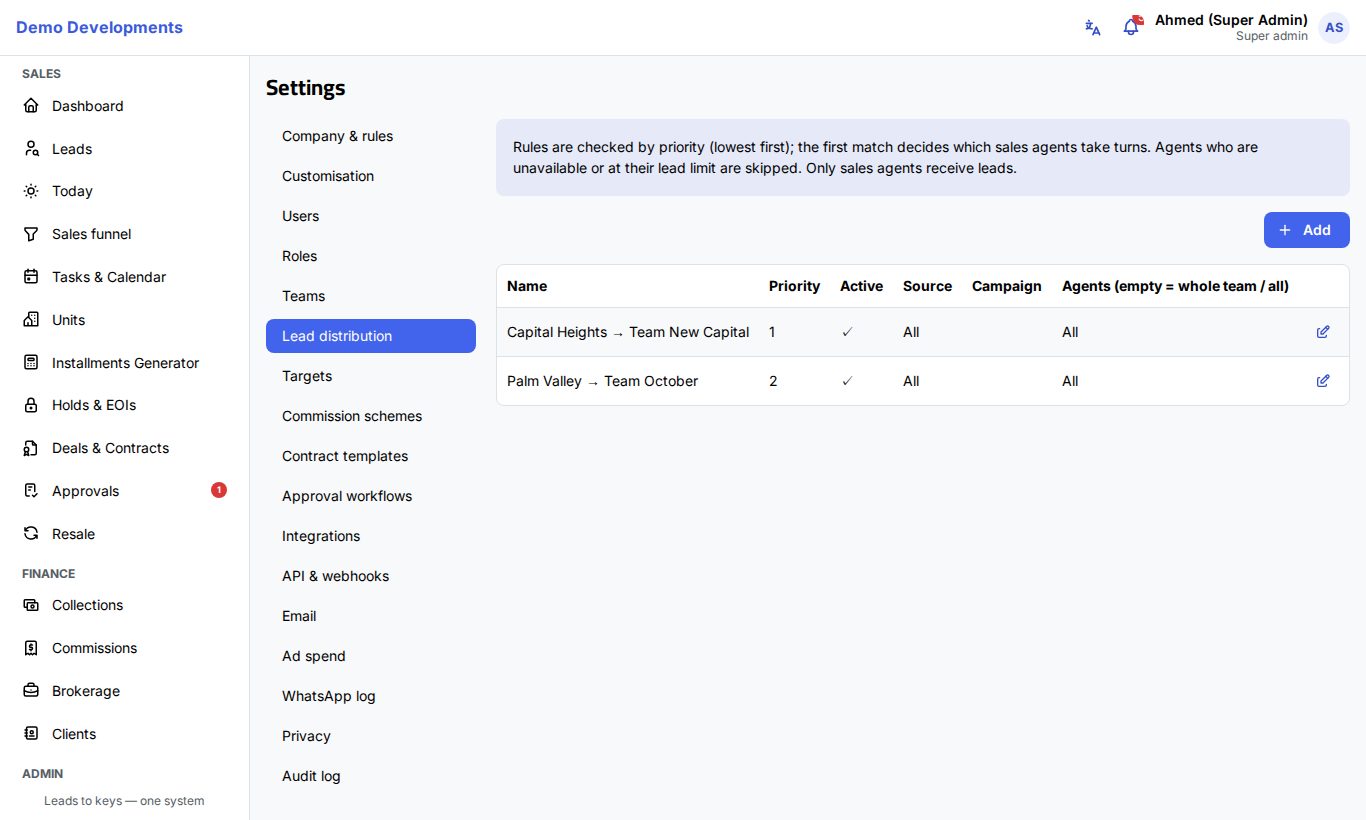
- Go to Settings → Lead distribution.
- Click Add.
- Fill in:
- Name: for example "New Cairo project".
- Priority: rules with a lower number are checked first.
- Active: switch off to pause the rule.
- What the rule matches. Leave a field empty to match everything:
- Source: for example Meta lead ad or Website.
- Project: the project the lead is interested in.
- Language: the lead's language code, for example
aroren. - Campaign: matches when the lead's campaign name contains this text (capital letters don't matter). For example "Spring" matches "Spring Launch 2026".
- Who takes turns:
- Team: all sales agents of this team.
- Agents (empty = whole team / all): choose specific agents. When you choose agents, the team is not used.
- Click Save.
A lead must match every field you filled in. The list shows each rule's source, campaign and number of agents ("All" when it uses the whole team or everyone).
Example
| Priority | Name | Matches | Who takes turns |
|---|---|---|---|
| 1 | VIP campaign | Campaign contains "VIP" | Two senior agents |
| 2 | New Cairo | Project: New Cairo | Team A |
| 3 | English speakers | Language: en | Team B |
A lead from the "VIP Villas" campaign goes to the two senior agents, even if it is interested in New Cairo, because rule 1 is checked first. A lead that matches no rule is shared among all sales agents.
Agents' settings that affect distribution
These are set on each person in Settings → Users (see Users and roles):
- Max open leads: the most open leads (not lost and not contracted) an agent can hold. Agents at their limit are skipped.
- Lead languages: the languages the agent handles. Agents with a matching language are preferred. If none of them can take the lead, it goes to any eligible agent. An agent with no languages set can receive any lead.
- Available: when it is off, the agent receives no new leads. Agents can switch this themselves with Available for new leads in their profile while they are on leave.
- Active: inactive users never receive leads.
Timers: alerts, reassignment and the pool
Company admins set these in Settings → Company & rules, in the Leads box, then click Save.
| Setting | Default | What happens |
|---|---|---|
| First response SLA (minutes) | 30 | A new lead still not contacted this many minutes after it was assigned: the agent gets "Call your new lead now", and the agent's team leader and sales manager are alerted. Once per assignment. |
| Auto-reassign if not contacted (hours) | 4 | A new lead still not contacted after this many hours moves to the next agent by the rules (never back to the same agent). If no one is available, it goes to the pool. Both agents are notified. 0 turns this off. |
| Return to pool after idle (days) | 14 | An open lead (before Reserved) with no activity for this many days and no upcoming follow-up goes back to the pool. The agent is notified. 0 turns this off. |
| Auto-distribute new leads | On | Whether leads from your channels are distributed automatically or wait in the pool. |
A lead counts as contacted once a call, WhatsApp, meeting, site visit or e-mail is logged on it, or its stage is moved on from New. Every reassignment or return to the pool is written in the lead's activity log.
The system checks these timers every few minutes, so an alert or move can come a few minutes after the exact time.
The pool
Leads without an agent wait in the Pool. On the Leads page:
- Choose Pool to see them.
- Agents click Claim to take a lead. It is theirs at once.
- Managers can select leads and use Bulk assign to give them to an agent.
- Not contacted shows new leads nobody has contacted yet.
Good to know
- Only one rule decides: the first match. If that rule's agents are all unavailable or full, the lead goes to the pool; it does not fall through to the next rule.
- Changing the rules affects new leads only. Leads already assigned keep their agent.
- Leads brought in with Import keep the agent given in the file and are not distributed.
Tip
Put your most specific rules (one campaign, one project) at the lowest priority numbers, and keep a general rule, or no rule, for everything else.