
Holds & EOIs
Before a full reservation, there are two ways to secure a client's interest. A hold keeps one specific unit for a client for a few hours, so nobody else can reserve it while the client decides. An EOI (expression of interest) is money a client pays on a project, before choosing a unit, in return for a priority number. You create both from the lead page; the Holds & EOIs page lists them so you can follow them up, confirm EOI payments and turn them into deals. Sales and finance can open it from Holds & EOIs in the menu. Agents see their own holds and EOIs, team leaders their team's, managers, admins and finance everyone's.
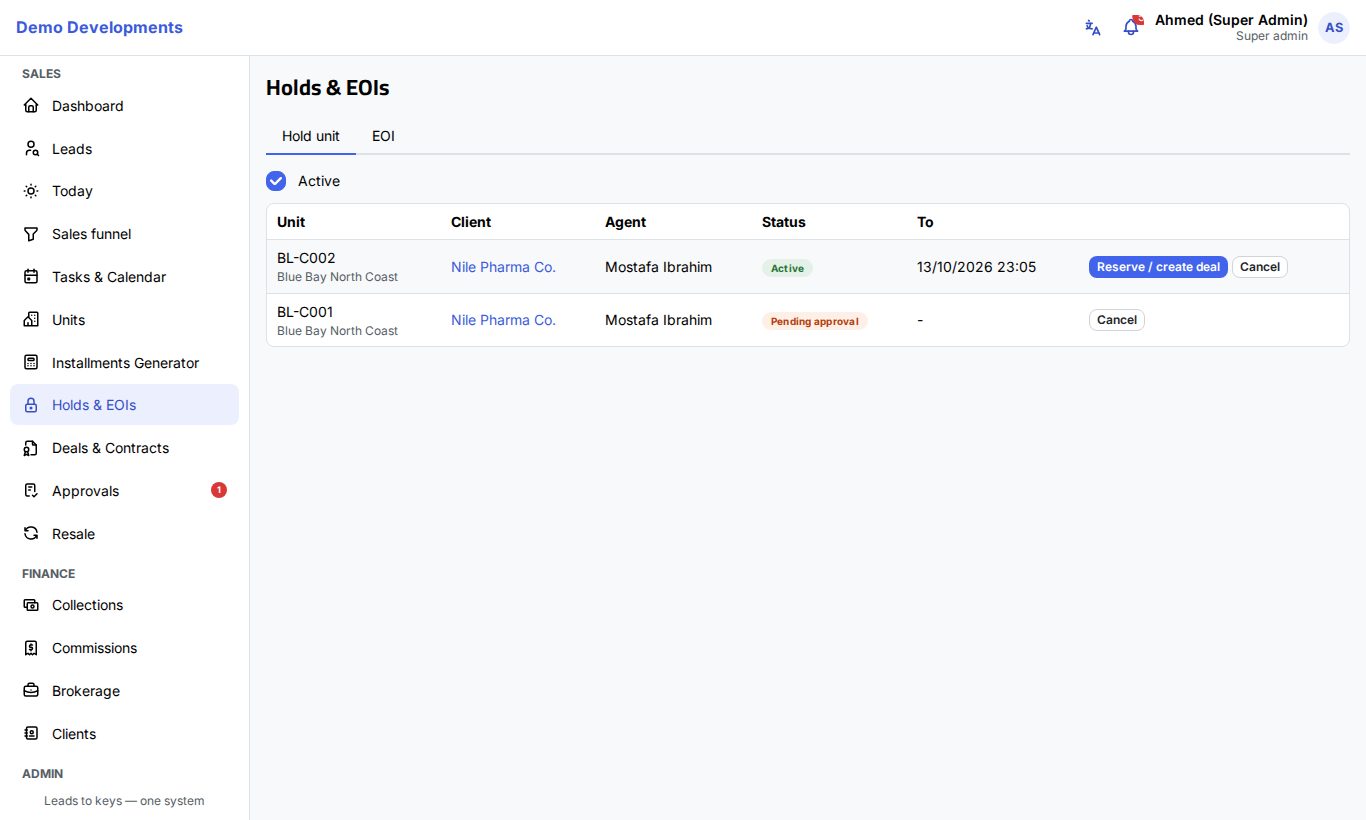
Holds
Request a hold
- Open the lead and choose Actions › Hold unit.
- Choose the Project and the Unit. Only an Available unit can be held.
- In Hours, type how long to hold it (1 to 168). Leave it empty to use your company's default hold time.
- Add Notes if you like and click Submit.
What happens next depends on your rights:
- If you may approve holds yourself (sales managers and admins, by default), the hold starts at once: the unit turns Held (yellow) until the hold ends.
- Otherwise the request goes for approval with the status Pending approval. The unit stays Available until a manager approves it, and the hours start counting from the approval. See Approvals.
Follow up your holds
The Hold unit tab lists the holds with the Unit (and project), Client (a link to the lead), Agent, Status and To (when the hold ends). With Active ticked you see only holds that are active or waiting for approval; untick it to see the older ones too.
| Status | Meaning |
|---|---|
| Pending approval | Waiting for a manager. |
| Active | The unit is held for this client until the end time. |
| Converted | A reservation was made on it. |
| Expired | The time ran out and the unit is available again. |
| Released | Someone cancelled it. |
| Rejected | The approver said no, or the unit was reserved for another client first. |
On each row:
- Reserve / create deal (active holds) opens a new reservation for this client and unit.
- Cancel (active or pending holds) ends the hold; the unit becomes Available again. Agents can cancel only their own holds.
Automatic expiry
When a hold's time runs out, the unit goes back to Available by itself and the person who asked for the hold gets a notification.
EOIs
Record an EOI
- Open the lead and choose Actions › Record EOI.
- Read the blue note at the top. It tells you whether the EOI is confirmed now or waits for Finance.
- Choose the Project, type the Amount and choose the Method (cash, bank transfer, cheque, InstaPay or card).
- In Notes, write the client's preferences (for example the unit type or floor they want).
- Click Save.
- If you record payments (Finance and admins, by default), the EOI is Paid at once and gets its priority number and receipt.
- Otherwise it is Waiting for payment, and Finance gets a notification and an e-mail to confirm the money.
A lead can have only one EOI waiting for payment on the same project.
Confirm an EOI payment (Finance)
The EOI tab shows an orange number when EOIs are waiting for payment.
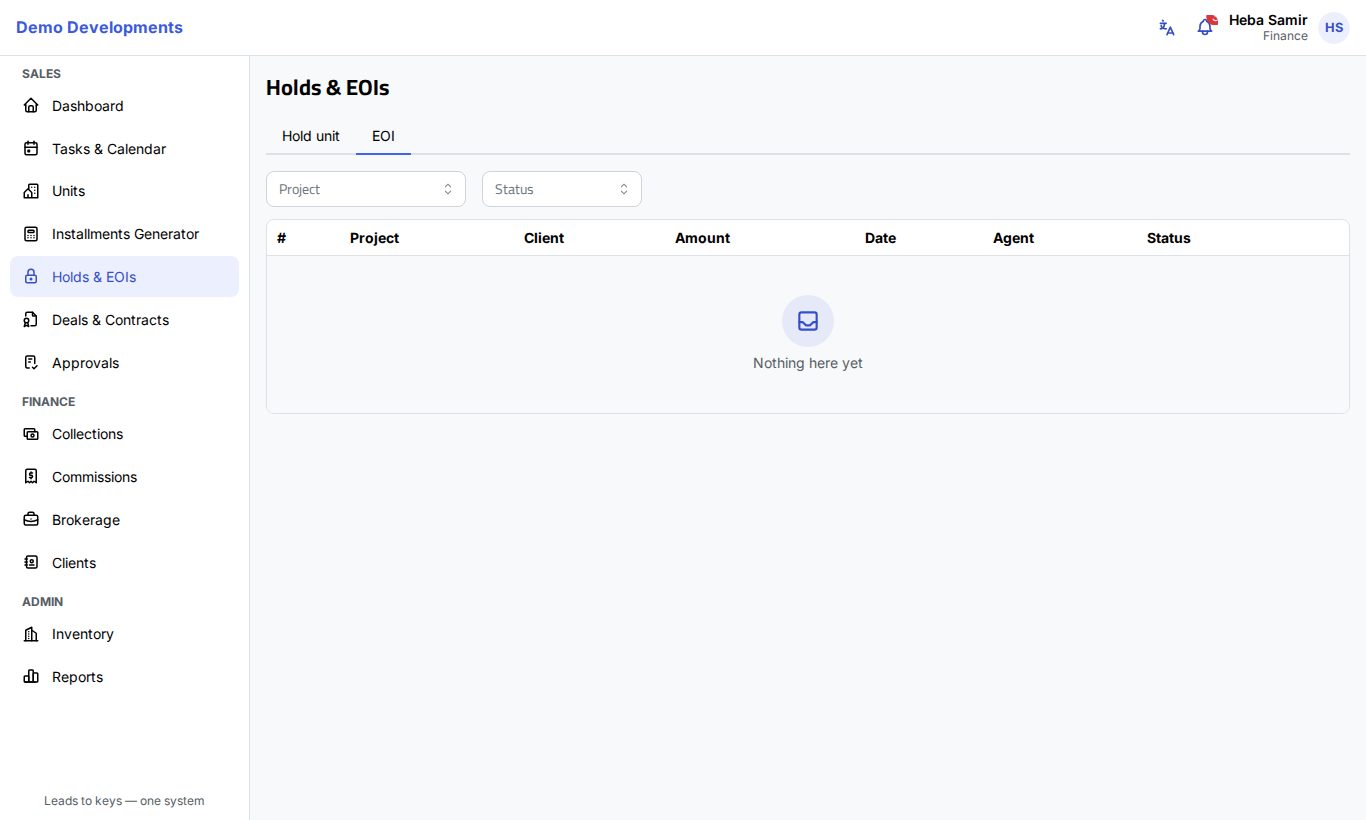
- On the EOI tab, find the EOI (filter by Project or Status if needed).
- Click Confirm payment.
- Check Received on (it cannot be a future date) and the Method, then click Confirm.
The EOI becomes Paid, gets the next priority number on its project and a receipt number, and the lead moves to the EOI stage. The agent is told by notification and e-mail.
Priority numbers and receipts
The # column shows the priority number: EOIs on a project are numbered 1, 2, 3… in the order their payments are confirmed. While an EOI waits for payment it shows "—". Click the receipt icon on a row to download the receipt as a PDF.
Cancel or refund an EOI
- Click Cancel on an EOI waiting for payment, or Refund on a paid EOI that was not used in a deal.
- Type the Reason (required) and click Confirm.
- A waiting EOI can be cancelled by the agent who raised it, by managers and by Finance. It becomes Cancelled.
- A paid EOI can be refunded by Finance and admins. It becomes Refunded.
The reason is saved in the lead's activity.
Turn an EOI into a deal
- On a Paid EOI, click Reserve / create deal (on the EOI tab or on the lead page).
- The New reservation page opens with the lead, the project and the EOI (Use EOI) already chosen.
- Choose a unit in the same project and finish the reservation as usual. See Creating deals.
The EOI amount is recorded as the first payment on the deal, and the reservation amount is at least the EOI amount. The EOI becomes Allocated and a Deals & Contracts link on its row opens the deal.
| Status | Meaning |
|---|---|
| Waiting for payment | Raised by sales; Finance has not confirmed the money yet. |
| Paid | Money confirmed; has a priority number and receipt. |
| Allocated | Used in a deal. |
| Refunded | The money was given back. |
| Cancelled | The request was cancelled before any money was confirmed. |
Good to know
- Your company admin sets the default hold time and the default reservation amount in Settings › Company & rules.
- Only one hold request can wait for approval on a unit at a time.
- A held unit can only be reserved for the client it is held for.
- When a unit is reserved for someone, any hold request still waiting on it is closed and the agent who asked is told.
- If a deal made from an EOI is rejected at approval, the EOI goes back to Paid and can be used again.