
The app on your phone
Excelia CRM works in the browser of any phone, and you can also install it as an app on your home screen, without an app store. On a phone the screens are laid out for one hand, with a bar at the bottom for the pages agents use most, and you can receive notifications for new leads, follow-ups and approvals even when the CRM is closed. This page is mainly for sales agents and team leaders, but anyone can install the app.
Installing the app
Android phone or computer (Chrome, Edge)
- Open the CRM in the browser and sign in.
- Tap your name (or initials) at the top and choose Install the app.
- Confirm in the browser's window.
The Excelia icon appears on your home screen (or in your computer's apps). The app opens on the Today page, in its own window without the browser's address bar.
If Install the app is not in the menu, the app is probably installed already, or your browser doesn't offer installing.
iPhone (Safari)
- Open the CRM in Safari and sign in.
- Tap the Share button.
- Choose Add to Home Screen, then Add.
In the CRM's personal menu, Install the app on an iPhone shows this same reminder.
Tip
Install the app on the iPhone if you want notifications: an iPhone shows web notifications only for apps added to the home screen.
The bottom bar
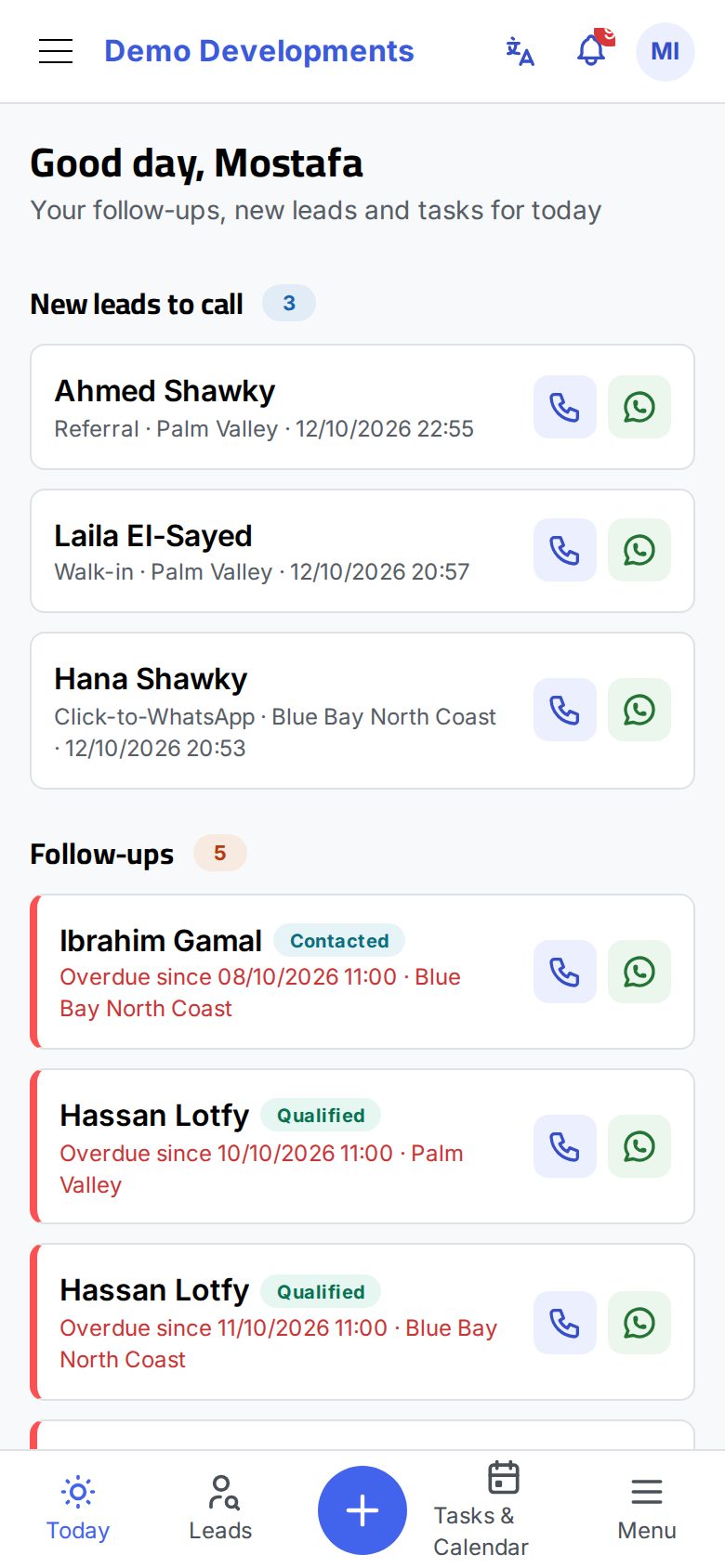
On a phone, people who work with leads get a bar at the bottom of every page:
| Button | What it does |
|---|---|
| Today | Your follow-ups, new leads to call and tasks for today. See Today. |
| Leads | Your leads list, one card per lead with call and WhatsApp buttons. |
| + | Adds a new lead straight away (shown if you may add leads). |
| Tasks & Calendar | Your tasks and appointments. |
| Menu | Opens the full side menu with every page you can use. |
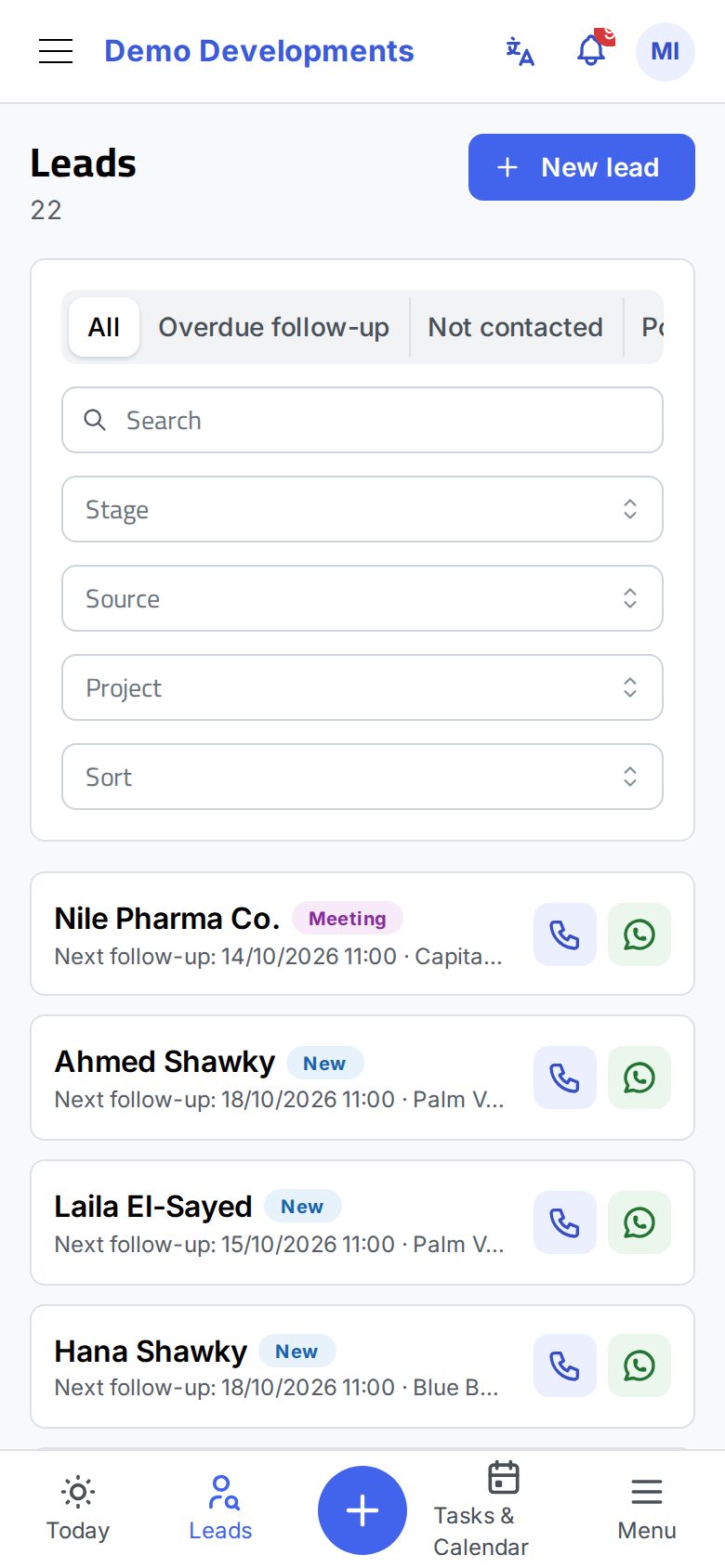
The full menu, the bell and your personal menu are still at the top of the screen. See Finding your way around.
Notifications on your phone or computer
Notifications (push notifications) reach you even when the CRM is closed. Tapping one opens the lead, deal or approval it is about.
Turning them on for this device
- Open My profile (tap your name at the top).
- Find the card Notifications on this device.
- Tap Turn on.
- When the browser asks, allow notifications.
- The message Notifications are on for this device appears, and the card shows On here.
Turn them on separately on each phone and computer you use. The card shows how many of your devices have notifications on.
Choosing which notifications you get
In the same card, switch each kind on or off:
- New leads assigned to me
- Follow-ups due in 15 minutes
- Approvals
- Sales and finance (EOI, contracts, payments, commissions)
Your choices apply to all your devices.
Testing
Tap Send a test. A test notification should appear within a few seconds. If it doesn't, check that notifications for the browser (or the app) are allowed in the phone's settings and that "Do not disturb" is off.
Turning them off
Tap Turn off in the card on the device where you no longer want notifications.
If notifications are blocked
If you see Notifications are blocked for this site in the browser settings, you (or someone) refused notifications earlier. Allow notifications for the CRM's site in the browser's settings, then tap Turn on again. On an iPhone, if the card says the browser cannot show notifications, add the app to the home screen first (see above) and open the CRM from the home-screen icon.
Without a connection
- The installed app still opens without internet, but shows the red No connection bar. What you see may be out of date and nothing can be saved until you are back online. The page refreshes by itself when the connection returns.
- The app keeps only the program itself on the phone, never your company's data: leads, clients and deals are always loaded fresh from the server.
- New versions of the CRM arrive by themselves; there is nothing to update.
Good to know
- The app uses the same account, password and two-factor sign-in as the browser.
- Automatic sign-out after a period without use applies on the phone too (see Signing in and security).
- E-mail notifications are chosen separately, in the Emails I receive card of your profile.