
Creating deals
A deal starts when you reserve a unit for a client. From that moment the unit is Reserved, the client has a payment schedule, and the deal moves on to its contract, payments and handover. The Deals & Contracts page lists every deal you can see, and New reservation creates one. Agents, team leaders, sales managers and admins can create reservations; Finance can see and follow deals. Agents see their own deals, team leaders their team's, and managers, admins and finance all deals.
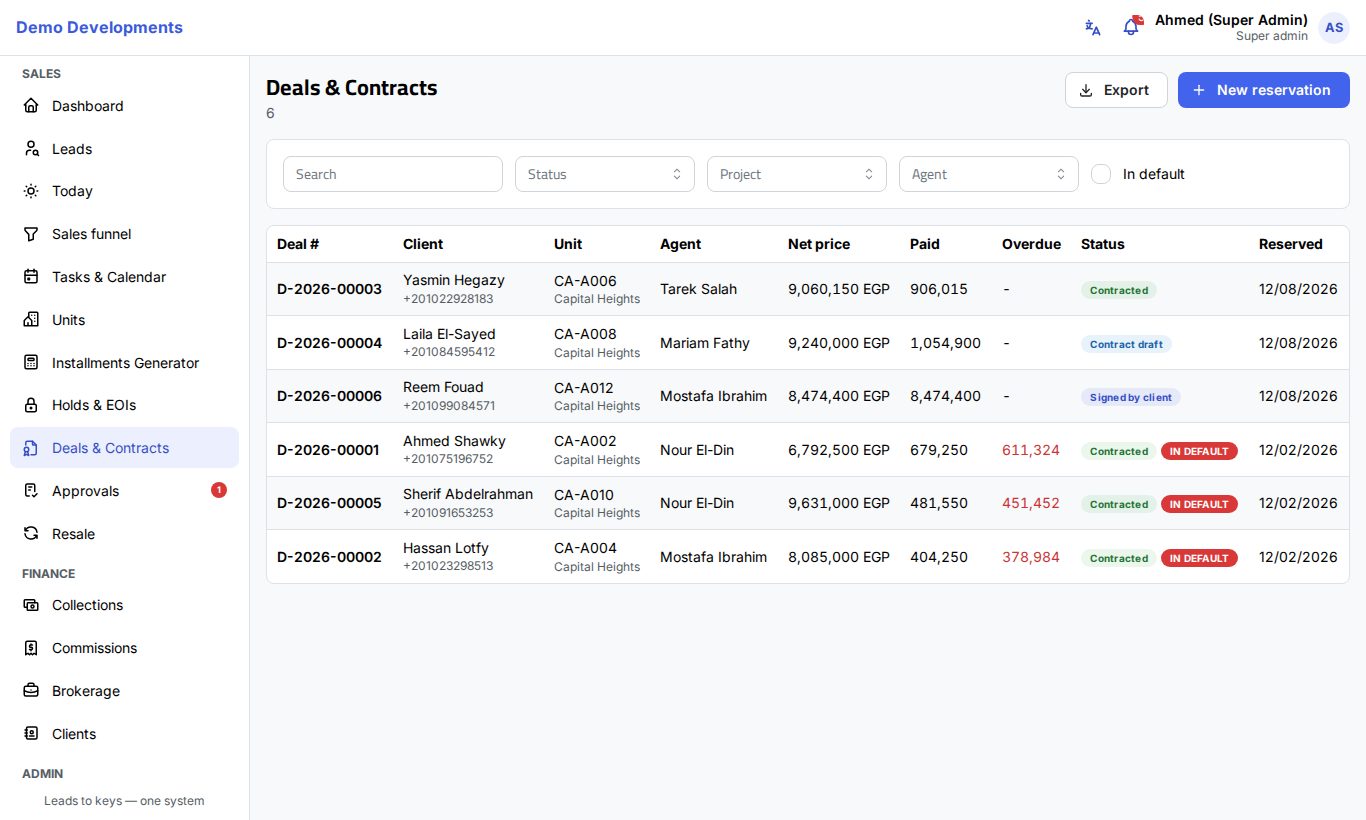
The deals list
Open Deals & Contracts in the menu. The number next to the title is how many deals match.
- Use Search to find a deal by its number, the unit code, or a buyer's name, phone or full national ID.
- Filter by Status and Project. Managers and team leaders can also filter by Agent.
- Tick In default to see only deals marked as in default (clients who stopped paying).
| Column | Shows |
|---|---|
| Deal # | The deal number. |
| Client | The client's name and phone. |
| Unit | The unit code and project. |
| Agent | The agent who owns the deal. |
| Net price | The price after discounts. |
| Paid | What has been collected so far. |
| Overdue | Late amounts, in red. |
| Status | The deal's status, with a red In default badge if it applies. |
| Reserved | The reservation date. |
Your company's own deal columns, if any, appear at the end. Click a row to open the deal page. Managers, team leaders and Finance can click Export to download the list as an Excel file.
Deal statuses
| Status | Meaning |
|---|---|
| Pending approval | Created with a custom plan or extra discount; waiting for a manager. The unit is already reserved. |
| Reserved | Reservation confirmed. |
| Contract draft | The contract was generated and can still be edited. |
| Signed by client | The client signed; waiting for the company's signature. |
| Contracted | The signed contract was uploaded. Commissions are created at this point. |
| Handed over | The unit was delivered. |
| Cancelled / Terminated | Ended by cancellation or by termination for default. |
| Rejected | The manager rejected the deal's terms; the unit was freed. |
Create a reservation
Click New reservation on the Deals & Contracts page. You can also start from a unit (Reserve / create deal in its details), from a lead's Actions menu, from an active hold or paid EOI on the Holds & EOIs page, or from a plan in the Installments Generator. Whatever you started from is filled in for you.
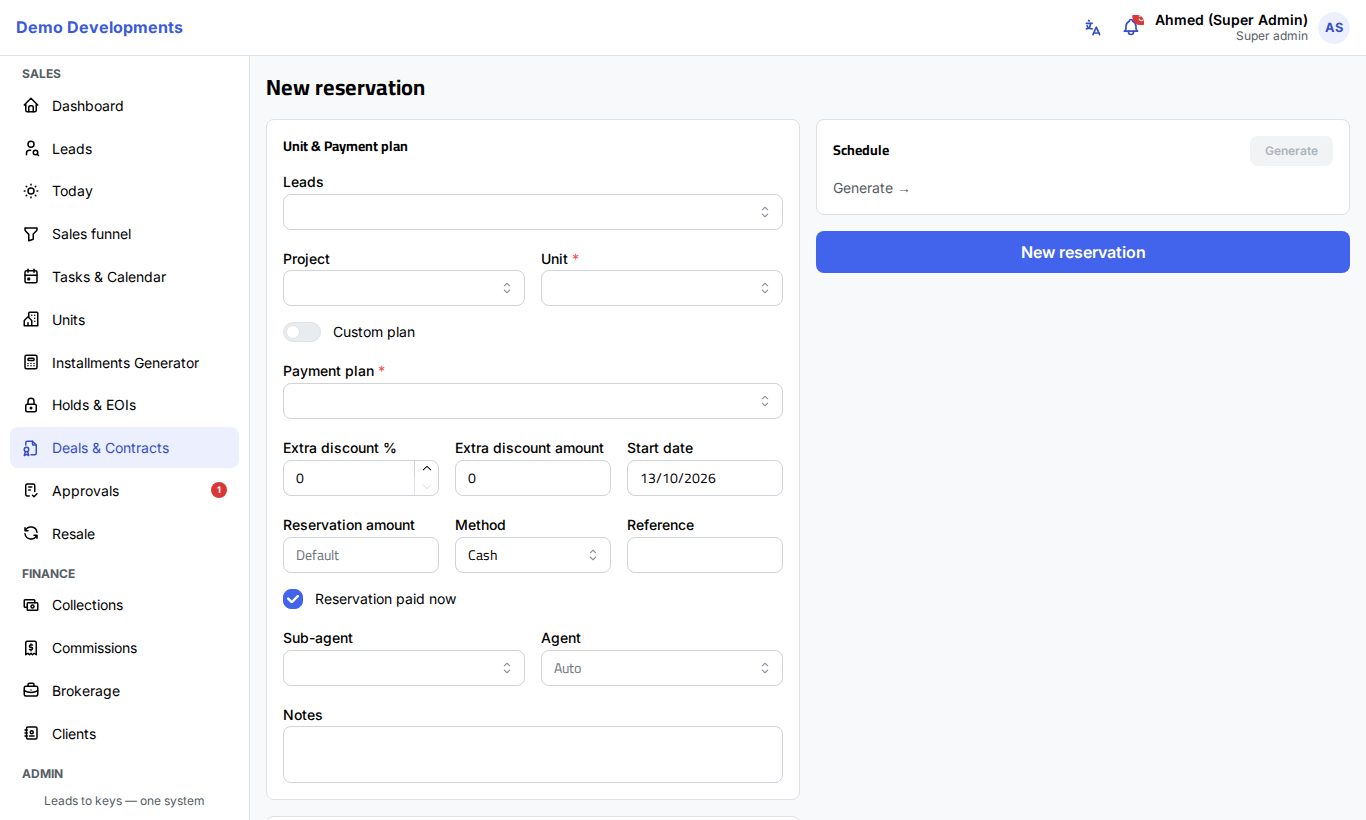
1. Lead and unit
- In Leads, pick the lead this deal is for (optional, but it links the deal to the lead's history). Agents can only reserve for their own leads.
- Choose the Project and the Unit. A box shows the unit with its price and status; it turns red if the unit cannot be reserved.
- If the lead has paid EOIs, choose one in Use EOI to use its money (it must be on the same project).
The unit must be Available, or Held for this same lead.
2. Payment plan, discounts and reservation payment
- Choose the Payment plan from the project's active plans. Or turn on Custom plan and fill in its fields (see Installments Generator).
- Add an Extra discount % (up to 50%) or Extra discount amount if agreed.
- Set the Start date of the schedule (today by default).
- Type the Reservation amount, or leave it empty for your company's default. When you use an EOI, it is at least the EOI amount.
- If the client is paying the reservation now, keep Reservation paid now ticked and choose the Method and Reference (for example the transfer number). Untick it if the money has not been received yet. (These do not appear when you use an EOI, because the EOI money is used instead.)
- If a broker brought the client, choose the Sub-agent.
- Managers can choose another Agent to own the deal; by default (Auto) it is the lead's agent, or you.
- Add any Notes.
3. Client information
The Client information card is filled in from the lead. Check and complete it:
- Name and Phone are required; Name (AR), Email, Occupation, Birth date and Address are optional.
- For a person: National ID (14 digits) (required to be 14 digits for Egyptians), Passport no. and Nationality.
- For a company, tick Company and fill in the Commercial register no. and Tax no.
If a client with the same national ID or phone already exists, the deal is linked to that client and their details are updated.
4. Buyers and shares
When several people buy the unit together, add them under Buyers on the contract:
- Click Add co-buyer and fill in the person's Name, Phone and National ID (14 digits) (plus Passport no., Nationality and Address if needed). Up to 10 buyers per unit.
- Keep Split shares equally ticked, or untick it and type each buyer's share. The Total must be 100%.
- Choose the Primary buyer. The primary buyer receives the reminders and receipts.
All buyers are named on the contract, and a separate ID copy is asked for from each of them.
5. Check the schedule and save
- On the right, click Generate in the Schedule card to see the List price, Discount, Net price and the full schedule.
- Click New reservation at the bottom.
The deal opens on its deal page with its number and status.
What needs approval
Some changes are checked by a manager before they take effect. They follow your company's approval workflows; the usual approvers are shown here.
| Request | When | Usual approvers |
|---|---|---|
| Deal terms / discount | A reservation with a custom plan or an extra discount | Sales manager or admin |
| Unit hold | A hold asked for by someone who cannot approve it | Sales manager or admin |
| Unit swap, Ownership transfer | Changes on the deal page | Sales manager or admin |
| Change of buyers | After the contract is signed | Sales manager or admin |
| Reschedule | Rescheduling the balance | Sales manager, Finance or admin |
| Cancellation & refund | Cancelling or terminating a deal | Finance or admin |
If you are one of the approvers for a request, it is applied at once. Your company can add steps or thresholds (for example, only discounts above a certain percentage need approval). A deal created with a custom plan or extra discount shows Pending approval until it is approved. If it is rejected, the deal becomes Rejected and the unit is available again.
What happens when you save
- The unit becomes Reserved and any hold on it for this lead is closed.
- The lead moves to the Reserved stage and becomes a client; its contact persons move to the client.
- If Reservation paid now was ticked, the reservation payment is recorded with a receipt. With an EOI, the EOI money is recorded as the first payment.
- A documents checklist is created: ID copy, signed reservation form, signed contract and post-dated cheques.