
Finding your way around
Every page of Excelia CRM has the same frame: the side menu on one side, the top bar with your notifications and profile, and the page itself. This page explains each part, how lists, search and filters work everywhere, and how to switch between Arabic and English. It is useful for everyone, especially in your first days.
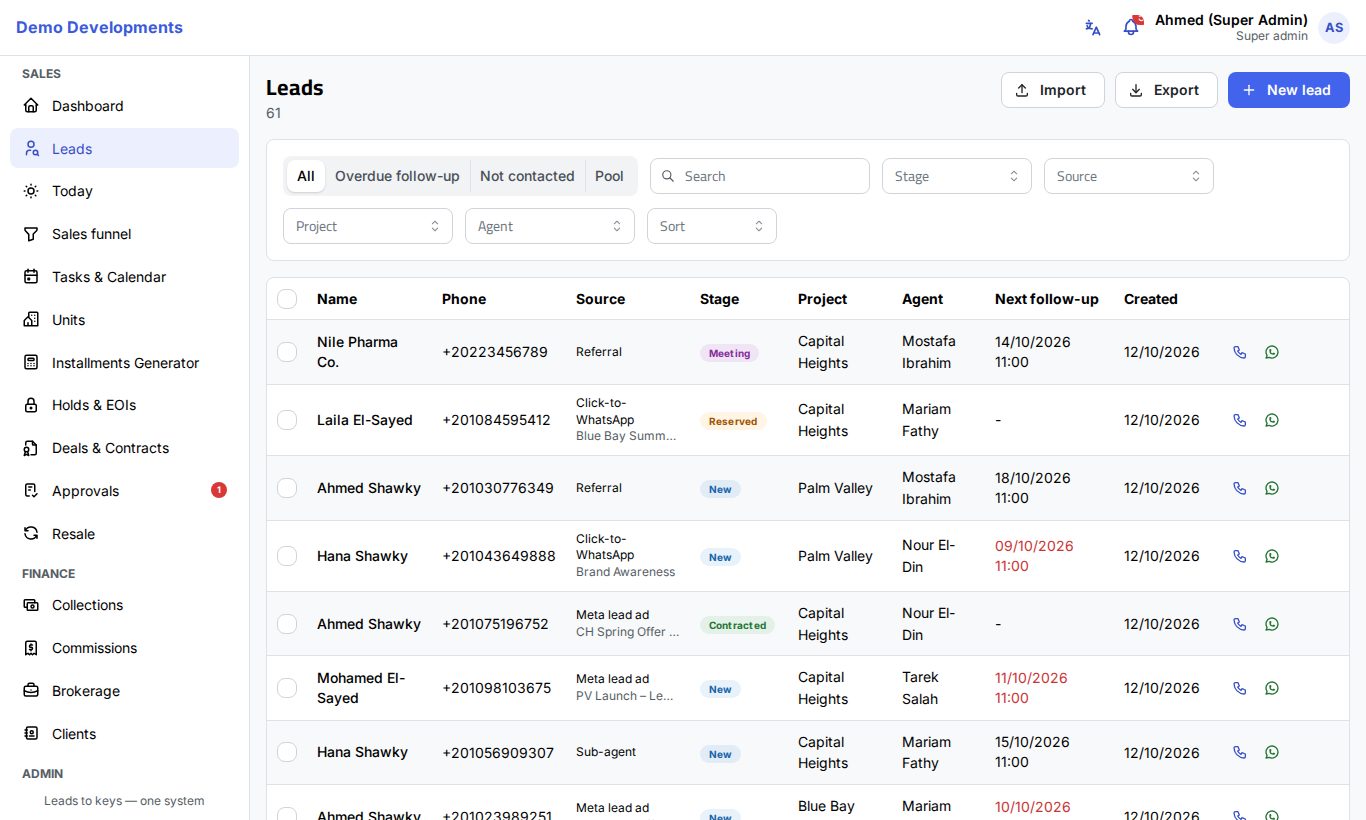
The side menu
The side menu lists the pages in three groups. You only see the items your role allows, so your menu may be shorter than a colleague's.
| Group | Pages |
|---|---|
| Sales | Dashboard, Leads, Today, Sales funnel, Tasks & Calendar, Units, Installments Generator, Holds & EOIs, Deals & Contracts, Approvals, Resale |
| Finance | Collections, Commissions, Brokerage, Clients |
| Admin | Inventory, Reports, Import data, Settings |
- The page you are on is highlighted.
- A red number next to Approvals shows how many requests are waiting for your decision.
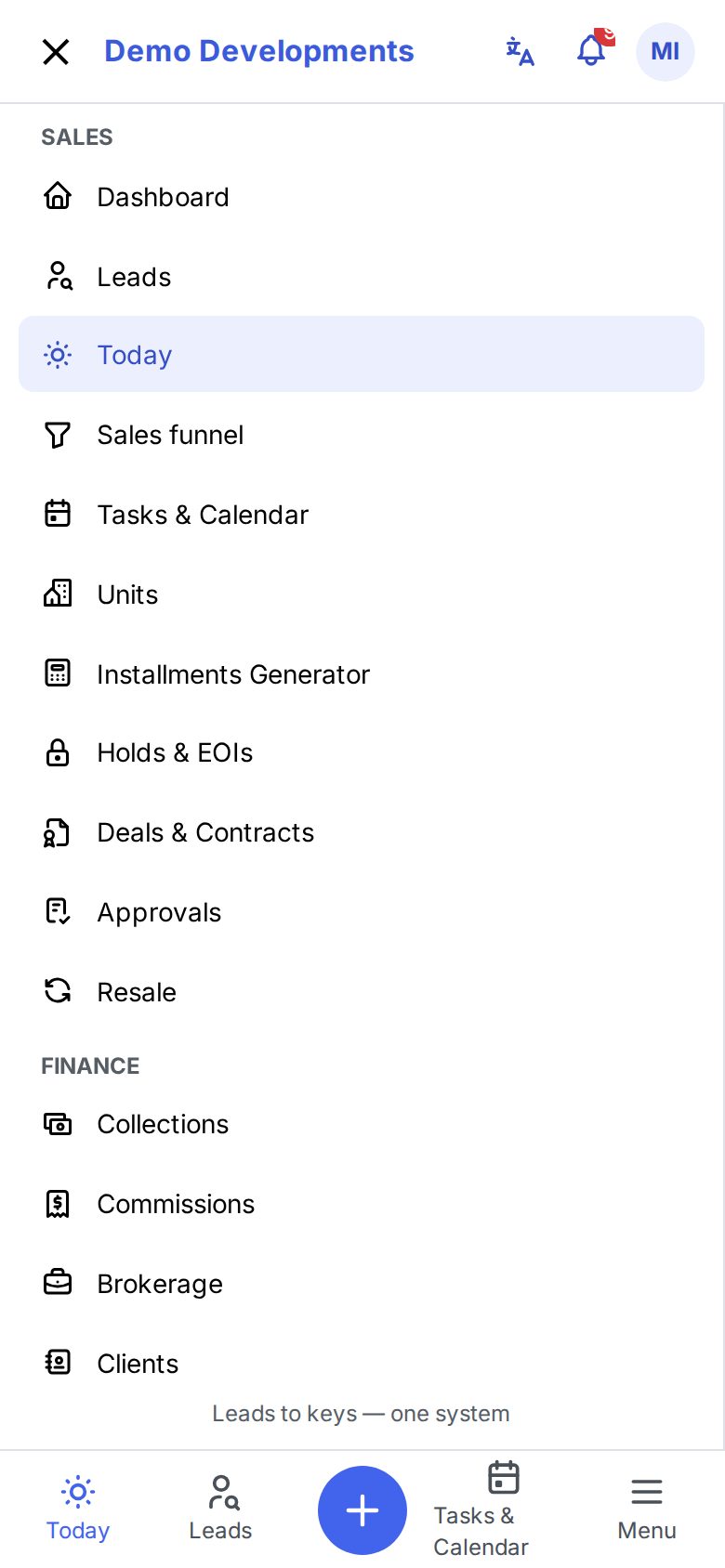
On a phone the menu is hidden. Tap the menu button (☰) at the top, or Menu in the bottom bar, to open it. It closes by itself when you choose a page.
The top bar
From left to right (right to left in Arabic):
- Your company's name. Click it to go back to the dashboard.
- A small grey dot (only sometimes). It appears when live updates are paused, for example after a network change. See "Live updates" below.
- Language button. Switches between Arabic and English at once.
- Bell. Your notifications, with a red number for the unread ones.
- Your name, role and initials. Opens your personal menu.
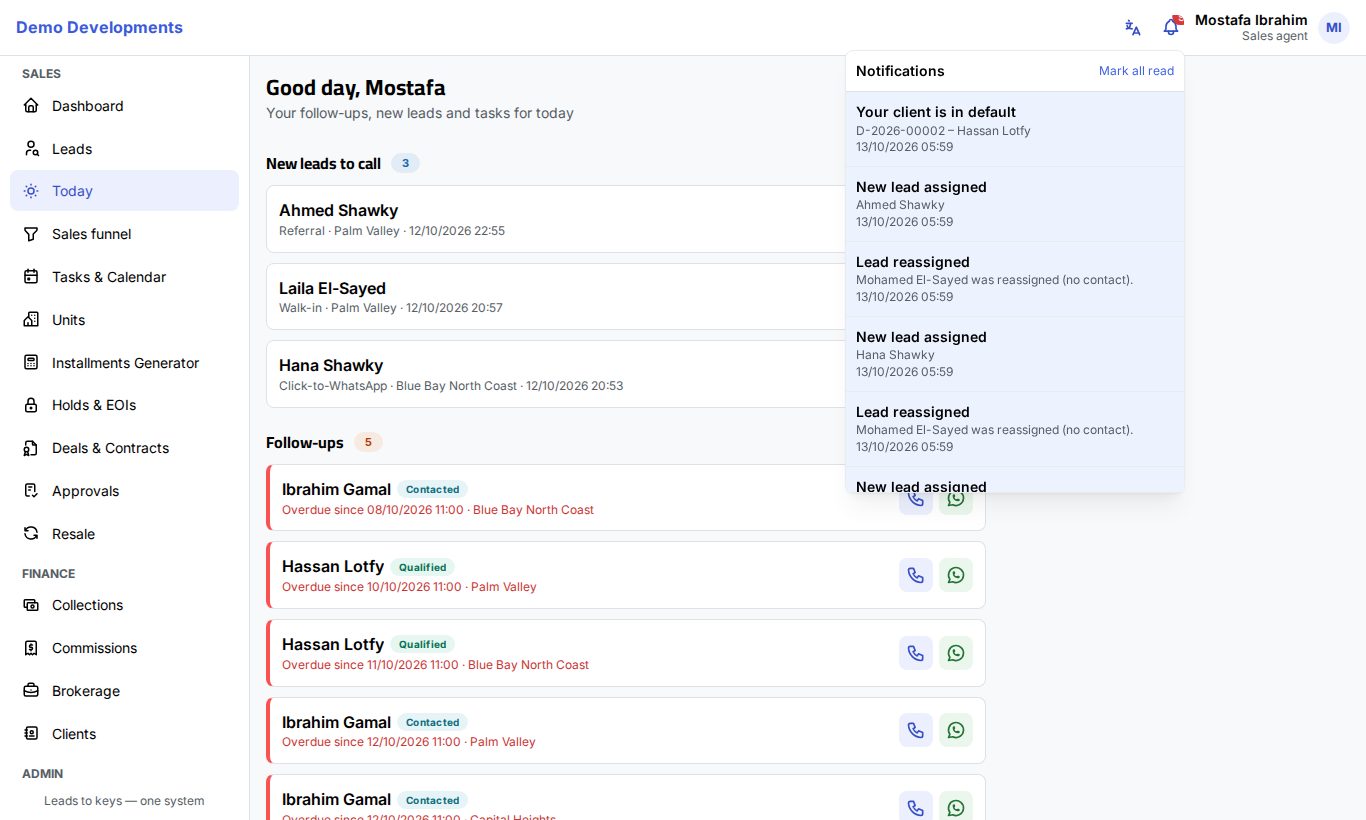
Notifications (the bell)
- Click the bell to see your latest notifications. Unread ones are highlighted.
- Click a notification to open the lead, deal or approval it is about. It is then marked as read.
- Click Mark all read to clear the red number.
Notifications appear here for everyone. You can also get them by e-mail and as phone or computer notifications; choose which in your profile.
Your personal menu
Click your name (or your initials on a phone) to see:
- your e-mail address,
- My profile: your details, password, two-factor sign-in, notifications and devices (Your profile),
- English / العربية: switch the language,
- Install the app: when your browser allows it (The app on your phone),
- Log out.
Messages above the page
Sometimes a coloured bar appears above the page:
- No connection (red): your phone or computer is offline. What you see may be out of date and nothing can be saved. The page refreshes by itself when you are back online.
- Announcements (blue for information, orange for warnings): news from the Excelia team. Click × to hide one; it stays hidden in this browser.
- Subscription reminder (orange, red in the last 3 days): company admins see it during the 14 days before the company's subscription ends.
Live updates
The CRM updates itself while you work: the bell, the approvals count and the lead or deal you have open refresh as soon as something changes. When a colleague changes the lead or deal you are looking at, the page reloads it and a short message says Updated by … just now.
If the live connection drops, the grey dot appears in the top bar and the page checks for news every 2 minutes until the connection is back. You don't need to do anything.
Lists, search and filters
Lists (leads, deals, units, collections, approvals and others) work the same way:
- Views. Some lists have buttons at the top to switch between views, for example on Leads: All, Overdue follow-up, Not contacted, Pool.
- Search. Type in the Search box: a name, a phone number or a reference. The list updates as you type.
- Filters. Choose a value in the drop-downs next to the search (stage, source, project, agent…). Click the × in a filter to clear it. Your company's own fields can also appear as filters.
- Pages. Long lists are shown in pages (25 rows on Leads). Use the page numbers under the list.
- Open a row. Click a row (or a card on a phone) to open its page.
- Export. Where you have the right, an Export button downloads the list to Excel.
If nothing matches, you see Nothing matches: clear the search or choose another filter or view.
Tip
On a phone, lists show one card per record with call and WhatsApp buttons, so you can work with one thumb.
Arabic and English
- Click the language button in the top bar, or choose English / العربية in your personal menu.
- The whole screen switches at once, including the direction (right to left for Arabic).
- Your choice is saved to your account: the e-mails the CRM sends you use the same language.
- Names and data you entered are not translated; they stay as typed.
Good to know
- If a menu item or a button is missing, you probably don't have the right for it. See Roles and access.
- The CRM keeps you signed in while you work; after a period without use it signs you out (see Signing in and security).