
Teams and targets
Teams group your sales people under a team leader and a sales manager. The team decides what a team leader can see, who is alerted when a new lead is not called in time, who shares in a deal's commission, and how the sales report adds people up. Targets are the monthly sales goal of each agent or team leader; the sales report then shows how much of it they have achieved. Company admins set up teams; admins and sales managers set the targets.
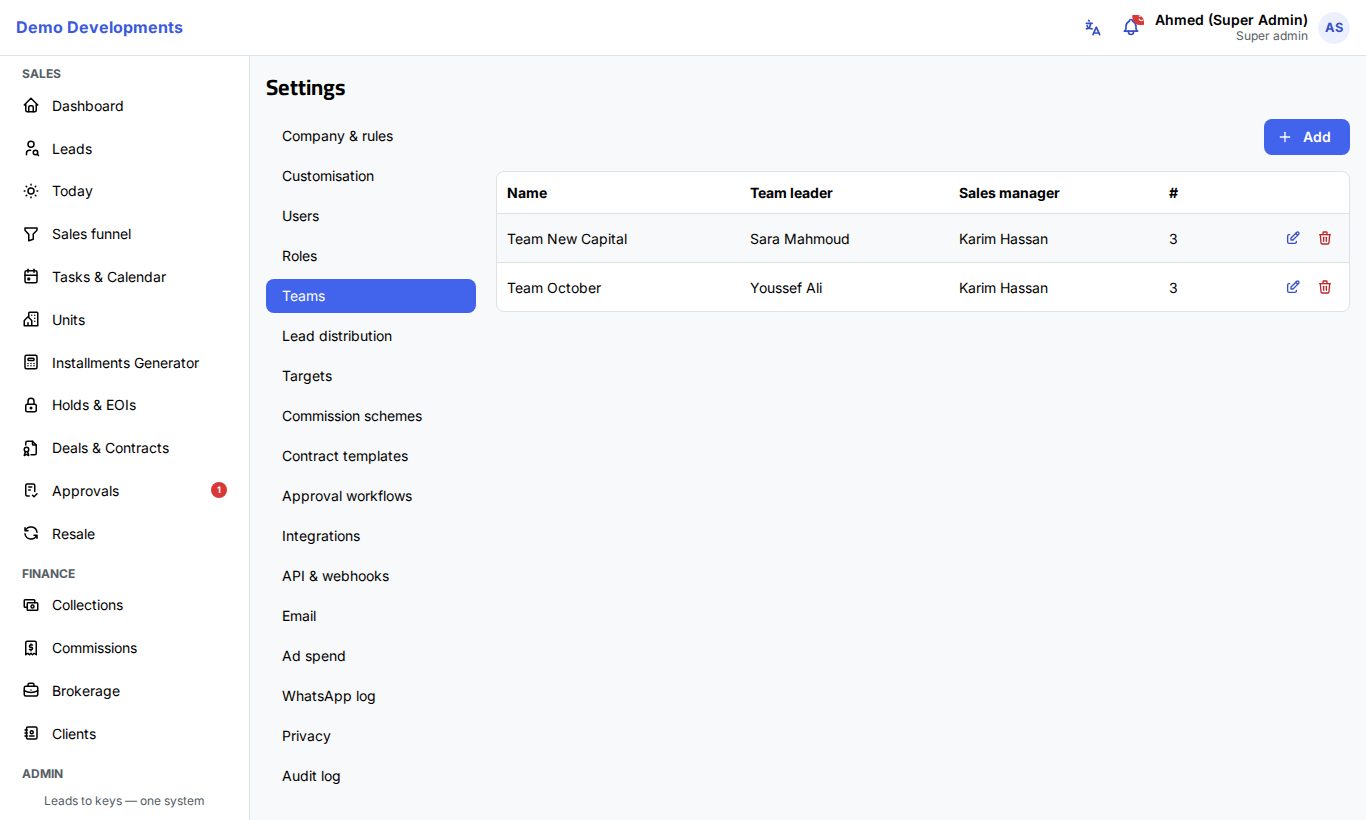
Create a team
- Go to Settings → Teams.
- Click Add.
- Type the team's Name.
- Choose the Team leader (a user with the Team leader or Sales manager role).
- Choose the Sales manager the team reports to (a Sales manager, Company admin or Super admin).
- Click Save.
The list shows each team with its team leader, sales manager and, under #, the number of active members. Use the pencil to edit a team and the bin to delete it.
Add people to a team
Members are not added on the Teams page; each person's team is part of their user account.
- Go to Settings → Users.
- Click the pencil next to the person.
- Choose the team in Team.
- Click Save.
Put the team leader in the team too
Choosing someone as Team leader of a team does not make them a member. A team leader sees the leads, deals and clients of the people in their own team (the one set on their user account). So also set the team leader's Team in Settings → Users, or they will only see their own work.
What a team is used for
- What team leaders see: a team leader sees their own records and their team members' leads, deals, clients, tasks and collections. Leads in the pool are visible to everyone.
- New-lead alerts: when a new lead is not contacted within the company's first-response time, the agent's team leader and sales manager are notified. See Lead distribution.
- Commissions: the team leader and sales manager shares in a commission scheme go to the deal agent's team leader and sales manager. See Commissions.
- Distribution rules can send leads to a whole team. See Lead distribution.
- Reports: the sales report can be grouped by team.
Set monthly targets
A target is set per person per month: a sales agent or a team leader.
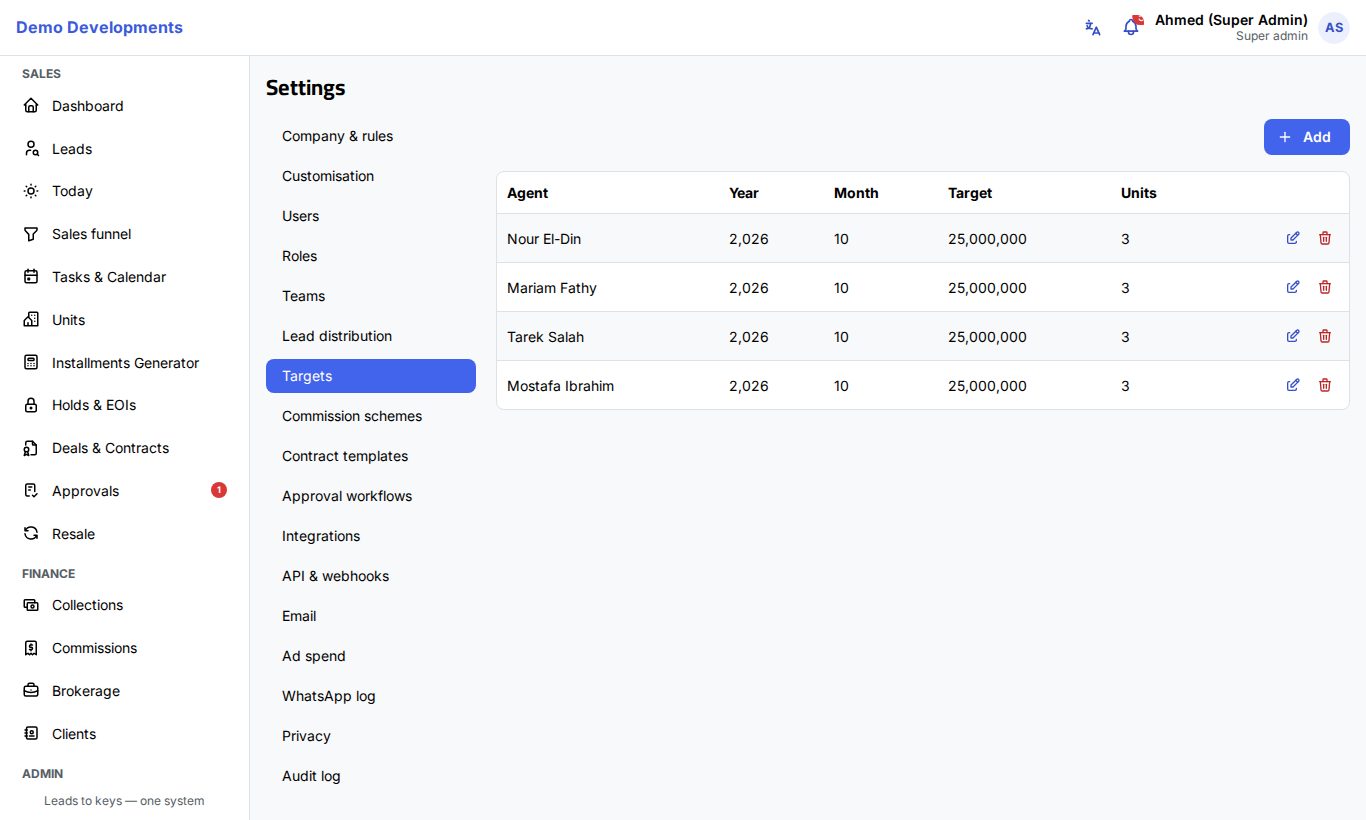
- Go to Settings → Targets.
- Click Add.
- Choose the person in Agent.
- Enter the Year and Month (1 to 12). They start on the current month.
- Enter the Target: the value of sales expected that month.
- Enter the number of Units expected.
- Click Save.
Repeat for each person and each month. To change a target, click the pencil next to it; to remove it, click the bin. The list shows the newest months first.
There is no separate team target: a team's target is the total of its members' targets.
See progress
Progress is shown in Reports → Sales performance.
- Open Reports.
- Choose the period at the top (for example this month).
- In Sales performance, choose Agent or Team.
For each person or team you see the Target and the Achievement as a percentage with a bar, which turns green at 100% or more. The chart above the table shows the target as a grey bar next to the reservations and contracts.
- Achievement = the Value of contracts signed by the company in the period ÷ the target. Only deals that reached Contracted or Handed over count; reservations do not.
- The target is the total of the targets of every month in the period. If you choose three months, the targets of the three months are added up.
- Grouped by Team, the target is the total of the targets of the people who are in the team now.
- Achievement in the report is measured by value. The Units number is kept with the target for your reference.
Good to know
- Keep one target per person per month. If you add a second one for the same month, the report adds the two together.
- Commission schemes can pay a higher rate when an agent passes a share of their monthly target. That achievement is measured the same way, for the month in question. See Commissions.
- Only company admins can create teams and move people between them. Sales managers can set targets but not change teams.
Tip
Set next month's targets before the month starts, so the sales report and commission tiers have them from day one.