
Your profile
My profile is your own page: your name and phone, your availability for new leads (sales agents), two-factor sign-in, which e-mails and phone notifications you receive, your password, and the devices where you are signed in. Everyone has it. Open it from your personal menu: click your name at the top of the screen and choose My profile.
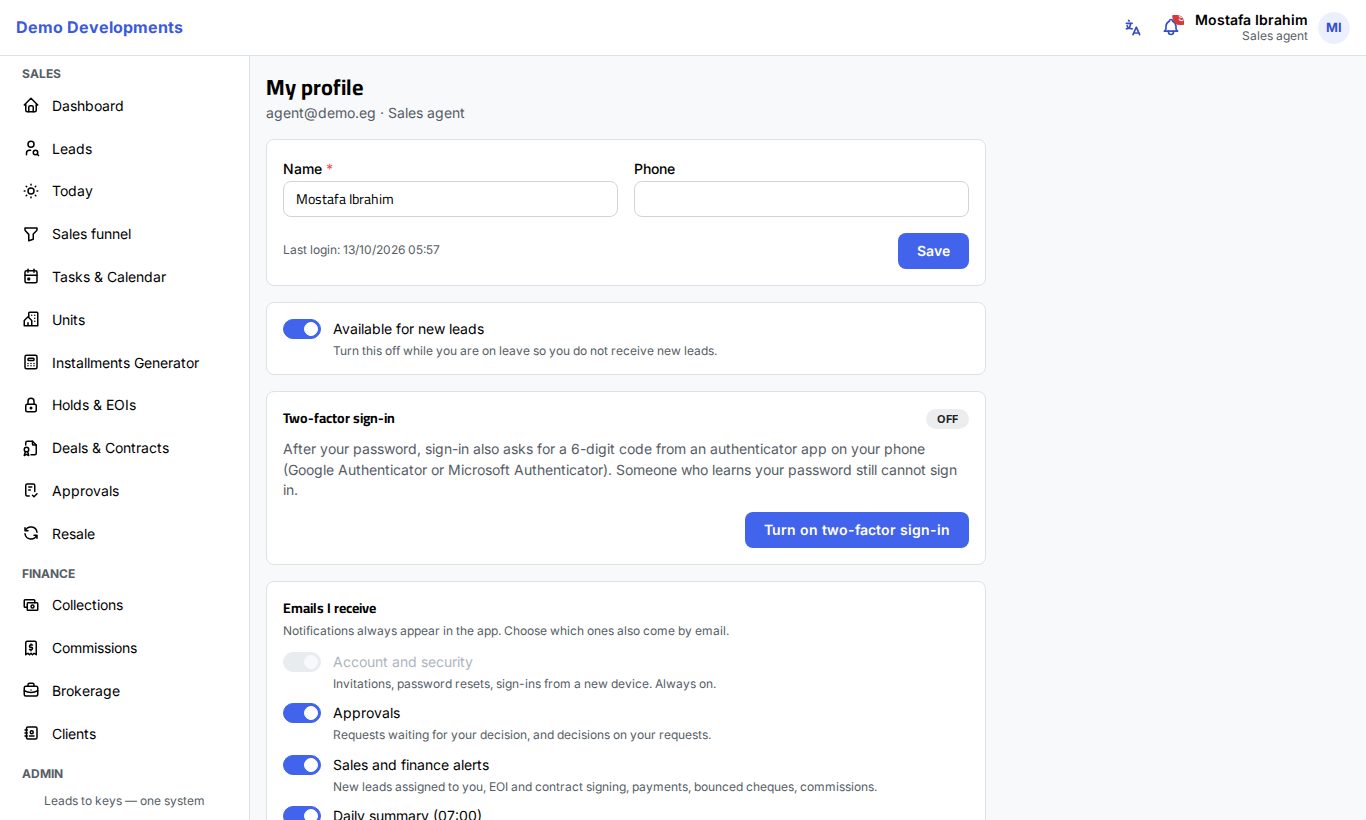
Under the title you see your e-mail address and your role.
Your details
- Change your Name or Phone.
- Click Save.
The card also shows your Last login. Your e-mail address, role and team are managed by your company admin; ask them if one of these is wrong.
Available for new leads (sales agents)
Sales agents see the switch Available for new leads.
- Turn it off while you are on leave, so the automatic distribution doesn't send you new leads.
- Turn it back on when you return.
Switching it off doesn't move the leads you already have. See Lead distribution.
Language
The language is not on this page: use the language button in the top bar, or English / العربية in your personal menu. Your choice is saved to your account, and the CRM's e-mails to you use the same language.
Two-factor sign-in
The card shows On or Off.
To turn it on:
- Click Turn on two-factor sign-in.
- Scan the QR code with Google Authenticator or Microsoft Authenticator (or type the key shown).
- Enter the 6-digit code and click Turn on two-factor sign-in.
- Save your 10 recovery codes (Copy all or Download), tick I have saved my recovery codes and click Continue.
When it is on:
- Recovery codes left shows how many unused recovery codes you have (in orange when 3 or fewer are left).
- New recovery codes: enter a code from your app to get 10 new recovery codes. The old ones stop working.
- Turn off two-factor sign-in: enter your password to confirm. Your trusted devices are forgotten too.
If your company requires two-factor sign-in for your role, the turn-off button is not shown. If you lose your phone, use a recovery code or ask your admin to reset it. More in Signing in and security.
Emails I receive
Notifications always appear in the CRM under the bell. Here you choose which ones also come by e-mail:
| Switch | What it sends |
|---|---|
| Account and security | Invitations, password resets, sign-ins from a new device. Always on. |
| Approvals | Requests waiting for your decision, and decisions on your requests. |
| Sales and finance alerts | New leads assigned to you, EOI and contract signing, payments, bounced cheques, commissions. |
| Daily summary (07:00) | Your follow-ups for the day, overdue tasks and approvals waiting. Not sent on empty days. |
Each switch is saved as soon as you change it.
Notifications on this device
This card turns phone or computer notifications on or off for the device you are using, and chooses which kinds you get: New leads assigned to me, Follow-ups due in 15 minutes, Approvals, Sales and finance (EOI, contracts, payments, commissions).
- Click Turn on and allow notifications when the browser asks.
- Switch the kinds you want on or off.
- Click Send a test to check that it works.
All the details, including iPhone, are in The app on your phone.
Change password
- Enter your Current password.
- Enter the New password and Confirm new password. The rule above the fields shows your company's minimum length.
- Click Change password.
After the change you stay signed in here, but every other browser and phone is signed out and must sign in with the new password. You also receive an e-mail confirming the change. The new password must be different from the current one.
Where you are signed in
This card lists each browser or phone where you are signed in, with its type (for example "Chrome · Android"), its internet address, when it was Last active and when you Signed in. The one you are using is marked This browser.
- Click Sign out next to a device to end that session.
- Click Sign out everywhere else to end all sessions except this one, for example after using a shared computer or losing a phone.
Don't recognise a device?
Sign it out, then change your password and turn on two-factor sign-in. Also tell your company admin.
Good to know
- If you received a New sign-in to your account e-mail, the button in it opens this page.
- Only your admin can change your e-mail address, role or team, or send you a new invitation.
- Changes on this page apply right away; there is no separate save for the switches.