
Installments Generator
The Installments Generator builds the full payment schedule of a unit under one or more payment plans, side by side, so you can compare them with a client and send a branded PDF offer. Agents use it during calls and meetings; when the client agrees, one click takes the chosen plan into a new reservation. Open it from Installments Generator in the menu, from a unit's details, or from Payment plan offer in the Actions menu of a lead.
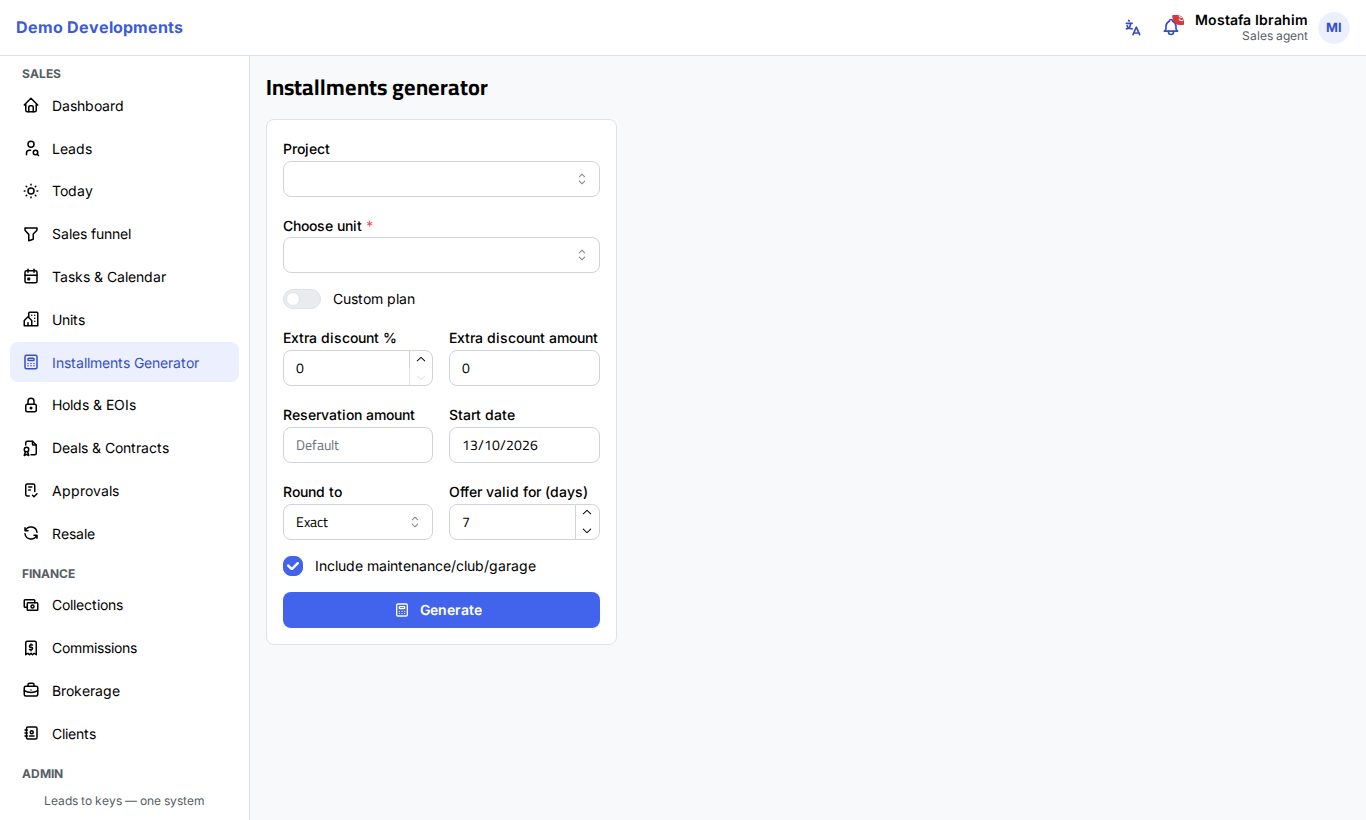
Generate a schedule
- Choose the Project, then the unit in Choose unit. A box shows the unit code, type, area, bedrooms, List price and status.
- Under Standard plans to compare, tick the plans you want. The project's active plans are ticked for you.
- Adjust the options if needed:
- Extra discount % (up to 50%) and Extra discount amount: a discount on top of the plan's own discount.
- Reservation amount: leave it empty to use your company's default reservation amount.
- Start date: the date the schedule starts from (today by default).
- Round to: Exact, 10, 100 or 1,000, to round the payments.
- Offer valid for (days): from 1 to 90; printed on the PDF offer.
- Include maintenance/club/garage: untick it to show the price payments only.
- Click Generate.
Tip
If you open the generator from a unit or a lead, the project, unit and client name are filled in for you.
A custom plan
When none of the standard plans fits:
- Turn on Custom plan. A card appears above the results.
- Fill in Name, Down payment %, Years (0 to 20), Frequency, First installment after (months), Delivery payment %, Delivery after (months) and Discount %.
- Add yearly or one-off payments under Extra / lump payments if needed (see payment plans).
- Click Generate. The custom plan is shown next to the standard plans you ticked.
Approval
Custom plans and extra discounts need manager approval. You can still show them to the client; the approval is asked for when you create the reservation. See Approvals.
Read the results
Plan comparison shows one row per plan:
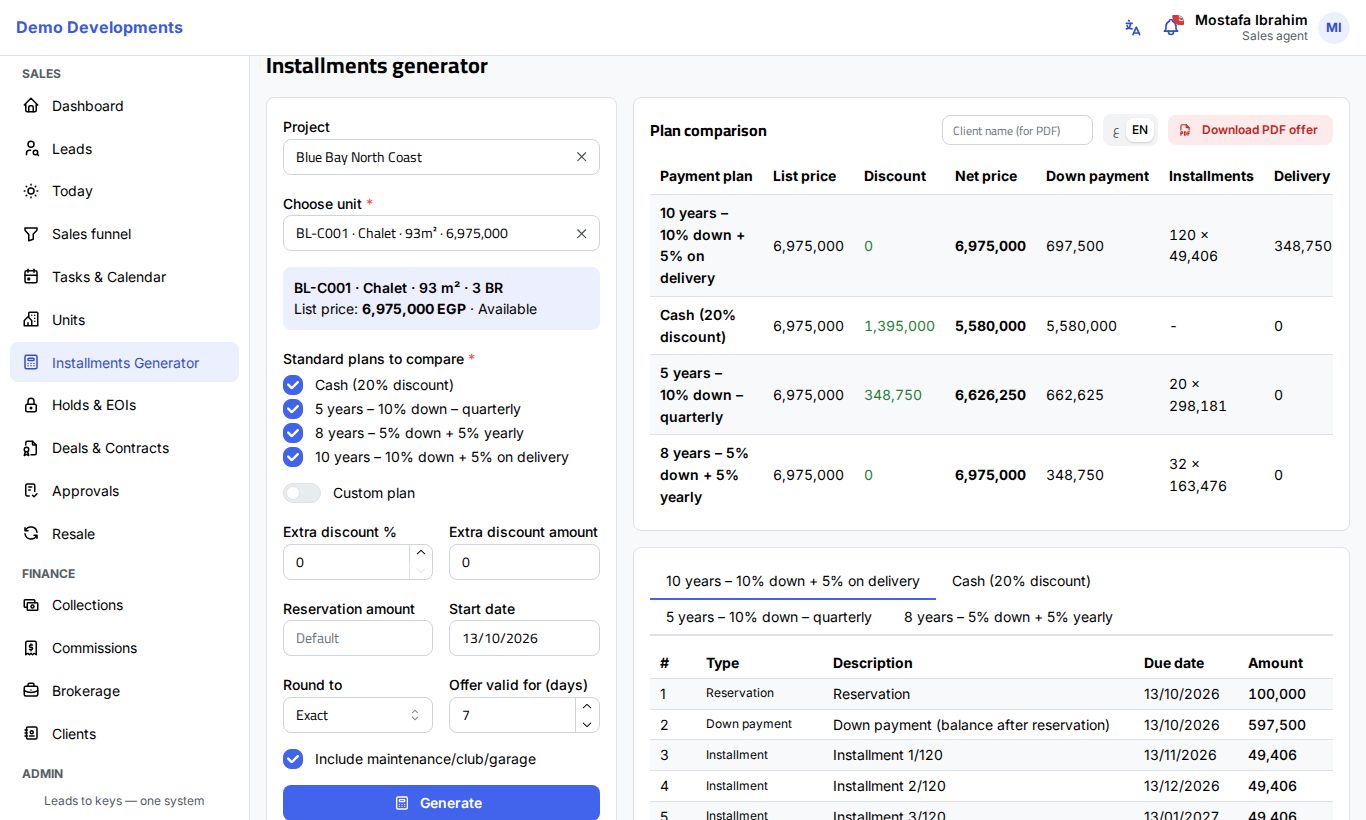
| Column | Meaning |
|---|---|
| Payment plan | The plan's name. |
| List price | The unit's price before discounts. |
| Discount | The plan's discount plus any extra discount. |
| Net price | The price the client pays for the unit. |
| Down payment | Reservation plus down payment. |
| Installments | Number of installments × the amount of each. |
| Delivery payment % | The payment due at delivery. |
| Fees | Maintenance, club fee and garage (if included). |
| Last payment | The date of the last payment. |
Below the table, one tab per plan shows its full schedule: number, Type (reservation, down payment, installment, delivery payment, extra payment, maintenance, club fee, garage), Description, Due date and Amount, with the Total at the bottom.
Send a PDF offer
- Type the client's name in Client name (for PDF) (filled in when you came from a lead).
- Choose the offer's language: ع for Arabic or EN for English.
- Click Download PDF offer.
The PDF carries your company's name and logo, the unit, every plan you generated with its schedule, your name and phone, and the date the offer is valid until. When you came from a lead, a "Payment plan offer sent" note is added to the lead's activity.
From offer to reservation
When the client chooses a plan, click Reserve / create deal on its row. The New reservation page opens with the unit, the lead, the plan, the discounts, the reservation amount and the rounding already filled in. The button only works while the unit is Available or Held. See Creating deals.
Good to know
- The generator only calculates; nothing is saved and the unit is not taken until you create a reservation.
- Prices come from the unit's current price. If the price lists change, generate again.
- Maintenance and club fee follow the project's rules; the garage is added only for units with a garage.