
Roles and access
Every user has one role. The role decides two things: what they can do (their rights, for example "record payments" or "assign leads") and which records they see (their own, their team's, or the whole company's). Excelia CRM has 7 built-in roles, and company admins can create their own. This page explains them in plain words, so you know why a colleague sees a page you don't, and so admins can choose the right role for each person.
Which records you see
| Records they see | Means |
|---|---|
| Their own | Their own leads, deals and clients (clients of their deals), plus the lead pool. |
| Their team's | Their own and their team members' leads, deals and clients, plus the lead pool. |
| All | Every record in the company. |
The same rule applies everywhere: lists, search, the funnel, reports and exports. A sales agent's reports, for example, count only their own leads and deals.
The built-in roles
| Role | What they typically do | Records they see |
|---|---|---|
| Super admin | Everything in the company. The only role that can add or change other super admins, and the only one who can decide their own approval requests. | All |
| Company admin | Everything: company settings, users, teams, roles, integrations, e-mail, imports, privacy and the audit log, plus all sales and finance work. | All |
| Sales manager | Assigns, imports and exports leads; works all holds, EOIs, deals and contracts; edits projects, units and prices; decides approvals; waives installments; approves commissions; sets targets, distribution rules, brokers and ad spend; sees all reports. Does not record payments or change company settings and users. | All |
| Team leader | Works leads like an agent and also assigns them; follows the team's holds, EOIs and deals; exports leads and deals; sees sales and funnel reports and colleagues' contact details. Does not generate contracts or edit inventory. | Their team's |
| Sales agent | Works their leads and takes new ones from the pool; logs calls and follow-ups; holds units, records EOIs and makes reservations; requests cancellations or changes; lists resale units; follows the installments of their own deals and their own commissions. Cannot export. | Their own |
| Finance | Records payments, cheques, charges and refunds; waives installments; handles contracts, handovers, terminations and reschedules; approves commissions; sees collections and sales reports. Does not see leads. | All |
| Marketing | Adds, imports and exports leads; enters ad spend and follows lead sources and campaigns; sees the lead integrations; sees marketing, sales and funnel reports. Does not see deals, clients or approvals. | All |
Pages everyone has
The dashboard, units, inventory, commissions (their own; everyone's for admins, sales managers and finance) and their profile are open to every role. Tasks & Calendar is for sales roles and finance.
Approvals and roles
- Who decides a request is set in your company's approval workflows (Settings → Approvals), by role.
- Sales agents and marketing can raise requests but never decide them.
- Nobody decides their own request, except a super admin.
- Approvals can be delegated (for example during leave) only to a manager, team leader, finance or admin user.
See Approvals.
Protected personal data
- ID and passport numbers. Only super admins, company admins and finance (or a company role with the right See full ID and passport numbers) see them in full. Everyone else sees dots and the last 4 digits, on every page, and the numbers are left out of their Excel exports.
- Phone numbers and e-mails in Excel exports. Only super admins, company admins and sales managers (or a company role with the right Include phone numbers in Excel exports) get these columns in exports. People without this right can still export, but without contact columns.
- Colleagues' contact details. Managers and team leaders see their colleagues' phone and e-mail.
Company roles
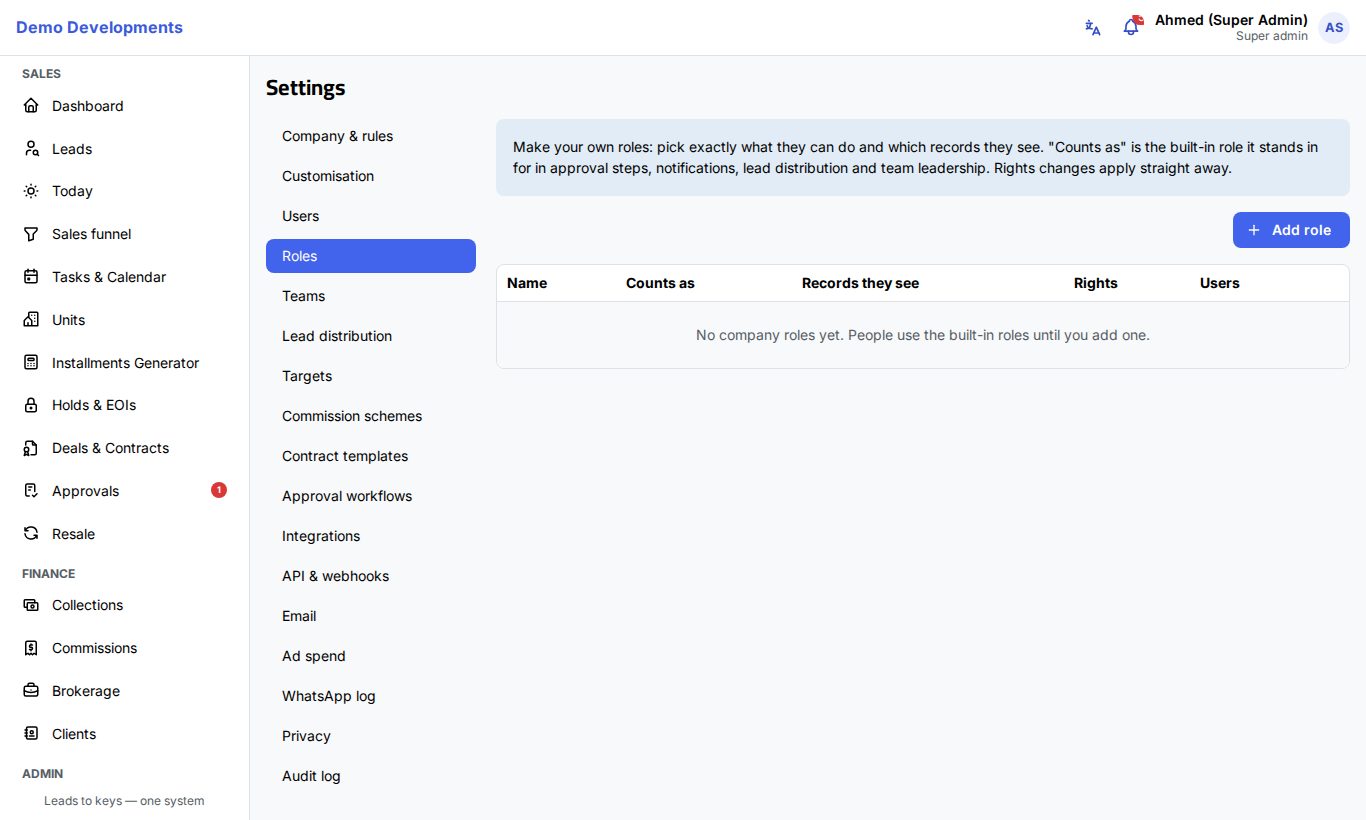
When the built-in roles don't fit, a company admin can create the company's own roles in Settings → Roles: for example "Senior agent" who may also export leads, or "Collections officer" who records payments but doesn't approve commissions.
To add a role:
- Open Settings → Roles and click Add role.
- Enter Name (Arabic) and Name (English).
- Choose Counts as: the built-in role this role stands in for in approval steps, notifications, lead distribution and team leadership. For example, only people who count as Sales agent receive leads from the automatic distribution.
- Optionally choose Start from to copy the rights and records of a built-in role, then adjust.
- Choose Records they see: Their own, Their team's or All.
- Tick the Rights, grouped by area (leads and tasks, clients, inventory, sales, finance, approvals, reports, settings and users).
- Click Save.
Then give the role to people in Settings → Users. See Users and roles.
Good to know about company roles
- Changes to a role's rights apply straight away to everyone who has it.
- You can only give rights you have yourself.
- A role that people still have cannot be deleted: give them another role first. You can also switch a role off.
Good to know
- If a page, button or record is missing, it is almost always the role. Ask your company admin rather than sharing accounts.
- Your role is shown under your name in the top bar and on your profile.
- Changes to rights apply straight away.
- Your company can require two-factor sign-in for some roles (see Signing in and security).