
Company settings
Settings → Company & rules holds your company's details and logo, the rules the CRM follows on its own (lead follow-up, holds, reservations, reminders and late penalties), your time zone, and how people sign in (two-factor sign-in, idle sign-out and password rules). Only company admins can open this page.
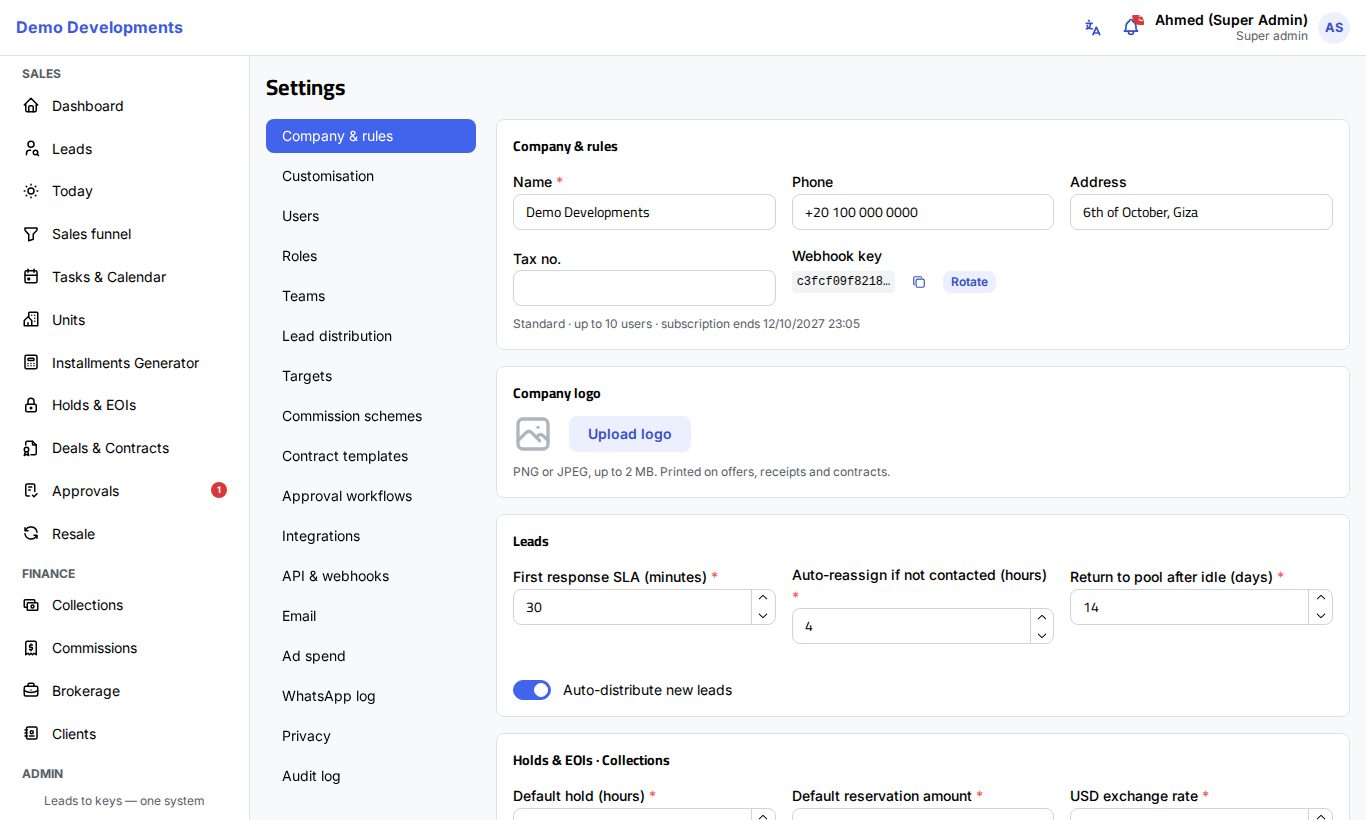
To open it, choose Settings in the menu, then Company & rules. The page is made of cards. Change what you need, then click Save at the bottom of the page: one Save button keeps the changes of all the cards (the logo is the exception, see below).
Company details
The first card has your company's details:
- Name (required): shown in the app, on e-mails ("Your company via Excelia CRM") and in contracts.
- Phone.
- Address: used in contracts (the
placeholder). - Tax no.
- Webhook key: the secret key your website forms and ExceliaBOT use to send leads into the CRM. Click the copy button to copy it. Click Rotate to make a new one (see the warning below).
Under the card you can see your plan, how many users it allows and when your subscription ends.
Rotating the webhook key
As soon as you click Rotate, the old key stops working. Leads from your website forms and from ExceliaBOT are refused until you put the new key in those places. See Integrations and API.
Company logo
The logo is printed on offers, receipts and contracts, and appears at the top of the e-mails the CRM sends to your people.
- In the Company logo card, click Upload logo.
- Choose a PNG or JPEG image of up to 2 MB.
- The logo is saved straight away; you do not need to click Save.
To take it off, click Remove logo. E-mails then show the Excelia mark instead.
Lead rules
The Leads card decides what the CRM does on its own with new and forgotten leads:
- First response SLA (minutes): if a new lead given to an agent is still not contacted after this many minutes, the agent gets a reminder and the leader and manager of the agent's team get an alert.
- Auto-reassign if not contacted (hours): a new lead nobody contacted within this time is given to another agent (or put back in the pool). 0 switches this off.
- Return to pool after idle (days): an open lead with no activity for this many days goes back to the lead pool. 0 switches this off.
- Auto-distribute new leads: when on, new leads are shared out to agents by your distribution rules. See Lead distribution.
Holds, reservations and collections
The card Holds & EOIs · Collections holds the defaults for sales and payments:
- Default hold (hours): how long a hold on a unit lasts if the agent does not choose. Between 1 and 168 hours (7 days).
- Default reservation amount: the amount proposed when a reservation is made.
- USD exchange rate: the rate used to convert between Egyptian pounds and US dollars, for example for unit prices in dollars and for deals in projects priced in dollars.
- Reminder days before due: how many days before an installment is due the client's WhatsApp reminder goes out (when Send WhatsApp reminders is on). 0 switches reminders off.
- Penalty grace (days): how many days late an installment can be before a late penalty applies.
- Late penalty %: the penalty as a percentage of the overdue amount.
- Late penalty fixed amount: a fixed amount added on top of the percentage, if you use one.
- Default after missed installments: after this many overdue installments, the deal is flagged as in default, and Finance, company admins, sales managers and the deal's agent are alerted. 0 switches this off.
- Bounced cheque fee: the fee charged when a cheque bounces.
- Send WhatsApp reminders: when on, payment reminders, overdue notices, payment receipts and bounced cheques are sent to clients on WhatsApp through ExceliaBOT (when ExceliaBOT is connected, see Integrations and API).
- Time zone: decides "today" for due dates and penalties, and the year in document numbers. You can choose Cairo, Riyadh, Dubai, Kuwait, Qatar, Bahrain, Amman, London or UTC. The default is Africa/Cairo.
For how these rules show up in daily work, see Collections and Holds & EOIs.
Sign-in security
The Sign-in security card protects your company's accounts:
- Require two-factor sign-in for these roles: choose one or more roles. People with these roles must set up two-factor sign-in (a 6-digit code from an authenticator app) at their next sign-in and cannot turn it off. Everyone else can still turn it on from their profile. People with one of your own company roles follow the built-in role their role counts as.
- Sign out after idle minutes: people who do not use the CRM for this many minutes are signed out. Shortly before, they see Still there? with a countdown and can choose Stay signed in. Choose between 5 and 1440 minutes, or 0 for never (not recommended).
- Minimum password length: between 8 and 64 characters. Passwords must also have letters and numbers and must not be easy to guess.
- Ask for a new password every (days): between 30 and 730 days, or 0 for never. When the time is up, people are asked to choose a new password at sign-in.
Click Save at the bottom of the page.
New rules and existing passwords
The password rules apply to new passwords. People keep their current password until they change it or until it expires.
Good to know
- Only company admins can change this page. Every change is recorded in the audit log.
- If someone loses their phone, you can reset their two-factor sign-in from Settings → Users. See Users and roles.
- The retention periods for personal data are set on a separate page: see Privacy and data protection.
Tip
Require two-factor sign-in at least for Company admin and Finance: they can see and change the most sensitive data.