
Clients
A client is a person or company who has bought from you: a lead becomes a client when you make a deal with them, and co-buyers on a deal become clients too. The Clients page lists them with their ID details, and each client has a page with their contacts, all their deals and their full history, from the first call as a lead to the latest payment. Sales and Finance open it from Clients in the Finance part of the menu. Agents see the clients of their own deals, team leaders those of their team's deals, and managers, admins and Finance all clients.
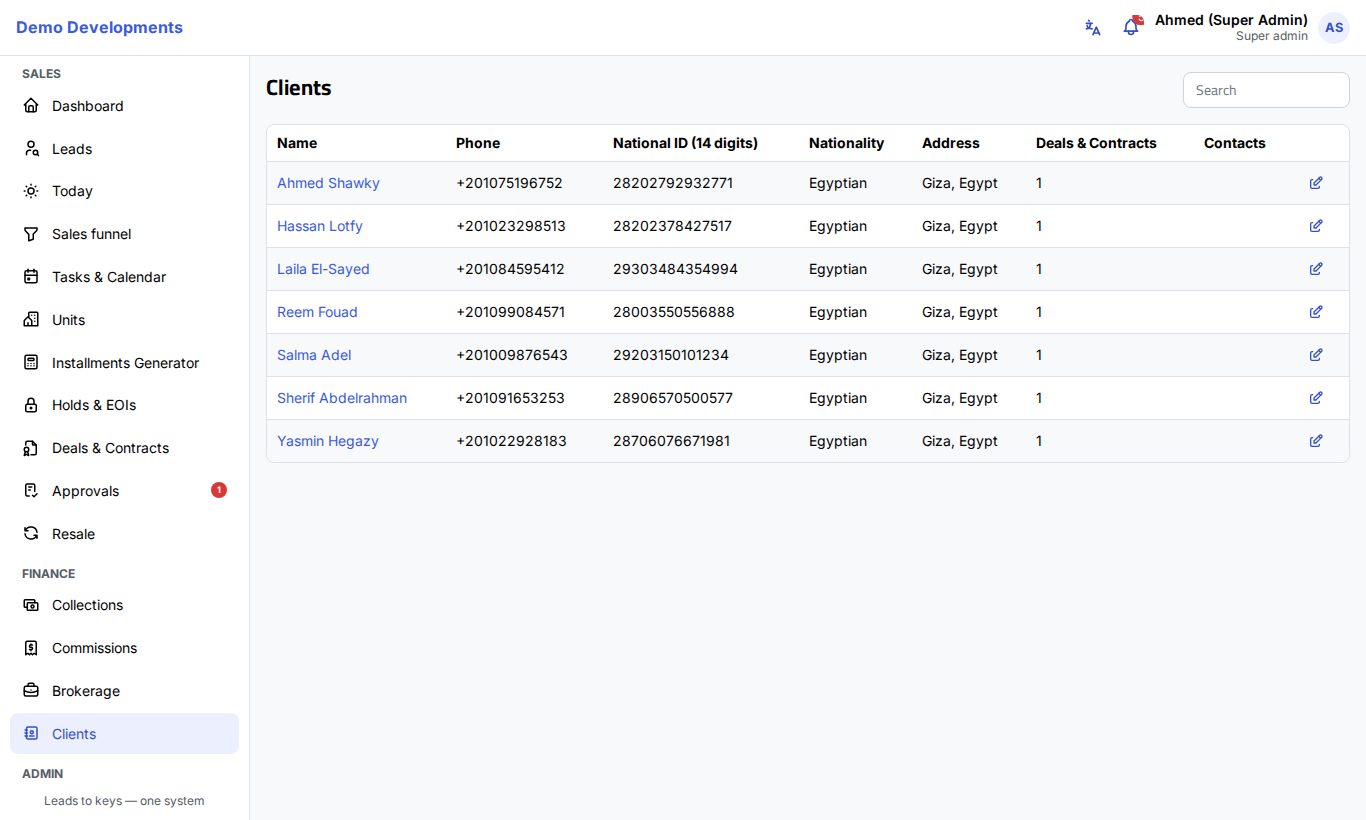
The clients list
- Type in Search to find a client by name, phone or full national ID.
- The table shows the Name (with a Company badge for companies), Phone, National ID (14 digits) (or the commercial register number for a company, or the passport number), Nationality, Address, the number of Deals & Contracts, the number of Contacts, and your company's own client columns.
- Click a name to open the client page.
The list shows up to 200 clients, sorted by name. Use the search to reach others.
Edit a client's details
- Click the pencil at the end of the row.
- Correct Name, Name (AR), Phone and Email.
- For a company, tick Company and fill in the Commercial register no. and Tax no.
- Fill in National ID (14 digits), Passport no., Nationality, Occupation, Birth date and Address, and your company's own fields if any.
- Click Save.
A national ID must be 14 digits for Egyptians (or when the nationality is empty). Companies and other nationalities can leave it in any form.
ID numbers are masked
National ID and passport numbers are shown in full only to Finance and admins (by default). Everyone else sees dots and the last 4 characters, here, on the client page, on the deal page and in Excel exports.
The client page
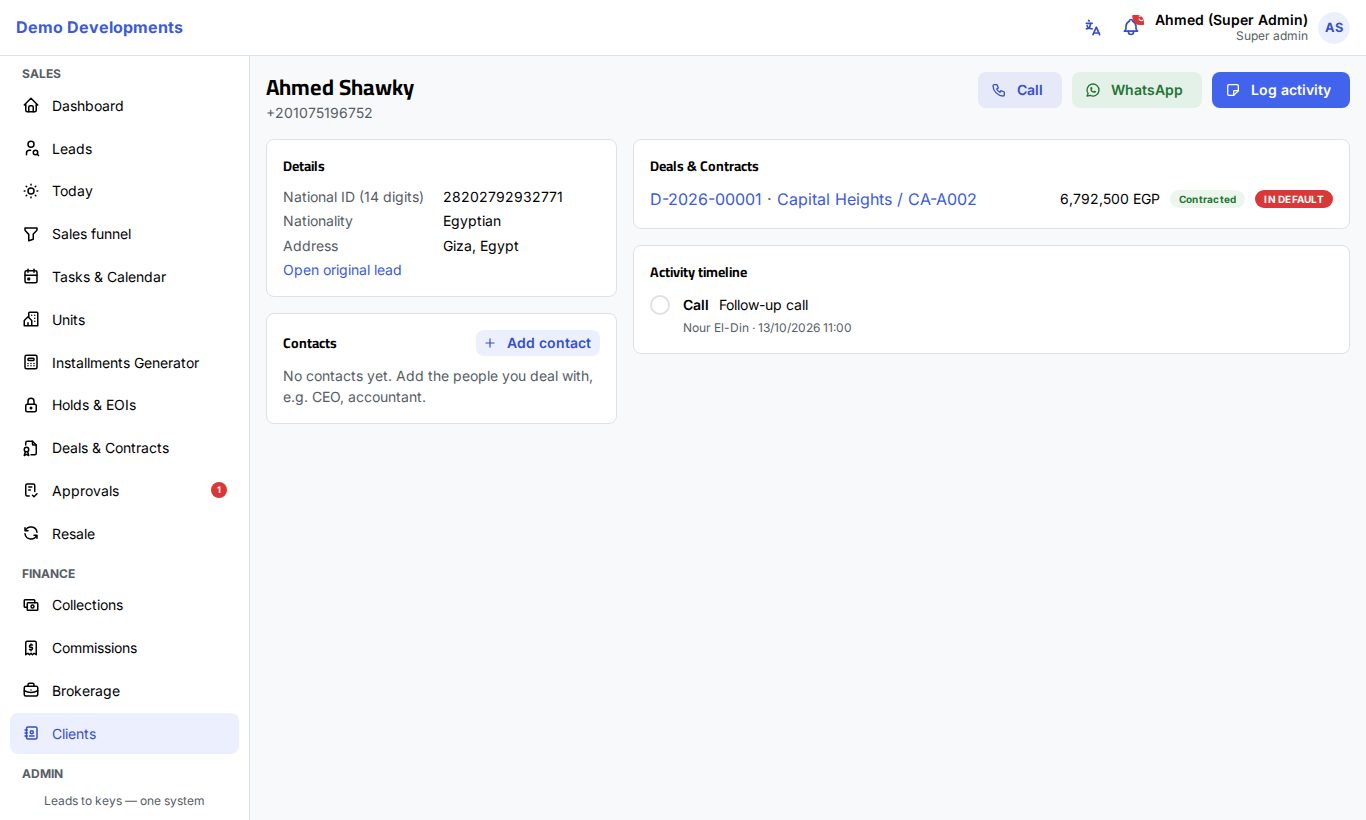
At the top: the client's name (with a Company badge), the phone, and three buttons:
- Call starts a phone call.
- WhatsApp opens a WhatsApp chat.
- Log activity records a call, WhatsApp message, meeting, e-mail, note or task with this client.
Details
The Details card shows the e-mail, the ID numbers (or the commercial register and tax numbers for a company), nationality, birth date, occupation, address and your company's own fields. Open original lead takes you to the lead the client came from.
Contacts
For companies, and for anyone you deal with through other people, the Contacts card keeps the people you speak to (for example the CEO or the chief accountant). Contact persons of the lead move here automatically when the deal is made, with their call history.
- Click Add contact.
- Fill in the Name, Job title, and a Phone or Email (at least one), and any Notes.
- Tick Primary for the main contact, then Save.
Next to each contact you can call or message them on WhatsApp. The ⋯ menu has Log activity (recorded as being with this person), Edit, Make primary and Remove. A contact who already has activities is marked as Left instead of being deleted; Show … who left brings them back into view. If the phone you type already belongs to a lead, you are told and can open that lead instead.
Deals
The Deals & Contracts card lists every deal the client is on, as the main client or a co-buyer: deal number, project and unit, net price, status, and an In default badge when it applies. For joint purchases it shows who the client buys with and their share. Click a deal to open the deal page.
Activity timeline
The Activity timeline brings together everything about the client: activities from their time as a lead, everything on their deals (reservation, payments, contract, changes) and what was logged on the client page, newest first. Planned tasks are shown in orange.
Log an activity
- Click Log activity (or Log activity next to a contact).
- Choose the Type, and in With whom the contact you spoke to (or leave the client).
- Fill in the Subject, Notes and Outcome.
- To plan something for later, set Schedule task (Due at); tick Completed if it is already done.
- Click Save.
Good to know
- There is no "add client" button: clients are created by deals. Admins can also import existing clients from Excel; see Importing from Excel.
- When a deal is made with a national ID or phone that already belongs to a client, the deal is added to that client instead of creating a new one.