
Lead page
Each lead has its own page with everything about the person: their details and needs, every call and visit so far, the next follow-up, the people you deal with at a company, and the units that match their budget. This is where agents do most of their daily work, and where team leaders and managers check a lead's history or hand it to someone else. Open it by clicking a lead anywhere in the system (the leads list, Today, the pipeline board, a task).
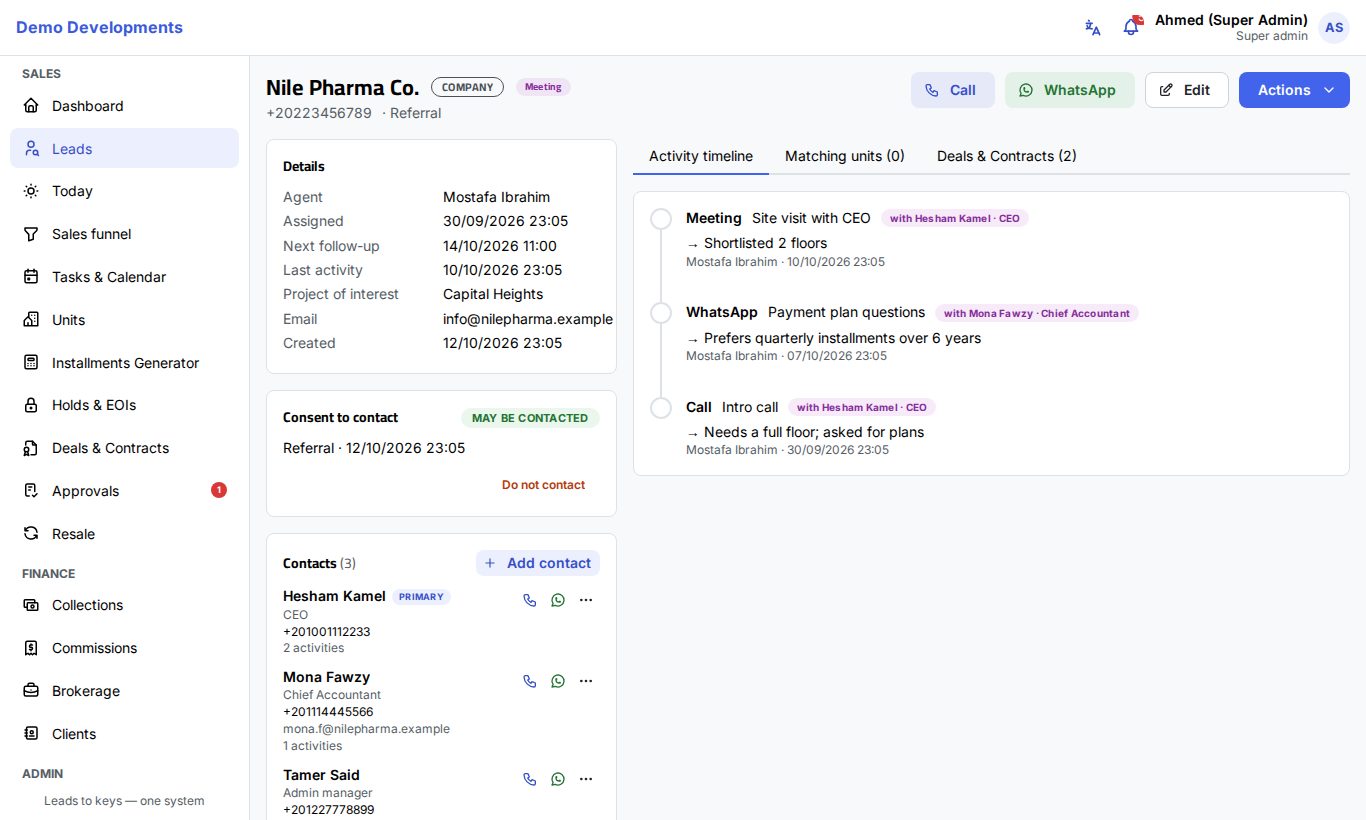
The page at a glance
- Top of the page: the name (with a Company badge for companies), the stage badge (with your company's own step, if any) and an Inquiries badge when the person has asked more than once. Under the name: the phone, the source and the campaign.
- Buttons: Call, WhatsApp, Edit and Actions. The Actions menu holds Log activity, Change stage, Assign (managers), and the sales steps: Payment plan offer, Hold unit, Record EOI, Reserve / create deal and Register with developer.
- Left side: the Details card (agent, assigned date, Next follow-up, Last activity, project of interest, sub-agent, e-mail, lost reason, created date), the Consent to contact card, the Contacts card and the Qualification card (budget, payment preference, preferred area and the rest, your company's own fields, and the notes).
- Right side, in tabs: Activity timeline, Matching units, Deals & Contracts (deals, holds and EOIs of this lead) and Developer registrations when there are any.
Log an activity
Log every contact with the lead so the whole team can see what happened and what comes next.
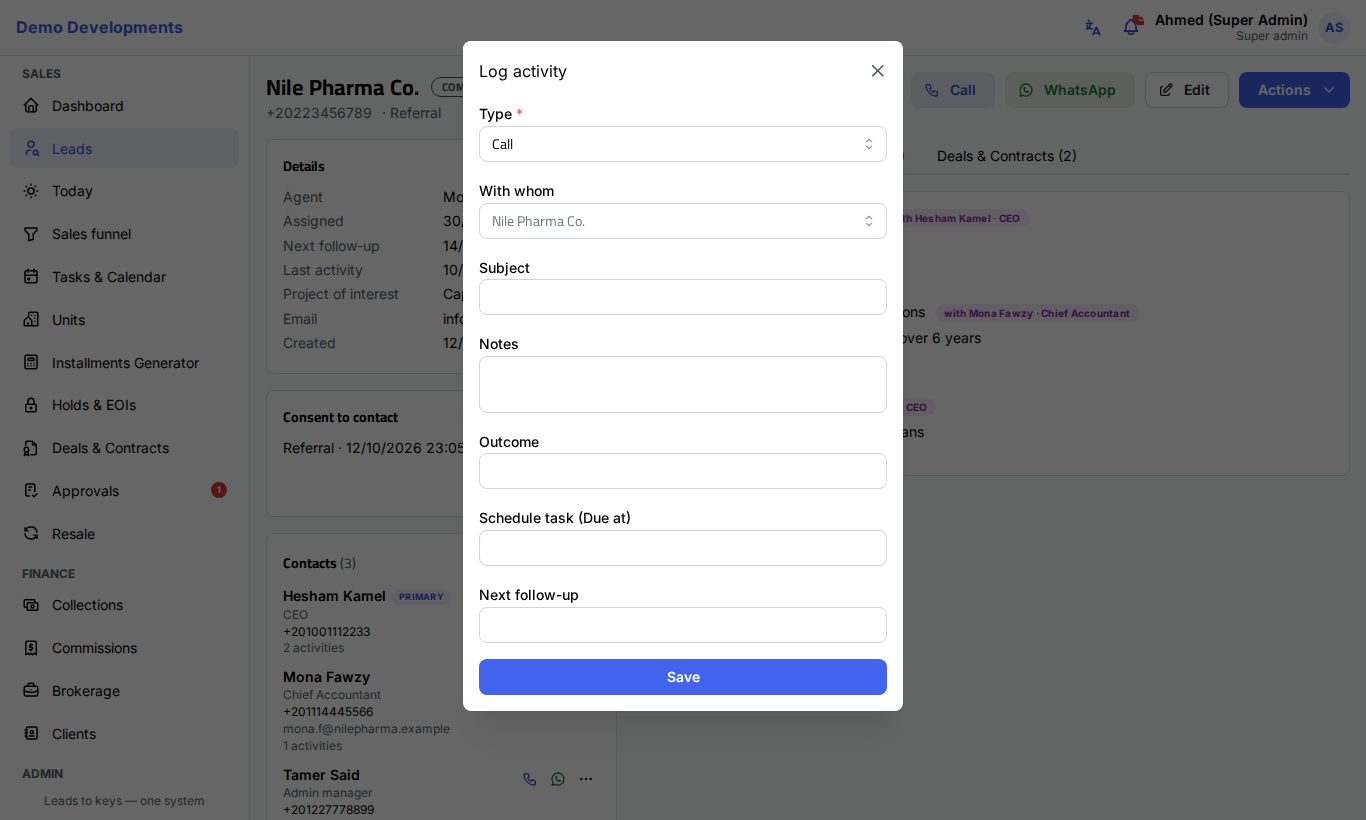
- Click Actions → Log activity (on a phone, tap Log in the bar at the bottom).
- Choose the Type: Call, WhatsApp, Meeting, Site visit, Email, Note or Task.
- If the lead has contact persons, choose With whom you spoke. Leave it empty if it was the lead.
- Write a short Subject, any Notes, and the Outcome (for example "Interested, wants a 3-bedroom").
- To plan something for later, pick a date and time in Schedule task (Due at). If you are recording something that already happened at that time, tick Completed.
- Set the Next follow-up: when you will contact the lead again.
- Click Save. The entry appears at the top of the timeline.
What happens automatically:
- Logging a Call, WhatsApp, Meeting, Site visit or Email on a New lead moves it to Contacted.
- A completed Meeting moves the lead to Meeting, and a completed Site visit to Site visit, unless it is already further along.
- An activity with a due date that is not done becomes a task: it shows in Tasks & Calendar and on the Today page on its day. If you did not set a Next follow-up, the task's date becomes the lead's next follow-up.
- An activity without a due date is recorded as done now.
Follow-ups
Every open lead should have a Next follow-up. It is shown in the Details card (in red when it has passed), drives the Follow-ups list on your Today page and the Overdue follow-up view of the leads list, and triggers your reminders:
- a push notification about 15 minutes before, if you turned notifications on for your device;
- the daily summary e-mail at 07:00 with the day's follow-ups.
See reminders for how to switch them on or off. You can set the next follow-up when you log an activity, change the stage, or edit the lead.
Change the stage
- Click Actions → Change stage (on a phone, tap Stage in the bottom bar).
- Choose the new Stage. If your company added its own steps (for example "Second call" after Contacted), they appear under their stage as "Contacted › Second call".
- Set the Next follow-up. It is required for every stage except Lost.
- Add Notes if useful, then click Save.
The change is written in the timeline as "Stage change", with the old and new stage.
Reserved and Contracted are set by deals
You can move a lead between New, Contacted, Qualified, Meeting, Site visit, EOI, Negotiation and Lost (minus any stage your company hid). Reserved and Contracted are set automatically when a reservation and a contract are made for the lead; see Deals & contracts.
Mark a lead as lost
- In Change stage, choose Lost.
- Choose the Lost reason: the standard reasons (Price, Location, Competitor, No answer, Not interested, Budget, Timing, Wrong number, Duplicate, Other) and any reasons your company added. The reason is required.
- Write what happened in Notes, then click Save.
The lead's next follow-up is cleared and the reason shows in the Details card. Lost reasons feed the Where leads are lost table on the Sales funnel. If a lost lead asks again through an ad, the website or WhatsApp, it goes back to New by itself.
Assign or reassign a lead
Managers and team leaders can change who owns a lead:
- Click Actions → Assign.
- In Assign to, choose the agent, team leader or sales manager. Leave it empty to put the lead in the Pool.
- Click Save.
The timeline records "Assignment" from the old owner to the new one, and the new owner gets a notification and an e-mail. To move many leads at once, use bulk assignment on the leads list.
Contacts
For a company (or a family where you deal with several people), the Contacts card keeps the people you speak with: the CEO, the accountant, the procurement manager…
To add a contact:
- Click Add contact in the Contacts card.
- Fill in the Name, Job title, and a Phone or an Email (at least one of the two). Add Notes if useful.
- Tick Primary for the main person. The first contact is primary by default.
- Click Save.
Each contact has its own call and WhatsApp buttons. The ⋯ menu next to a contact offers Log activity (the activity is recorded "with" that person and shows in the timeline), Edit, Make primary and Remove.
- A contact who already has activities is not deleted: they are marked Left, so the history stays. Use Show … who left to see them again. When editing, untick Still works there to do the same yourself.
- A contact's phone is checked like a lead's: if it already belongs to another lead you see This phone already belongs to another lead, with Open existing lead. Managers, team leaders and marketing can choose Add anyway.
- Searching the leads list by a contact's name or phone finds the lead, and if a contact writes in through WhatsApp or an ad, it counts as the same lead instead of a new one.
Consent and "do not contact"
The Consent to contact card shows where and when the person agreed to be contacted (for example Ad form (Meta, Google, TikTok), WhatsApp chat, Added by staff) and a badge: May be contacted or Do not contact.
If the person asks not to be contacted:
- Click Do not contact in the card.
- Write the Reason (for example "Asked on the phone not to be contacted"). It is required.
- Click Save.
From then on ExceliaBOT sends this person nothing, the WhatsApp buttons are hidden on the Today page and the phone bar, and connected systems receive the flag. Agents may still call about an open deal. Anyone working on the lead can switch "do not contact" on; only managers (sales managers, team leaders and admins) can switch it back with May be contacted again, and only when the person asked for it. Both changes are recorded in the timeline.
If the person's data was erased (privacy request or retention period), the card says Erased with the date.
Edit the lead and your company's fields
- Click Edit.
- Change any field in the same form used to add leads, including your company's own fields (some may be required).
- Click Save.
If you change the phone to a number that another lead already uses, the system stops you and shows that lead. Your company's own fields are shown in the Qualification card.
The activity timeline
The Activity timeline tab lists everything that happened on the lead, newest first: activities logged by people (with who logged them and, if any, the contact person) and entries added by the system, such as "Lead created", "Lead received", stage changes, assignments, returns to the pool, re-inquiries and "do not contact" changes. Open tasks are shown in orange with a Mark done button.
Matching units
The Matching units tab lists available units that fit the lead's budget, project of interest and bedrooms, cheapest first, plus matching resale listings. From a unit you can open the installments generator (calculator button) or click Reserve / create deal. Fill in the budget in Qualification to get useful matches.
From lead to reservation and deal
When the client is ready, start from the Actions menu:
- Payment plan offer opens the installments generator for this lead and its project.
- Hold unit holds a unit for a number of hours (1 to 168) while the client decides. Depending on your company's rules, the hold may wait for a manager's approval.
- Record EOI records an expression of interest payment for a project.
- Reserve / create deal opens a new deal for this lead.
- Register with developer records the client's registration with a developer (brokerage).
Holds, EOIs and deals then appear in the Deals & Contracts tab. The details are explained in Holds & EOIs and Deals & contracts.
On the phone
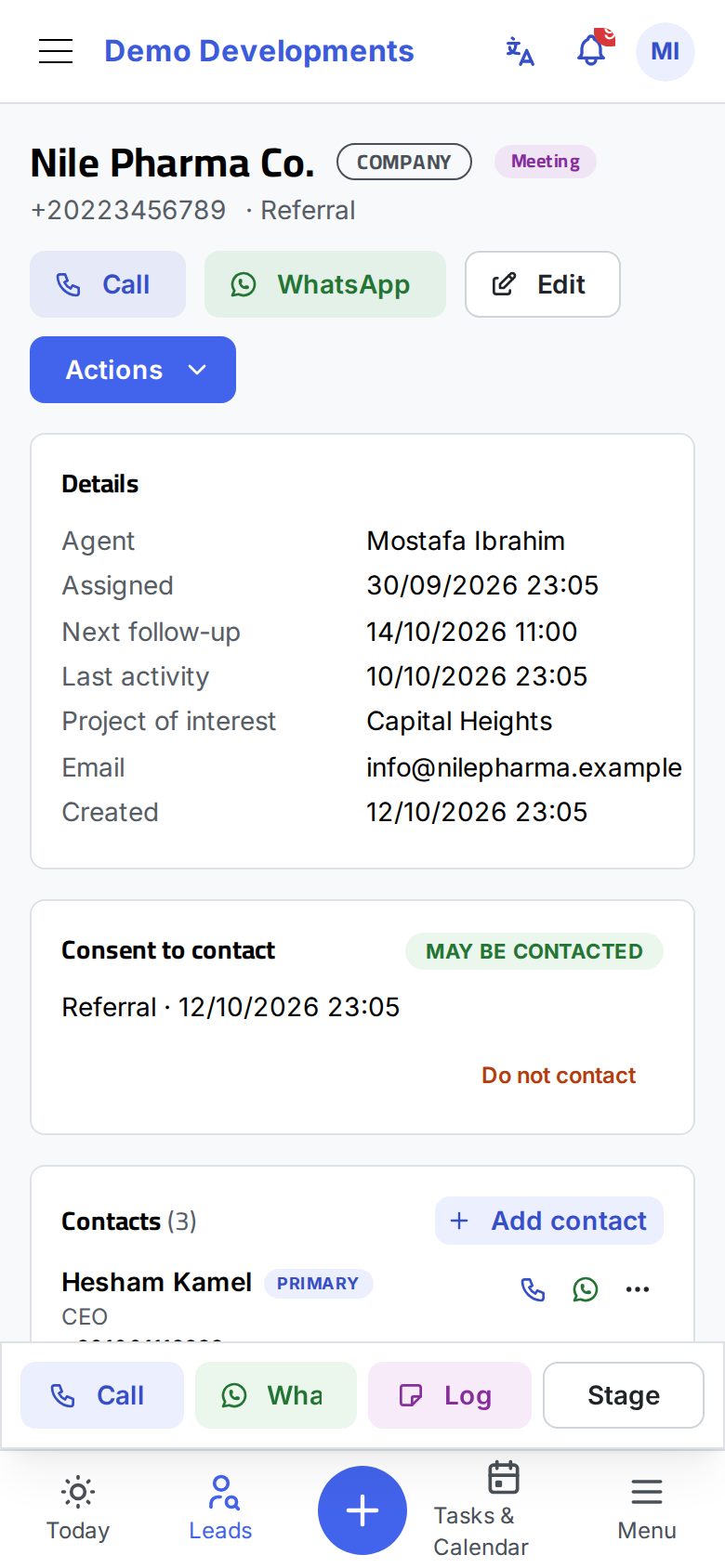
On a phone a bar stays at the bottom of the lead page with the four things you need most: Call, WhatsApp (hidden for "do not contact"), Log (opens Log activity) and Stage (opens Change stage). The rest of the page scrolls above it.
Good to know
- If a colleague or the system changes the lead while you have it open, the page reloads by itself and tells you who updated it.
- Everyone who can see a lead can log activities, change its stage and edit it. Assigning it to someone else needs a manager's right.
- Agents can mark only their own tasks as done.